The attendance module is used to keep track of the students who attend an activity or class. There are two ways of marking attendance for a session
- Marking if the student attended a class or not
- Recording the actual in and out times of students.
The attendance type for the class is determined based on the setting in the academy/class. More details on how to set up the class to capture the actual in and out time of students are available in the next section
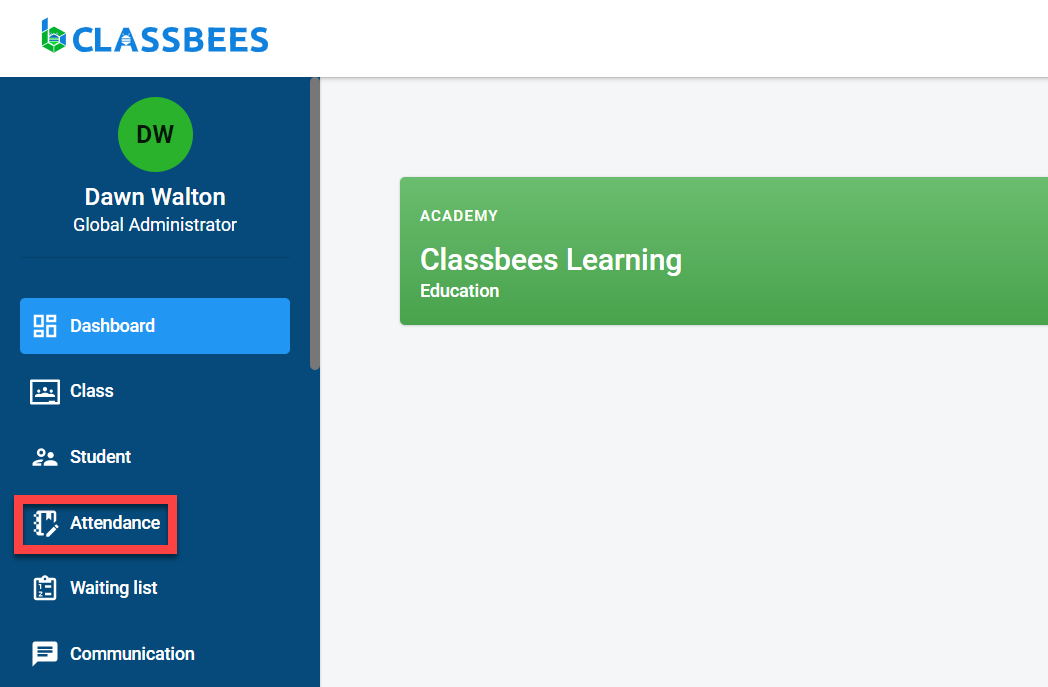
To access the attendance module, click on “Attendance” from the main menu.
The attendance main screen displays all the active classes. The first date shown on the screen is the next available session for the class. If there are no more sessions in the future for the class then the last sessions of that class will be displayed on the main screen.
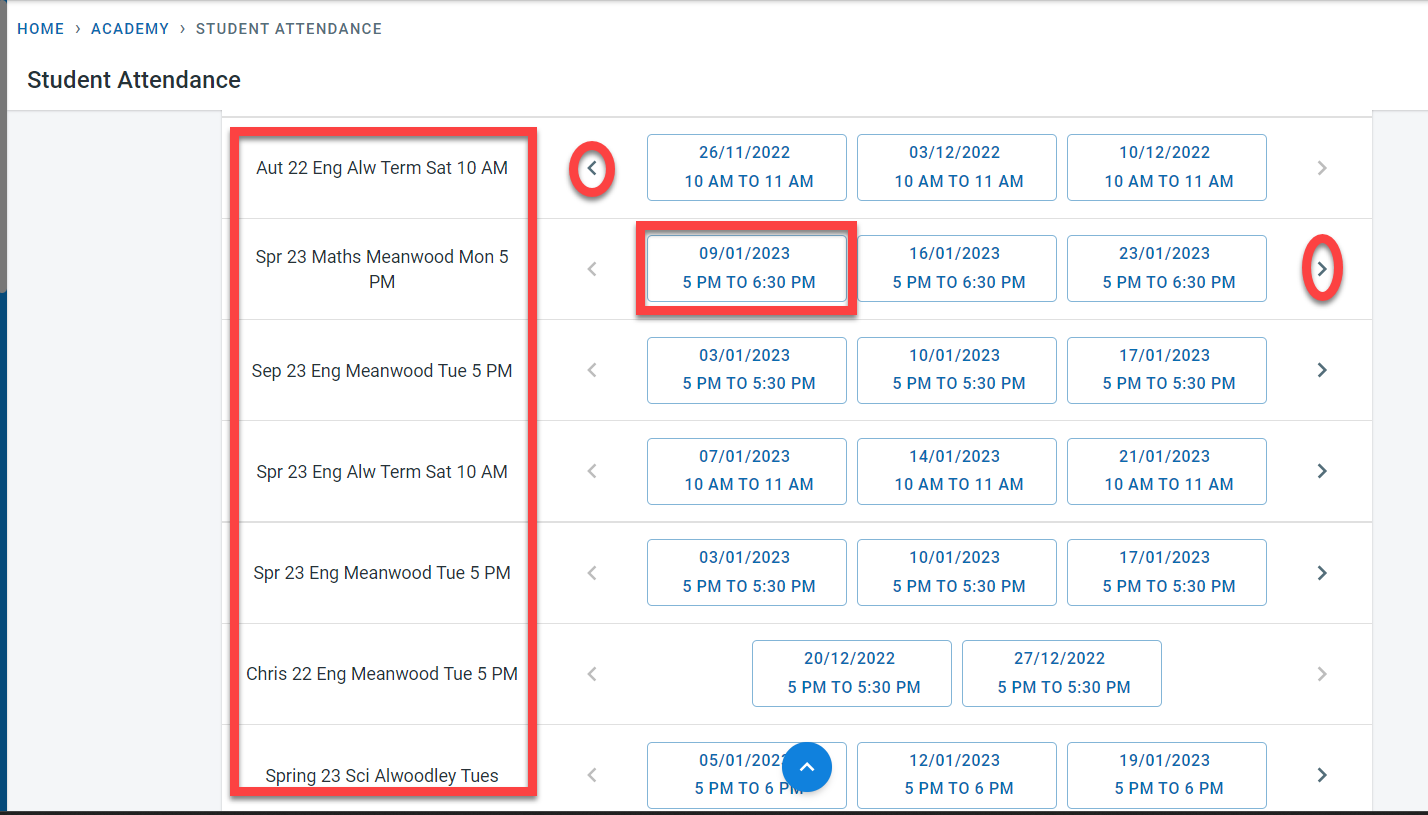
The forward and back arrows in front of and at the end of the sessions can be used to scroll through the different sessions within the class
To mark the attendance or view the attendance for a session, click on the session for a class. In the attendance screen for the session, all the students who have been reserved for the session will be shown in the first section of the attendance screen along with the enrolment type.
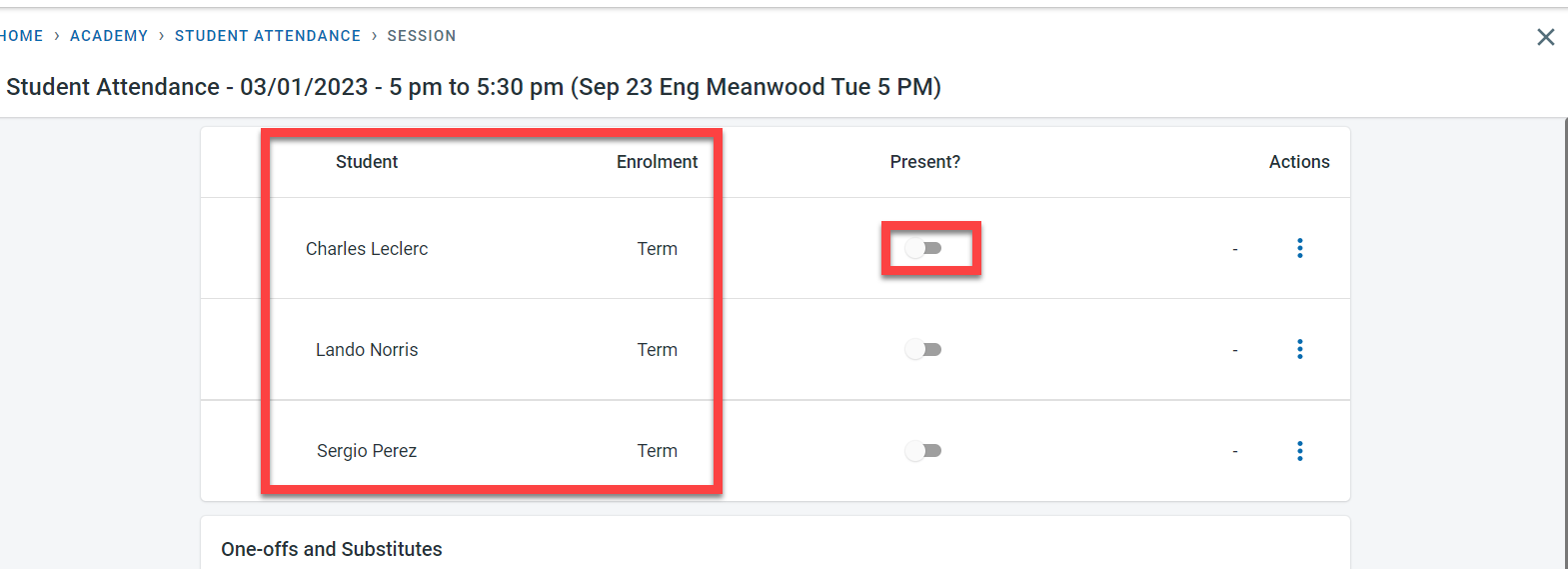
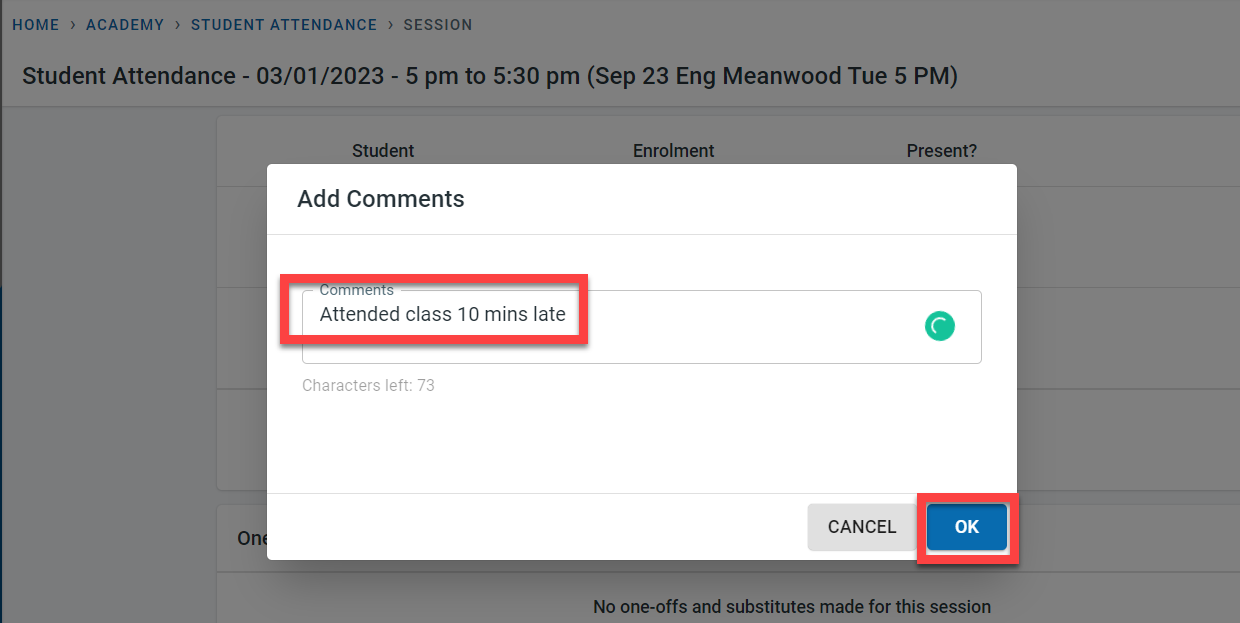
When a student attends the session, toggle the “Present” switch next to the student’s name. It is possible to add comments for a student for the session in attendance. In order to add a comment, click on the three dots under Action. Click on Edit.
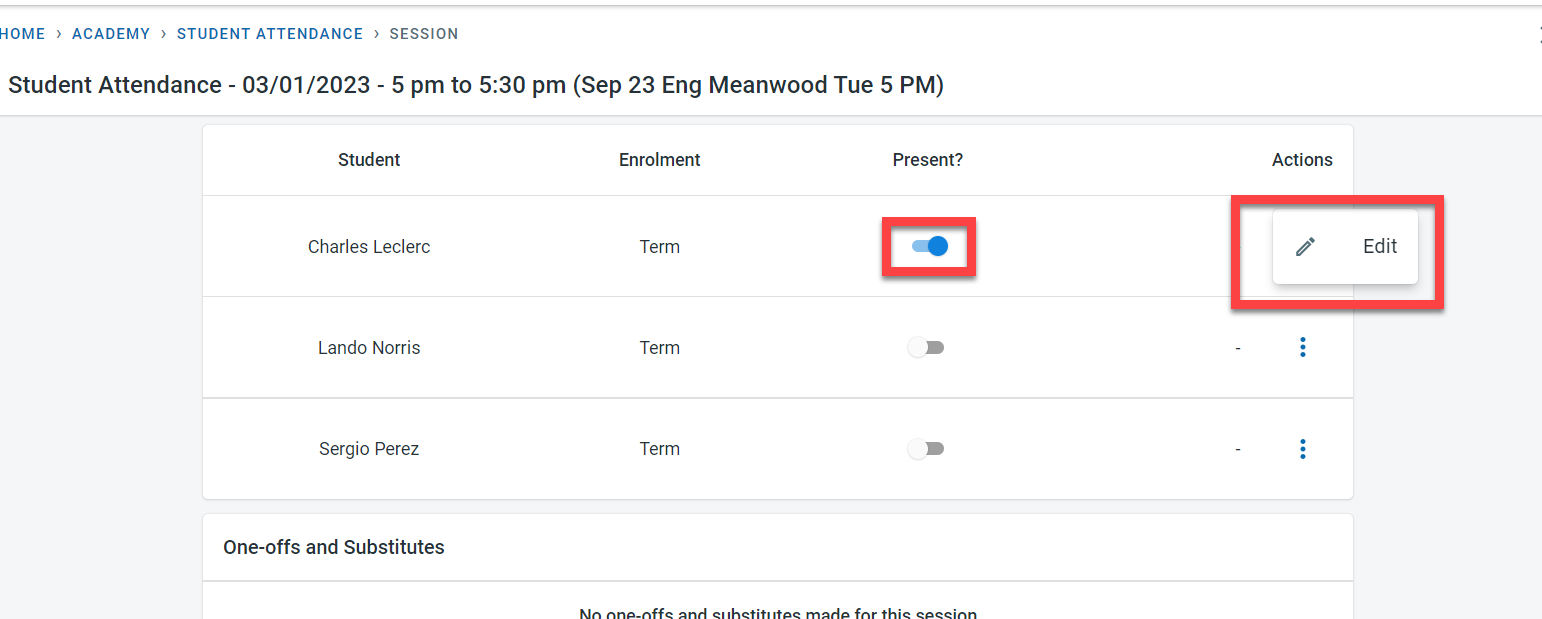
Add a comment and click on “ok”
One-off and substitutes can be added to the attendance which is detailed out here
At the bottom of the screen is the drop-in enrolment students who do not have a reservation for the session.
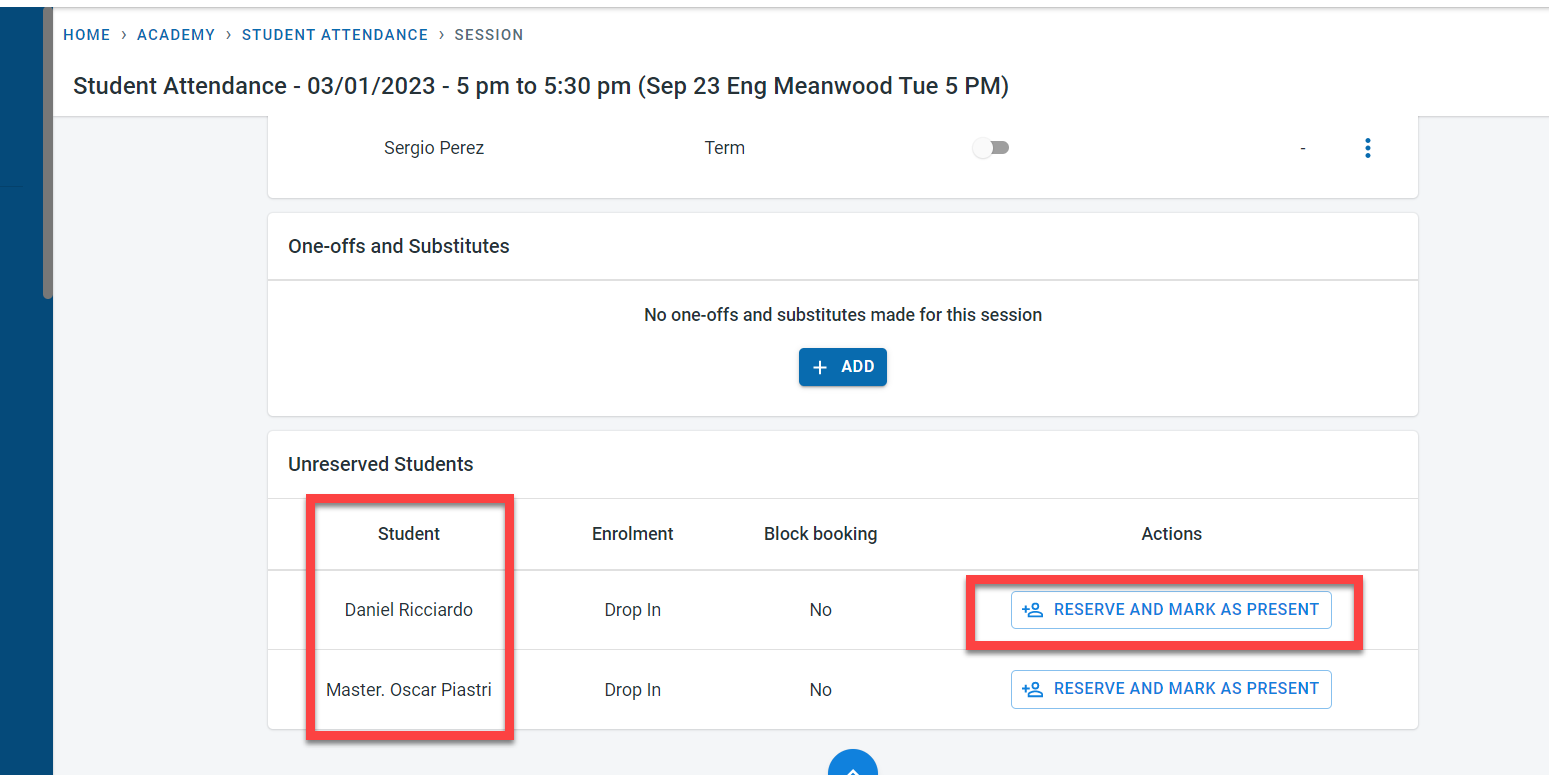
If a drop-in student turns up for the session without a reservation, click on “Reserve and Mark as Present”.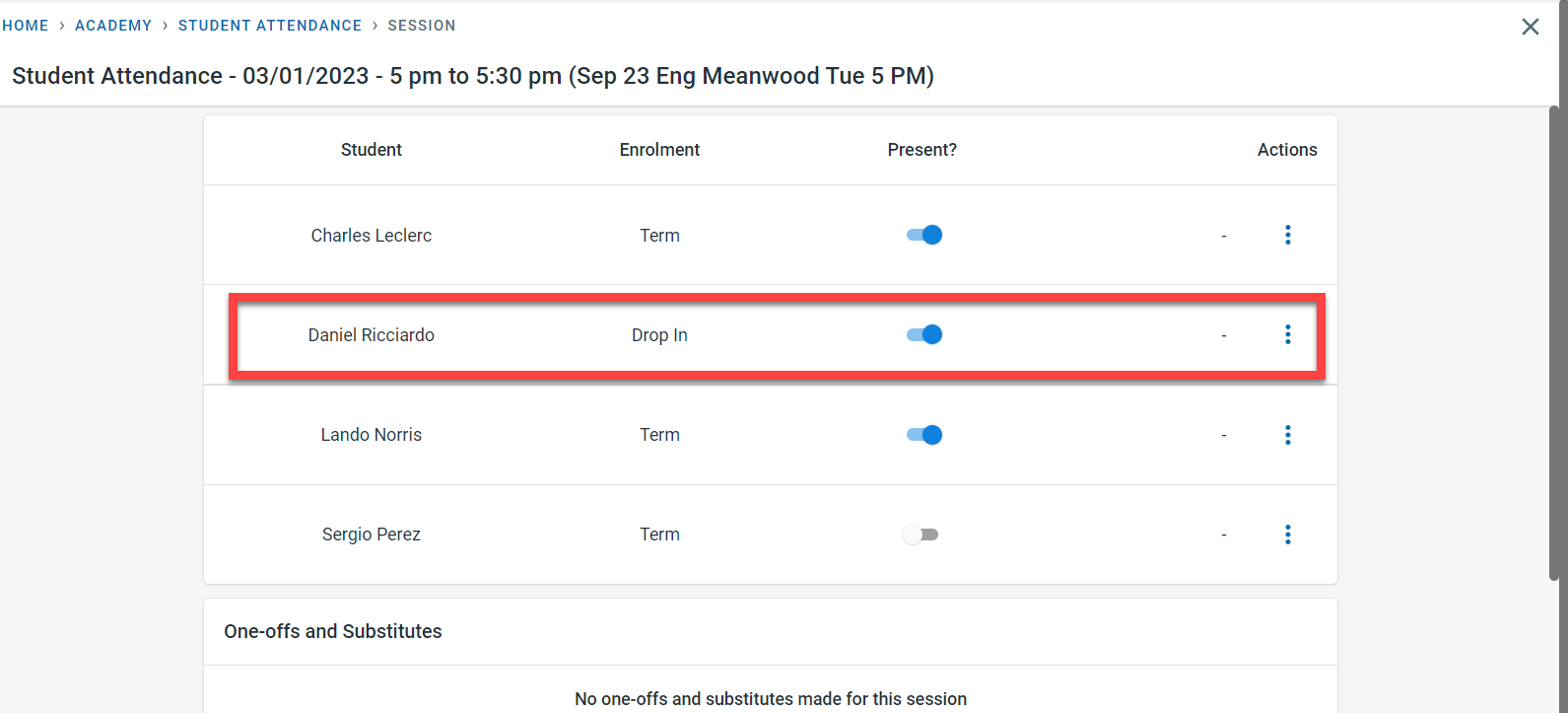
The student would be moved to the main attendance screen and would be marked as present.