It is possible for academies and clubs to capture the actual time in and time out for students when they attend the activity or class.
The setting to turn on this functionality is at the academy level but can be overridden at the class level if need be.
Settings
For the academy settings, navigate to the settings in the main menu. Click on Attendance
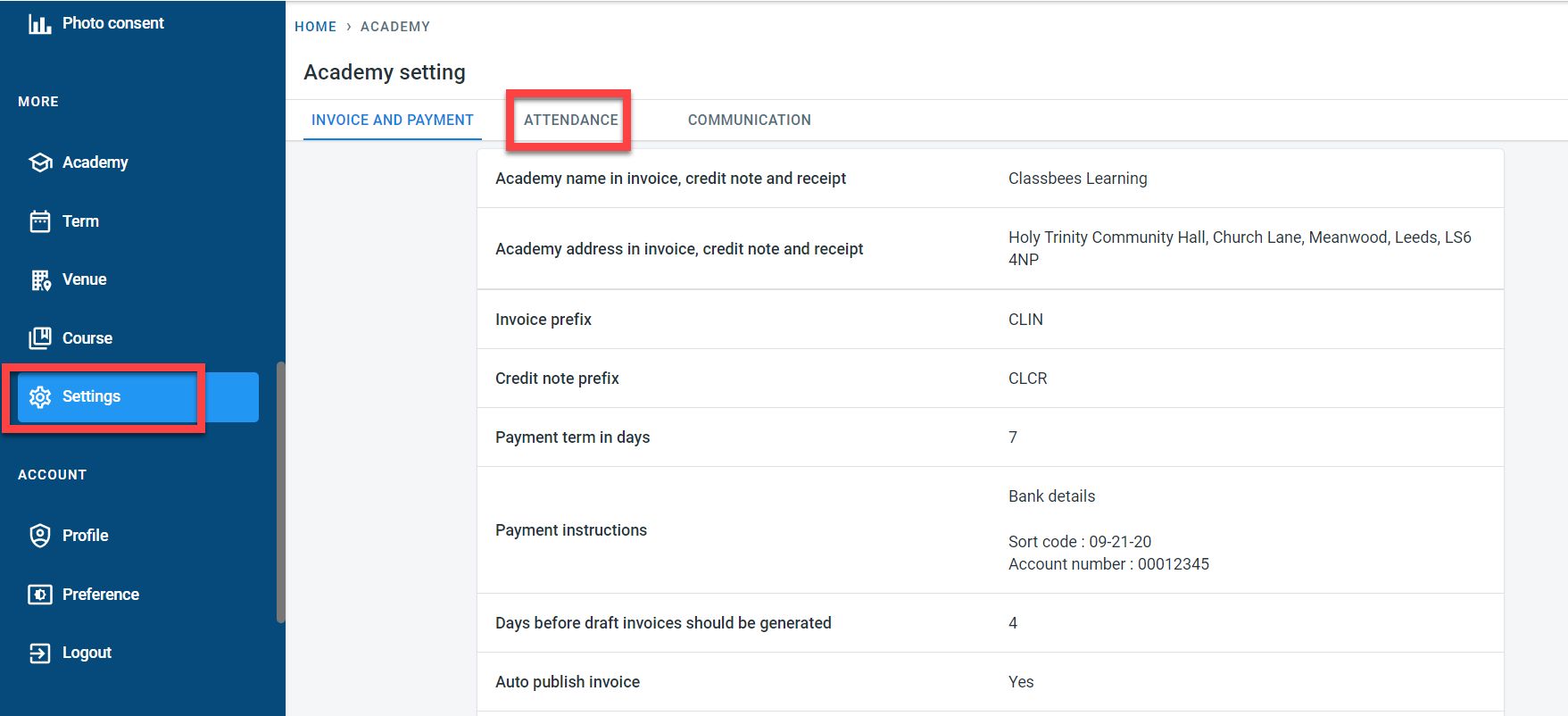
To enable recording in and out time for all classes under the academy, enable the “Record time in/out” switch .

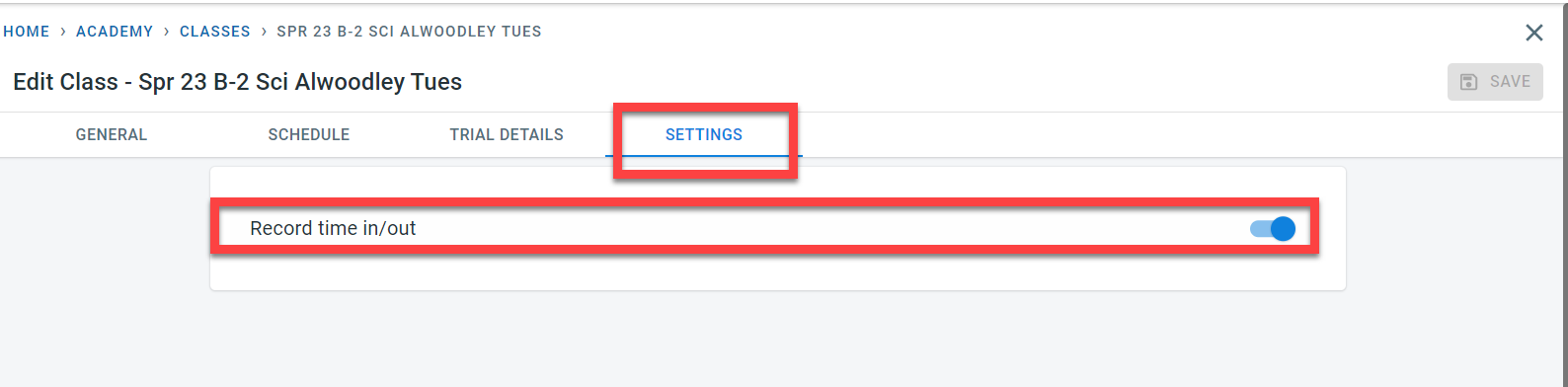
The academy-level setting can be overwritten at the class level if need be.
Navigate to the class. Click on Settings. The “Record time in/out” value is copied from the academy to the class when it is created. This value can be overwritten if need be.
Attendance
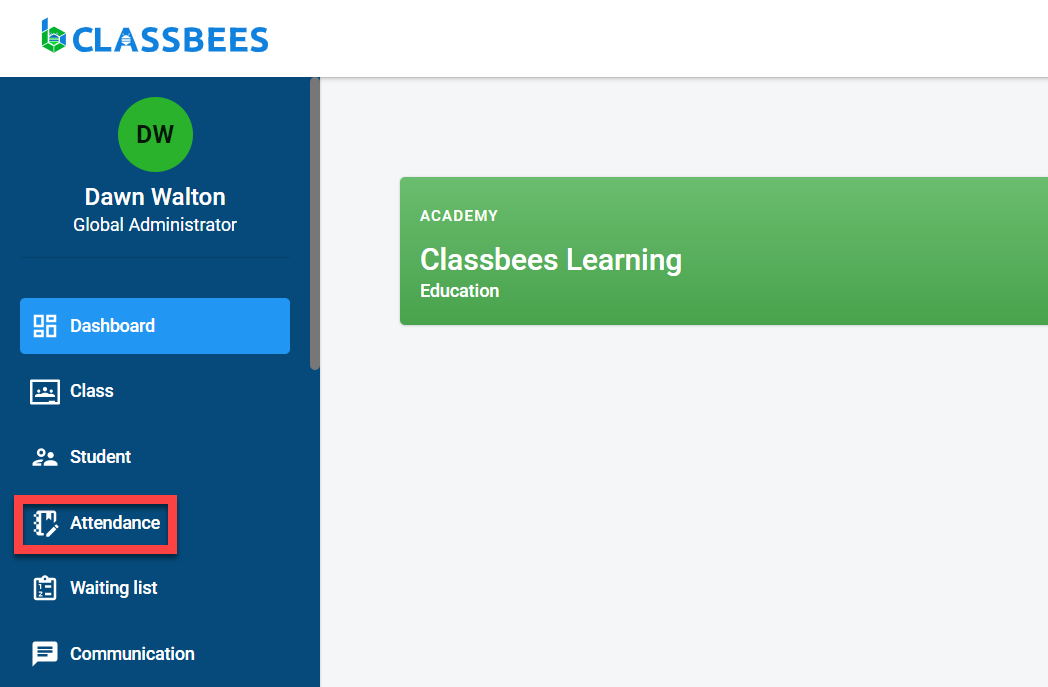
To access the attendance module, click on “Attendance” from the main menu.
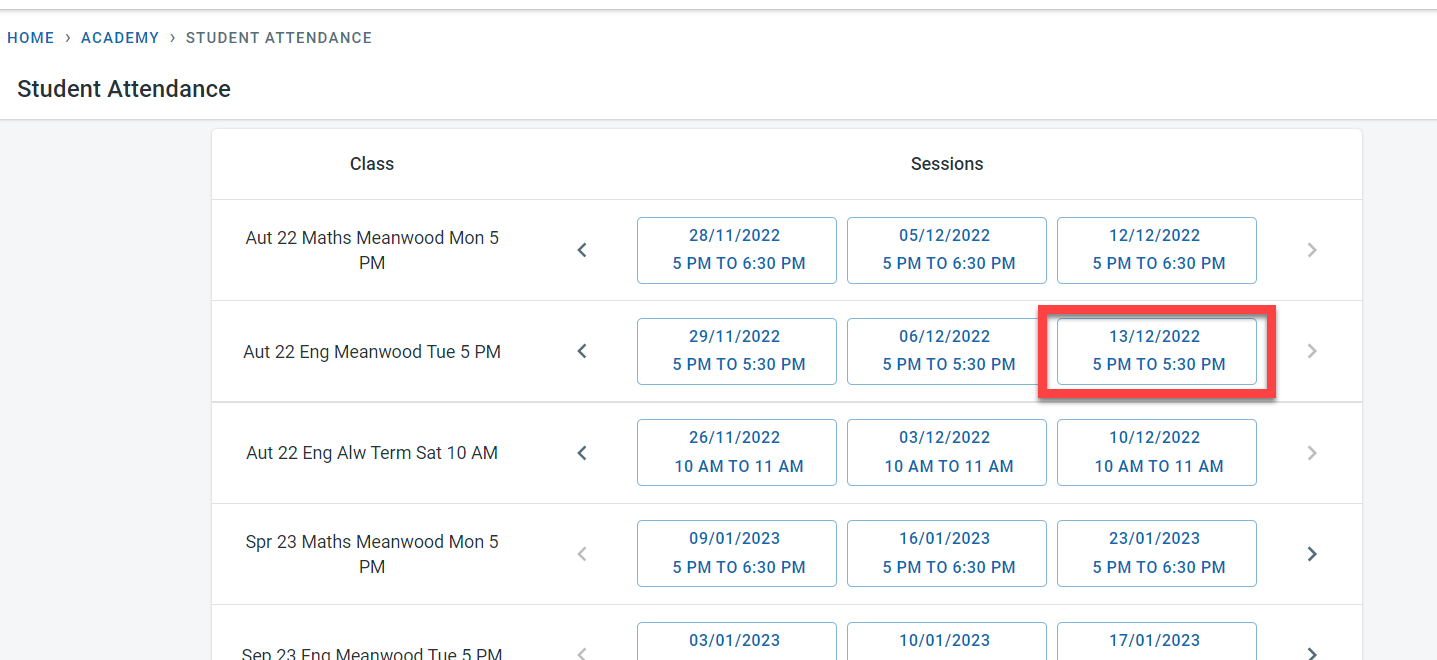
Select the class to record the attendance.
Click on “IN” next to the student’s name when the student arrives at the class.
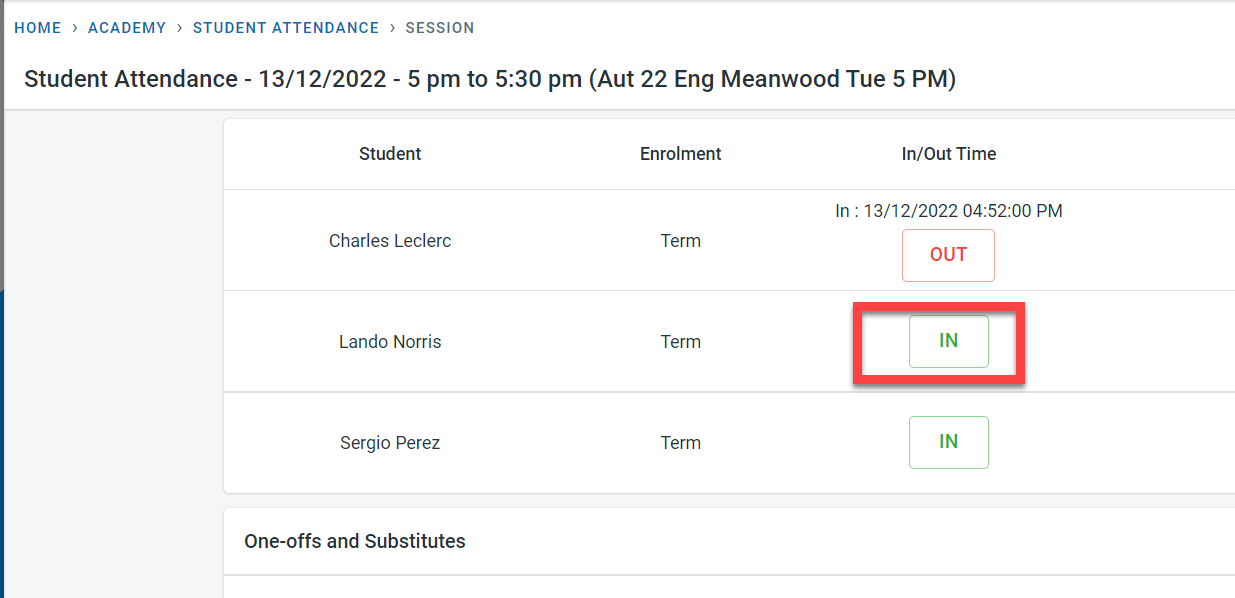
The system time is recorded as the in-time for the student. The OUT button is displayed now.
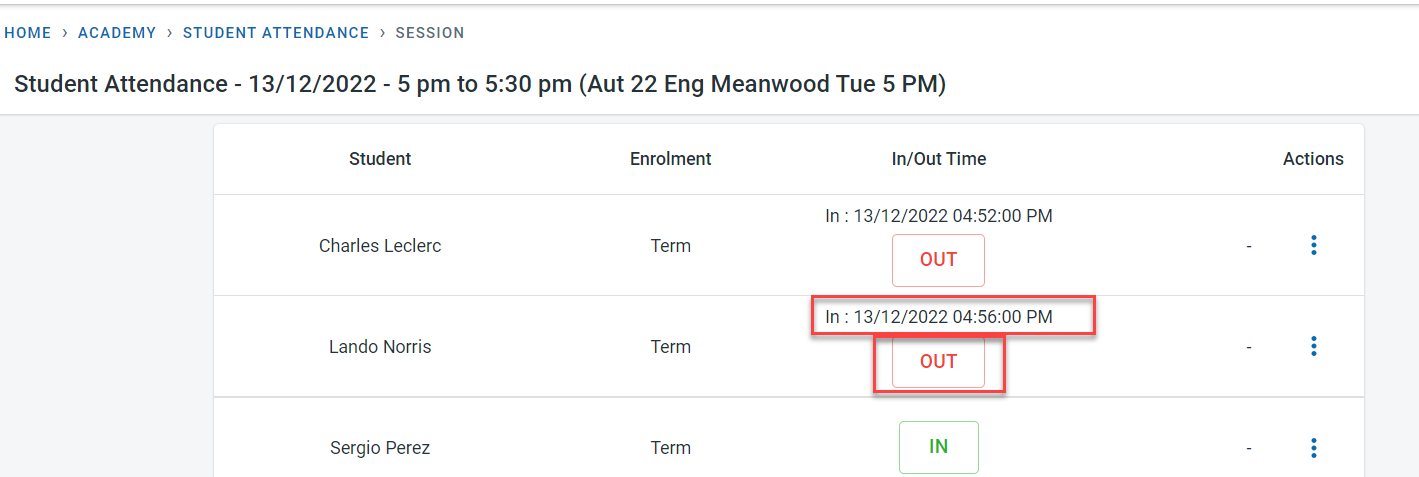
When the student leaves the class, click on the OUT button. The system time of the Out button click will be recorded as the out time for the student
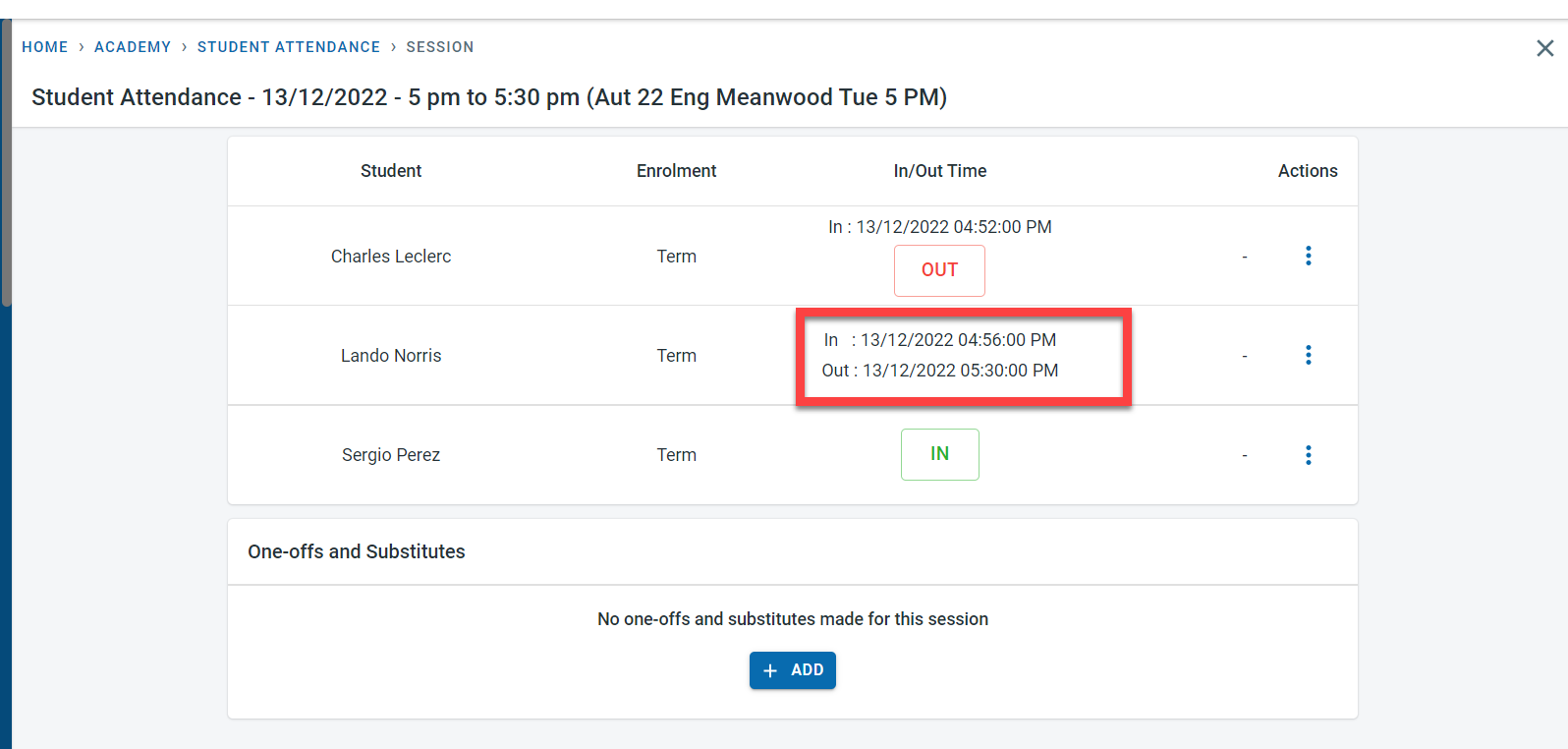
It is possible to edit the in and out time for the student. Click on the three dots under action for the student and click on edit.
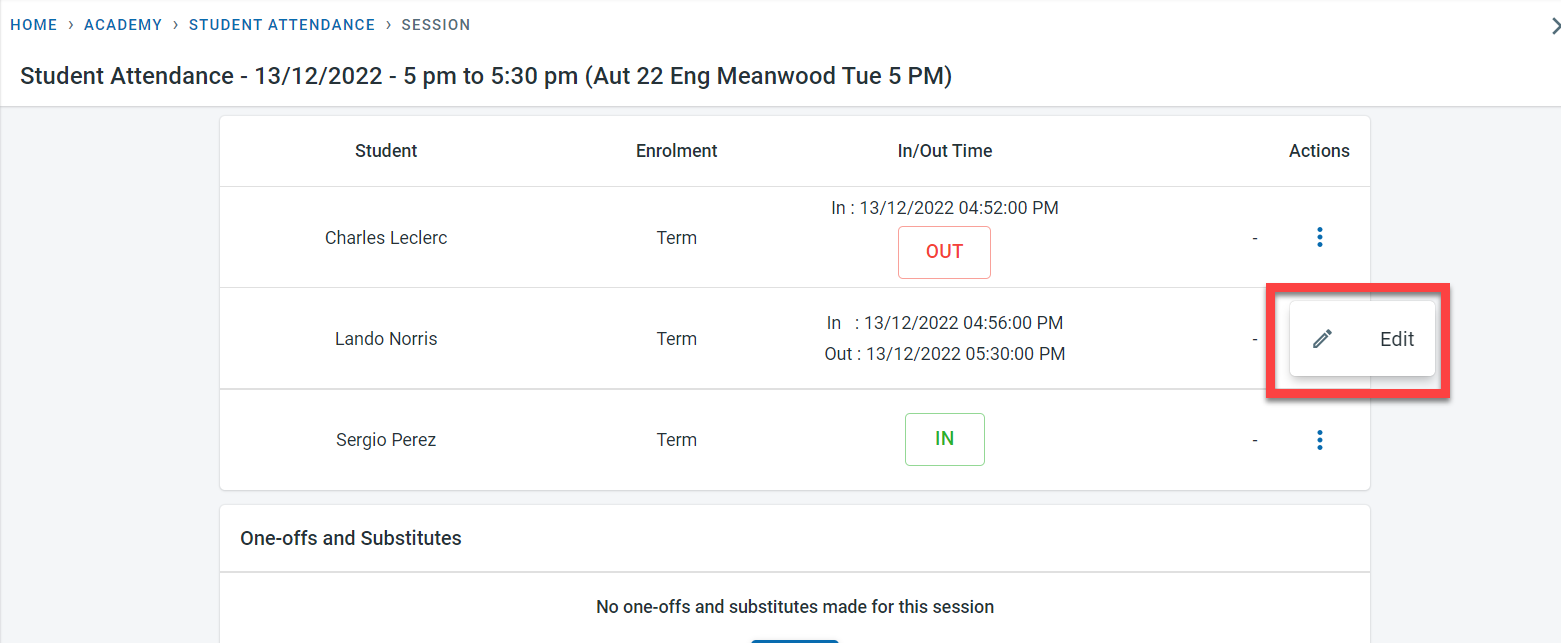
Make any amendments as needed and click on “OK”
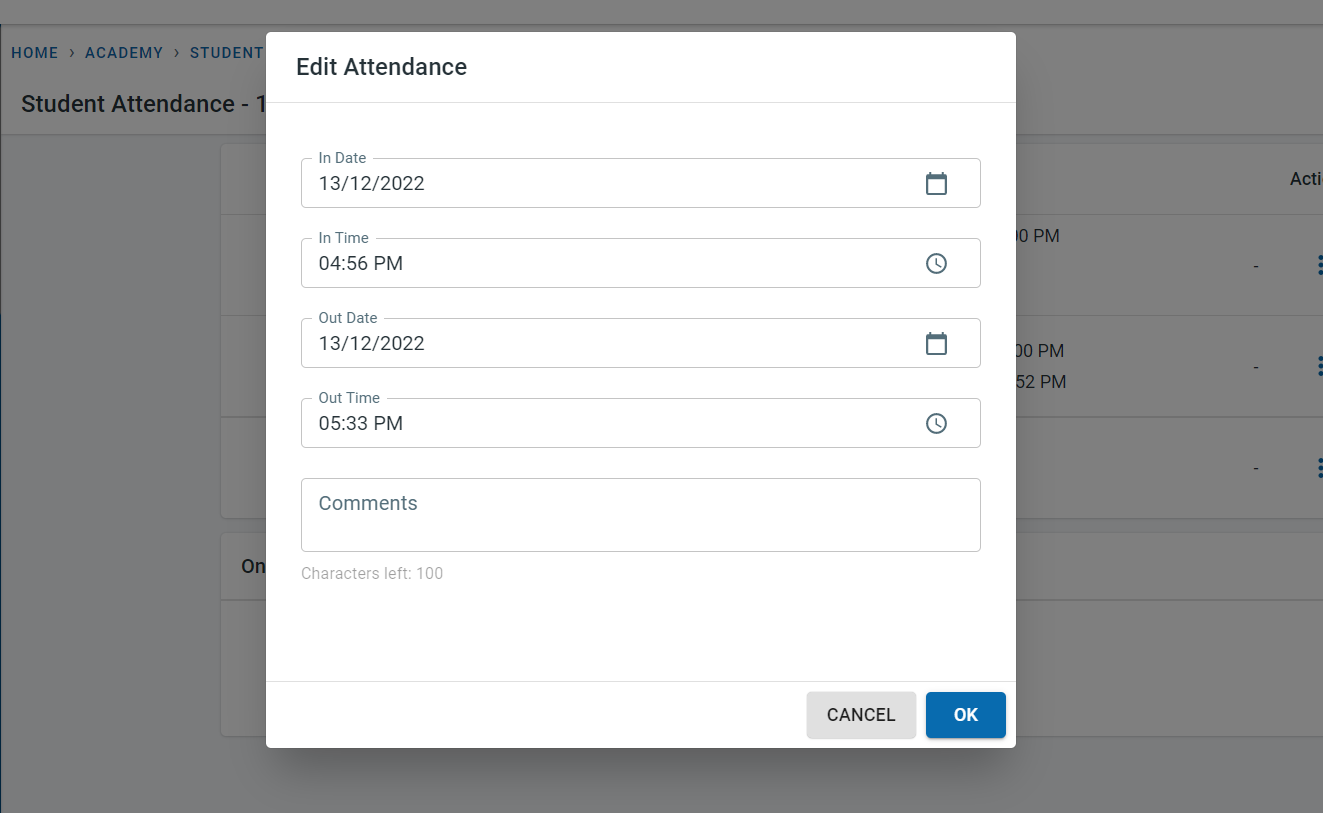
Changes are saved.
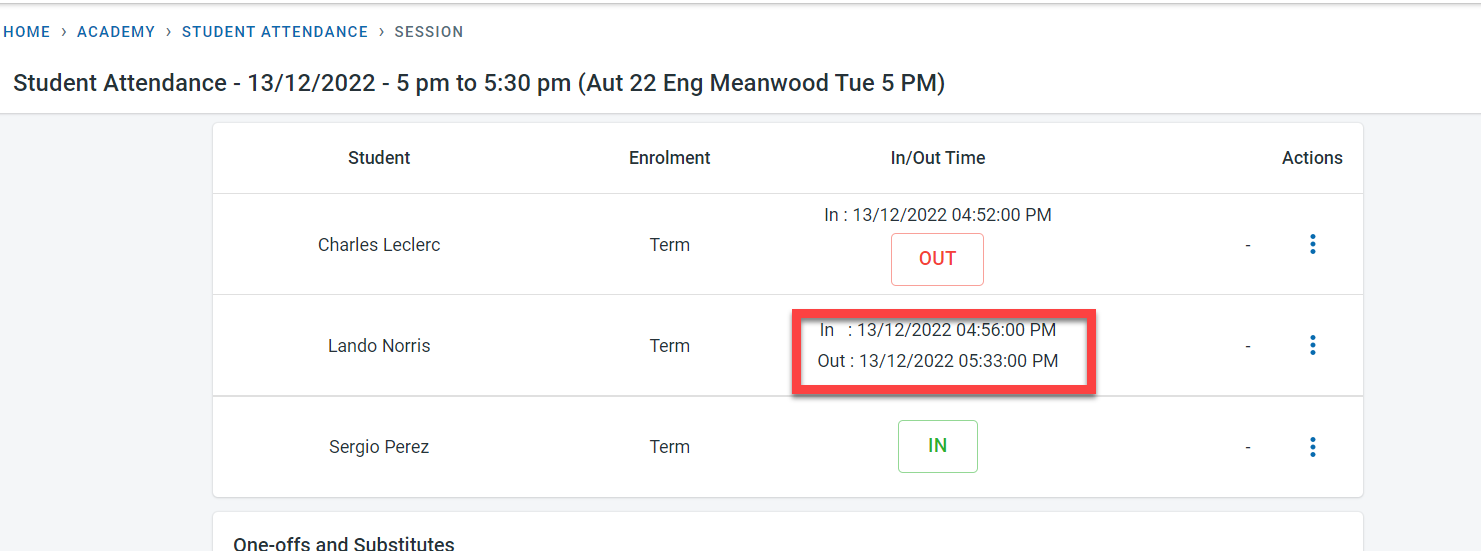
Make any amendments as needed in the popup