Before adding fees to the class, the class has to be created first.
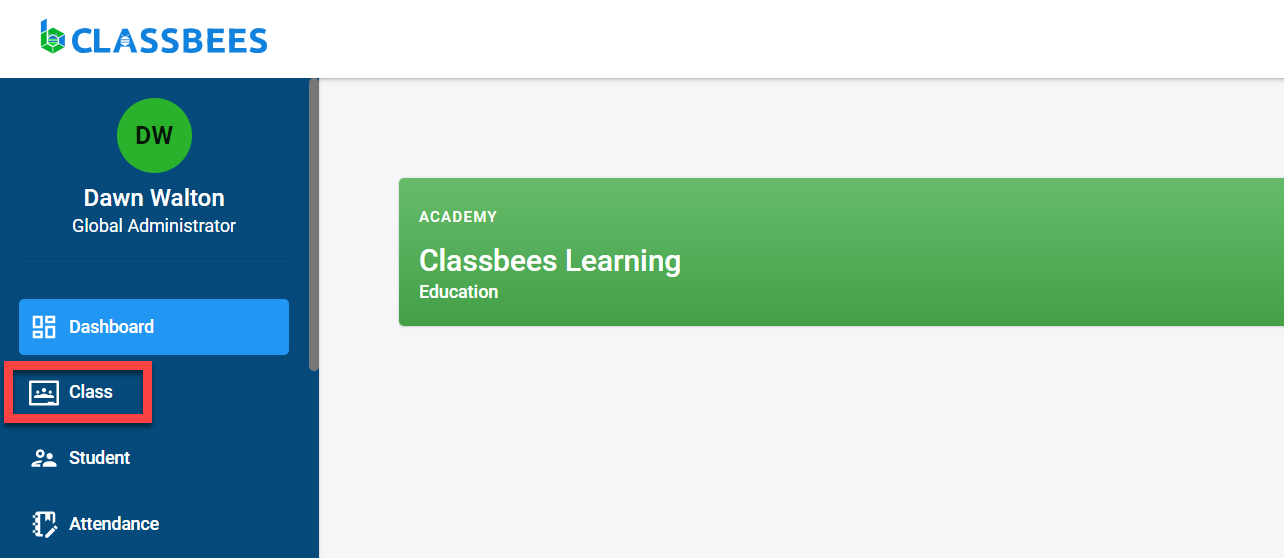
To access the class module, select “Class” from the main menu
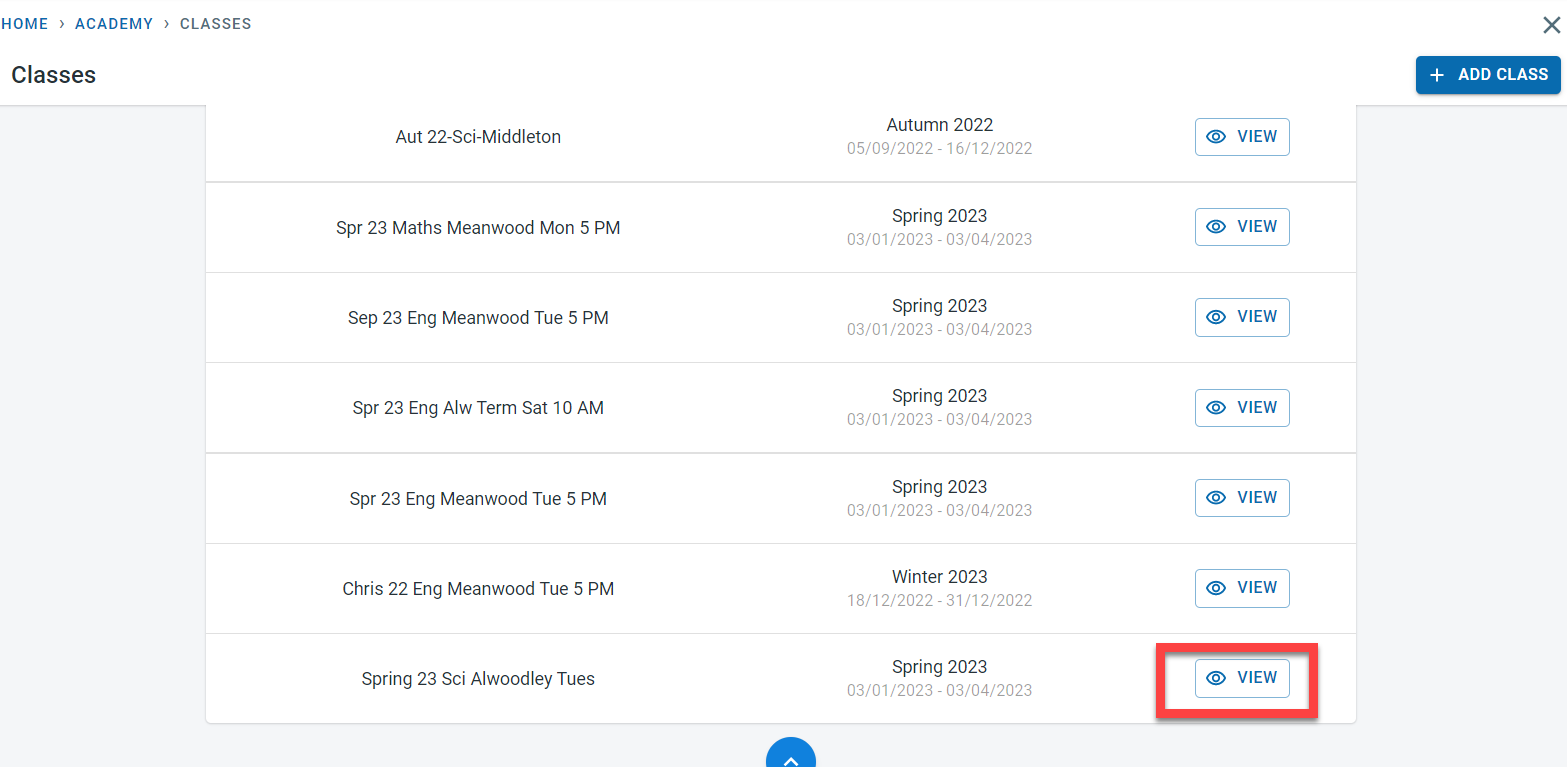
Click on “View” next to the class for which the fees has to be added.
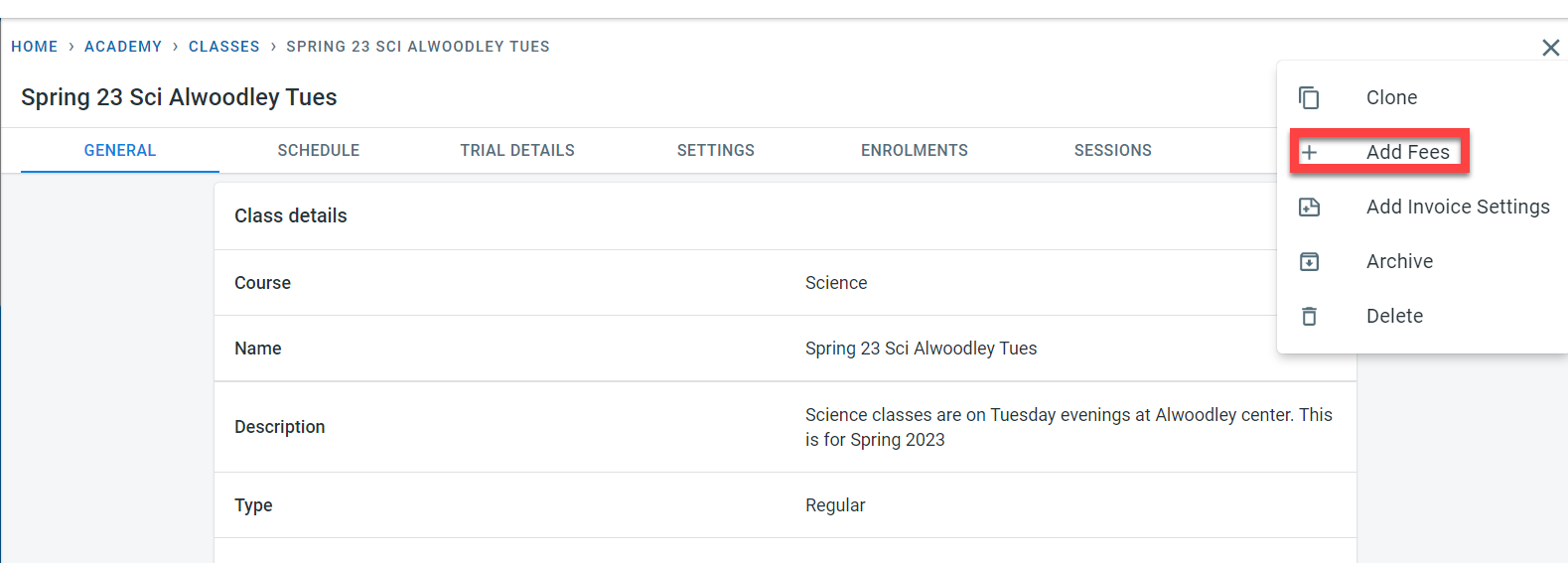
Click on the three dots on the top right of the screen next to the “Edit” button. Click on “Add Fees”
There are four fees that can be defined here
Term
In the Fee screen, activate the “Full term” to add the fees for the term.
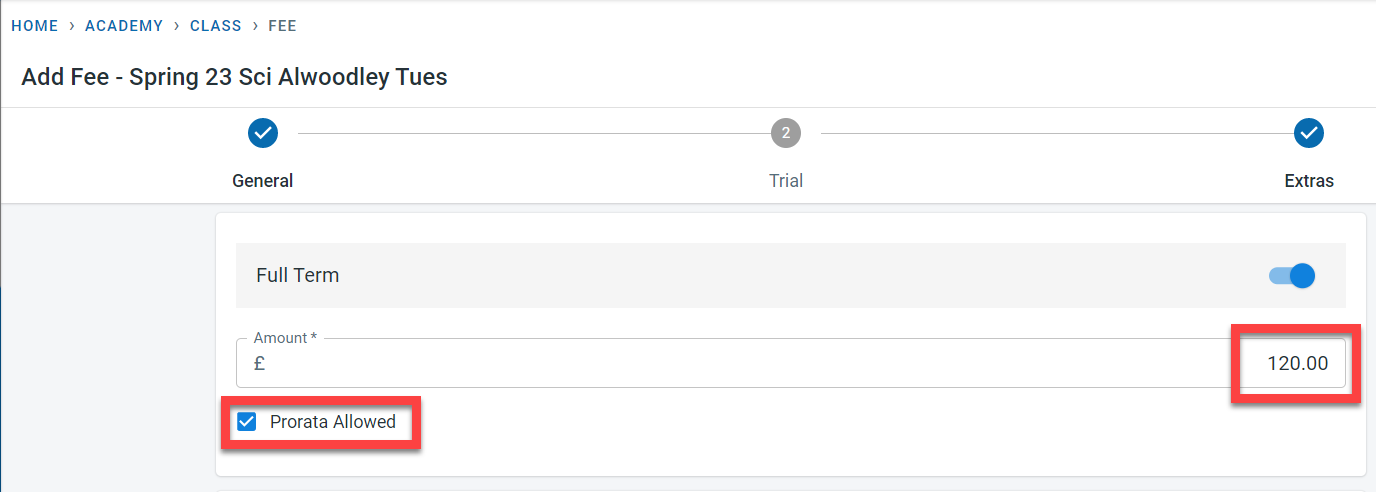
Enter the fees for the term time enrolment in the amount field.
The “Prorata allowed” check box can be set if proportional allocation of the term fees should be done for students who start late than the term start date or if they finish earlier than the term end date. If this is not set then the whole term fees would be charged even for late starters or early finishers.
PAYG and block booking
This section of the fees will be visible only if the “Drop in Allowed” in the class general section is set to yes
Activate the “Pay as you go” fee block by toggling the button to on.
In the Pay as you go section, the fees for each session for drop-in students will be defined in the amount field.
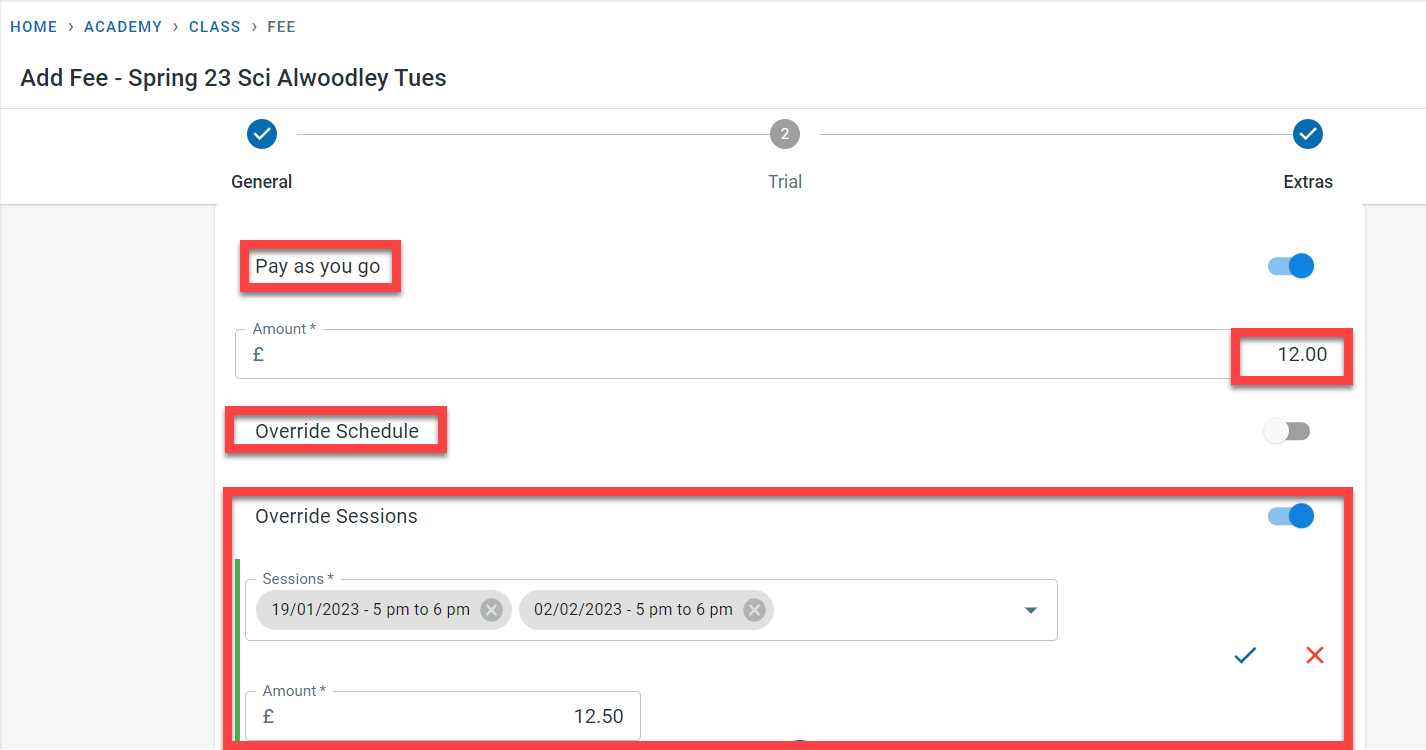
There are two ways to override the pay-as-you-go fees.
- Override schedule - this could be used to override the fees for a particular schedule within the class. For example, sessions in the class happen every Monday and Wednesday. The PAYG fee for the Monday class is 12£ whereas the fee for the Wednesday session is 12.25£. In this case, set the amount in the Pay as you go section to 12£. Activate “Override Schedule” -select the Wednesday sessions and set the fees to £12.25
- Overrise session - This option could be used to override the drop in fees for individual sessions. In the screenshot above, we have set the drop-in fees as 12£ but the session on 19th Jan and 2nd Feb will be charged at 12.50£ for drop-in students.
Block booking is used to define the fees for students who reserve a block of classes in advance.
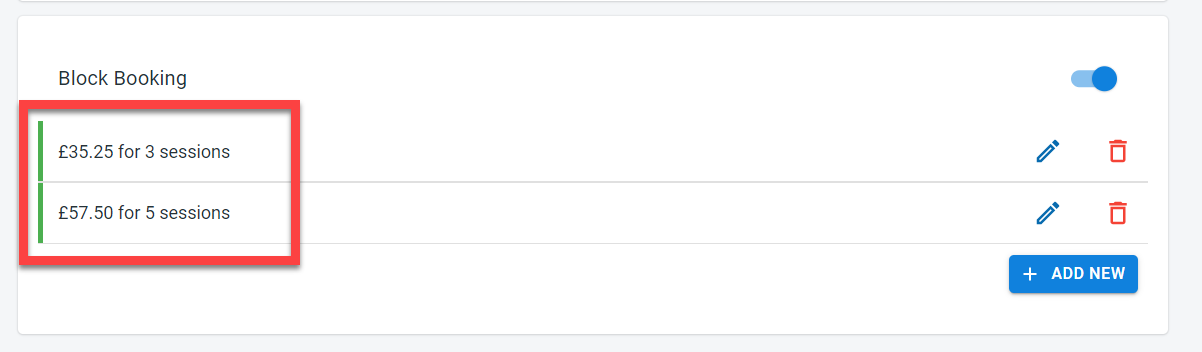
Click on “Next to navigate to the trial fees/extra fees.
Trial
This section of the fees will be visible only if the “Is Trial Free” in the trial details section is set to no
In the Trial screen, enter the trial fees.
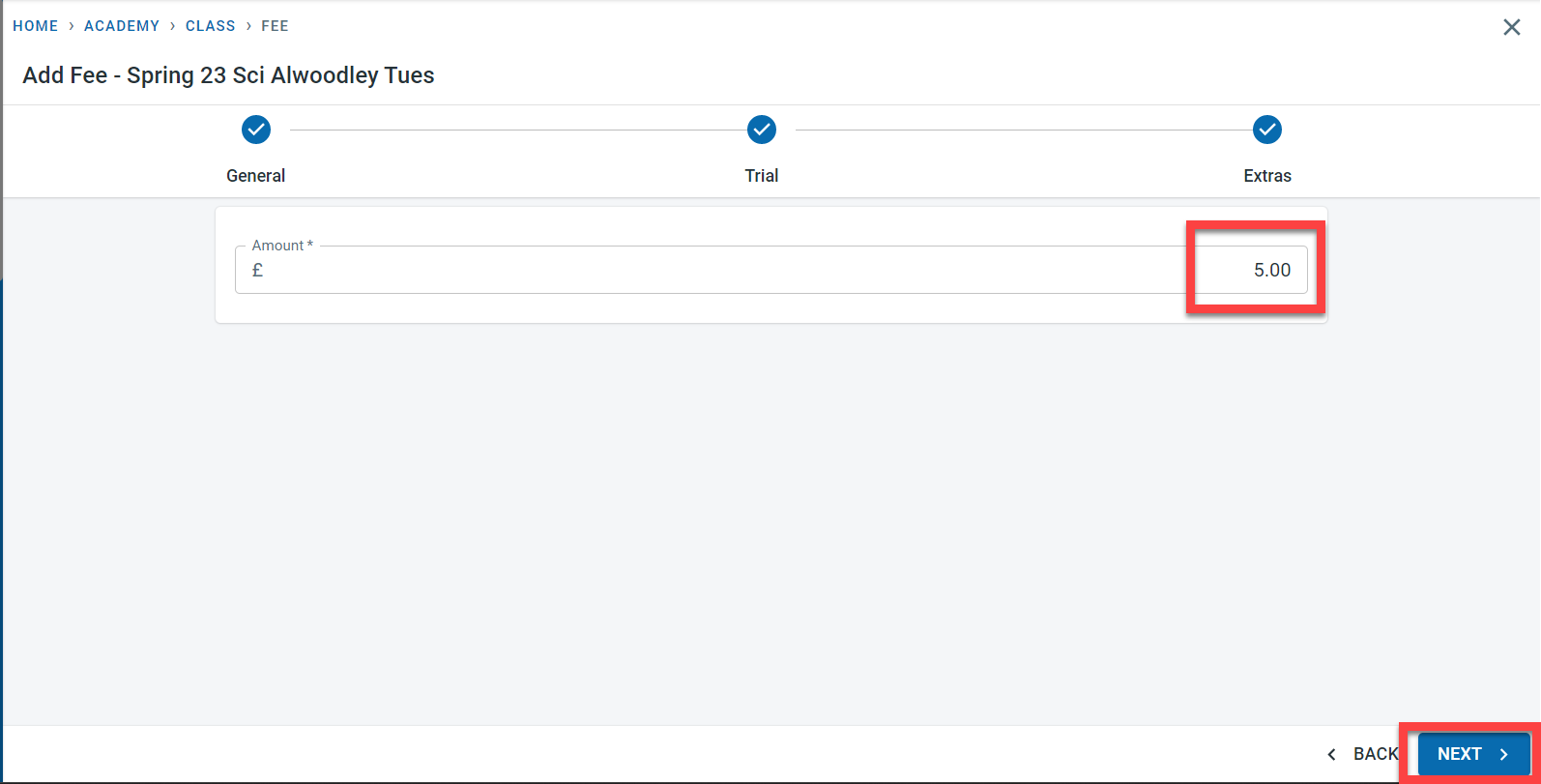
Click on “Next” to navigate to the extra fees section.
Extras
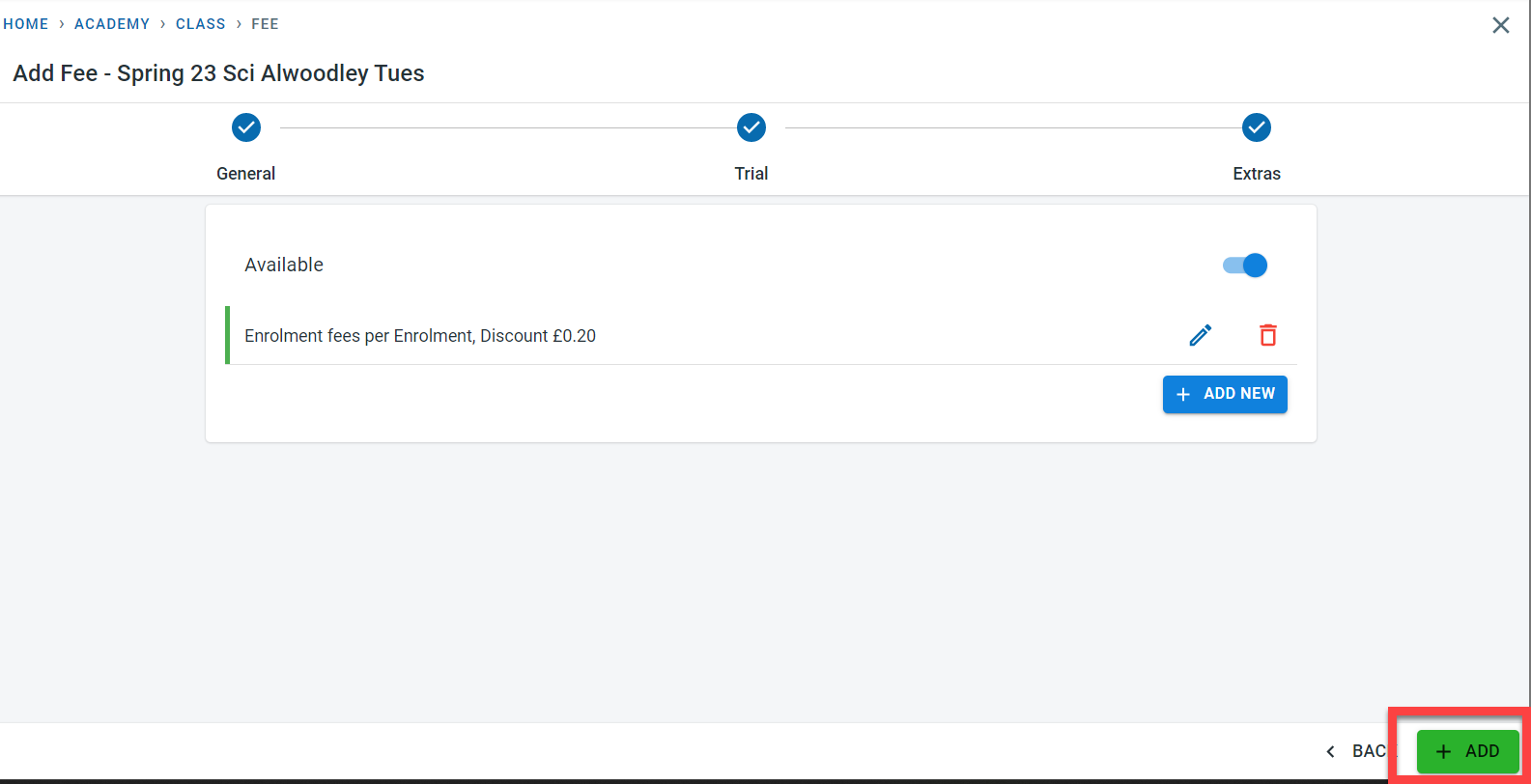
Information on how to add extra fees at the class level is described in detail in the “Extras and Discounts” section.
Once all the fee information is added, click on “ADD”
A success message will be displayed once the fee is saved for the class