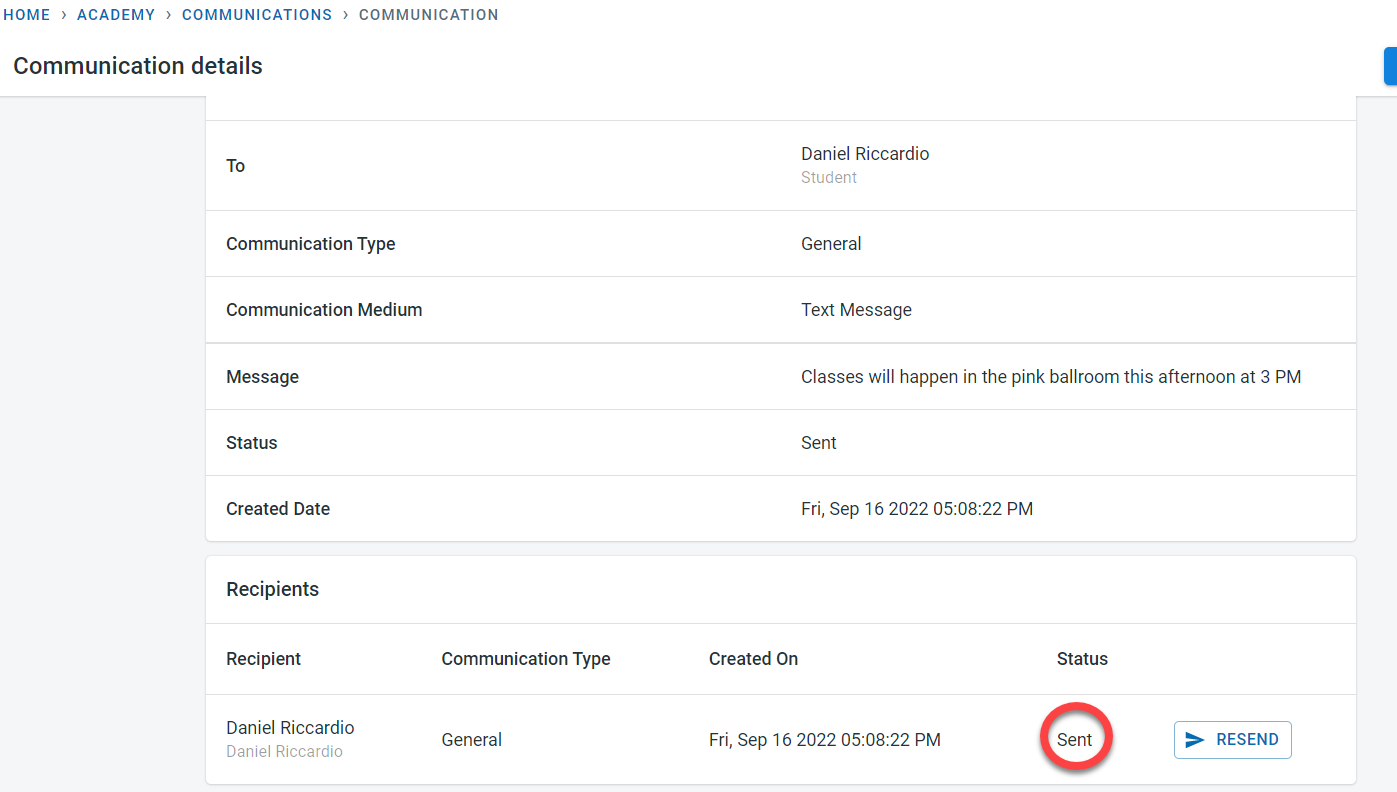
Academies/clubs will be able to send text messages (SMS) from Classbees.
System Setup to send text messages
In order to send text messages, two basic settings have to be done
- Enable text messages at the academy level
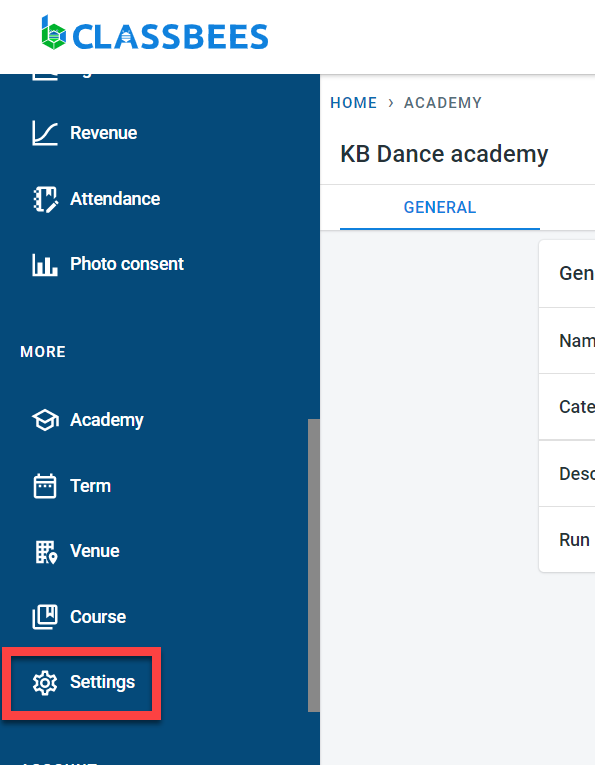
Click on Settings in the menu
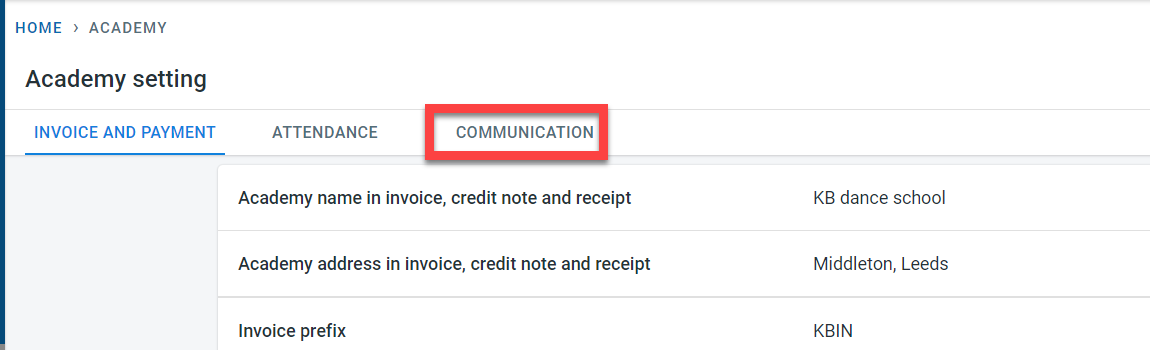
Select Communications
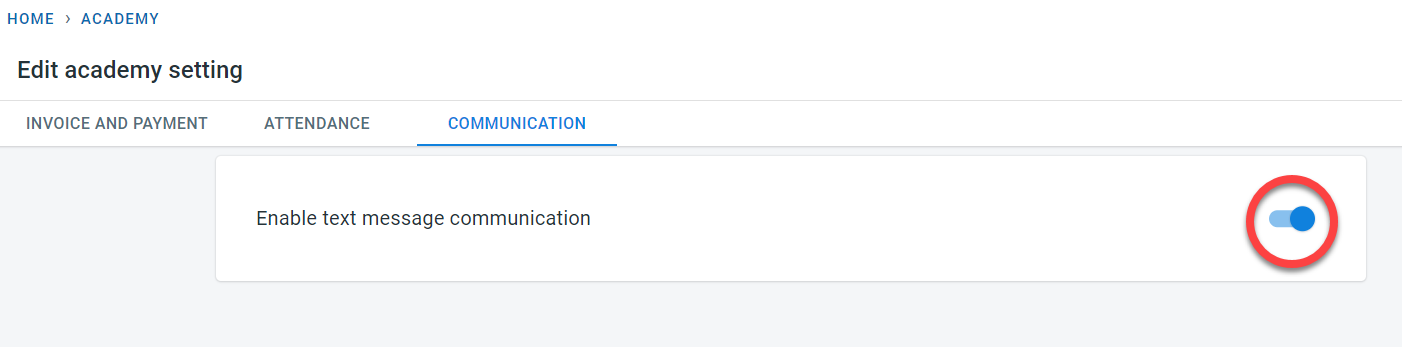
Enable text messages at the academy level
- Activate the numbers for which SMS text messages could be sent to
Only numbers which are authorised to receive SMS text in Classbees will be able to receive SMS text messages.
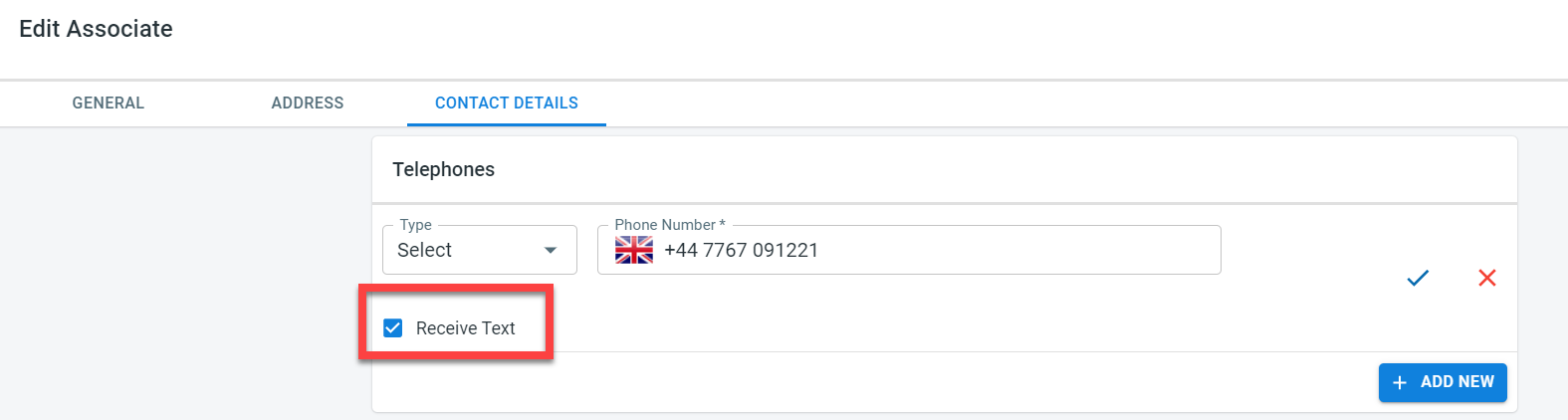
In order to do that, enable the “Receive Text” check box next to the telephone number (This could be for the student or the associate)
Send text messages
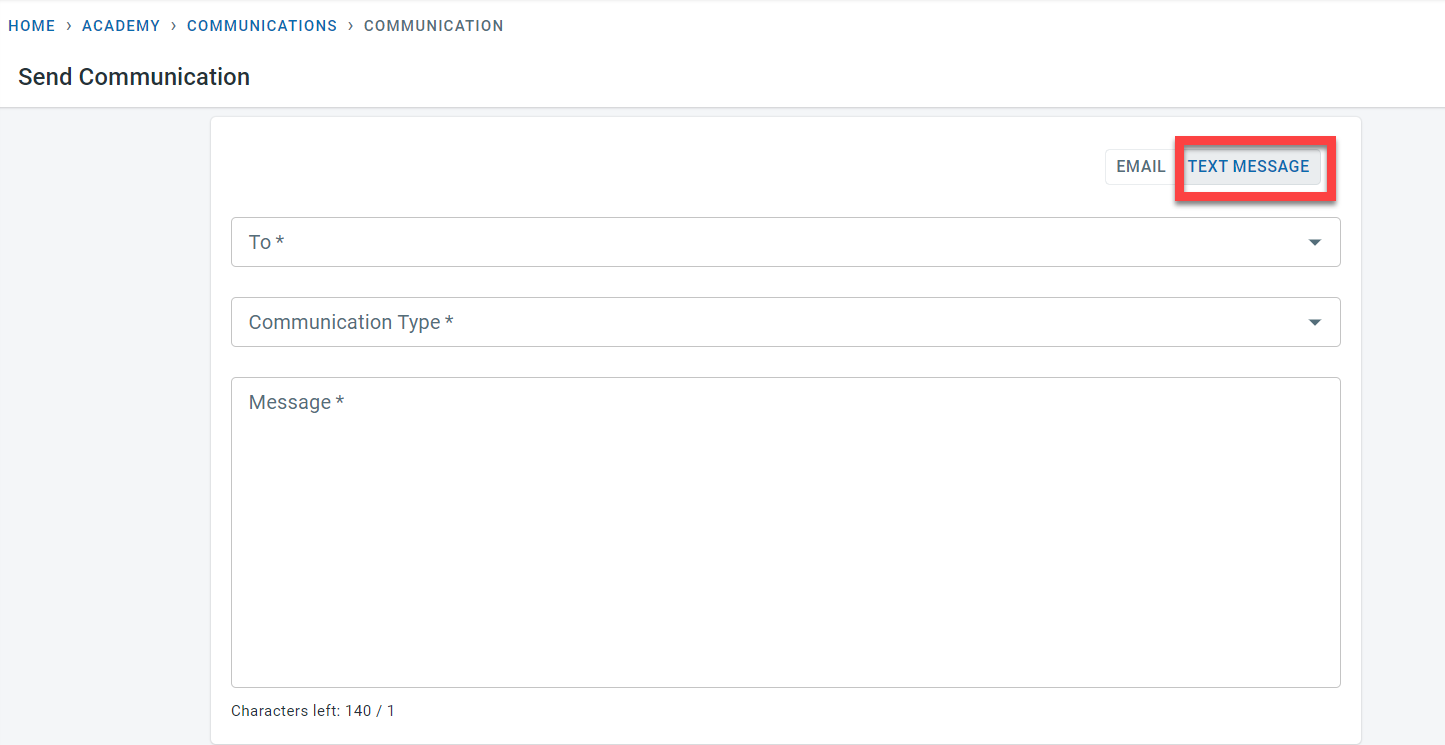
In the communications tab, select “Text message” to send SMS
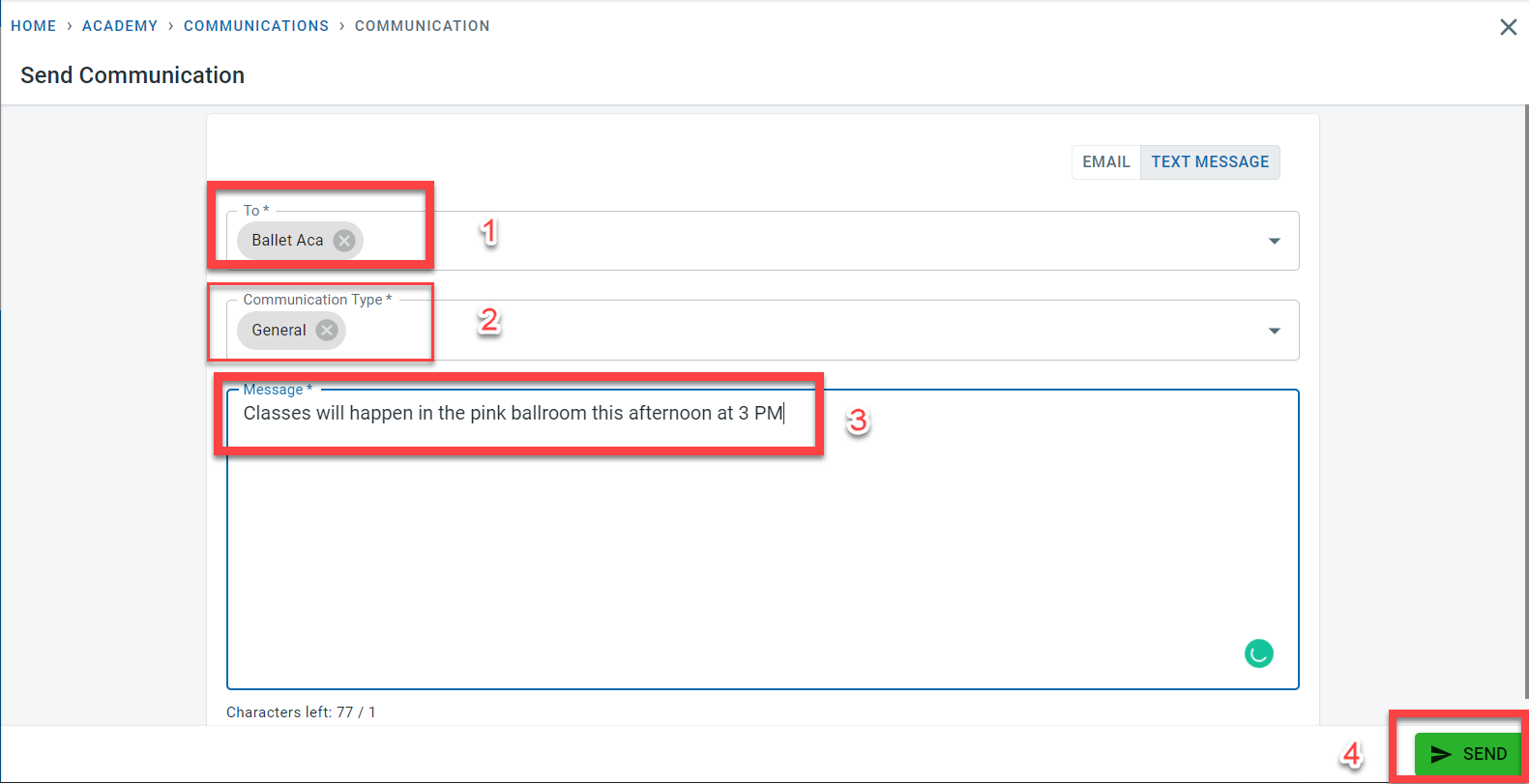
In the “To” column enter the class(es) or student(s) to whom the text messages have to be sent to
In the “Communication type”, select either General, parent or carer, emergency or finance relationship to select the right contacts to send the text message to.
Enter the message to be sent. A text message length is 140 characters
Click on Send
A confirmation message would be displayed to confirm the number of SMS text messages that would be sent out for the contacts selected based on the To and Communication type fields entered.
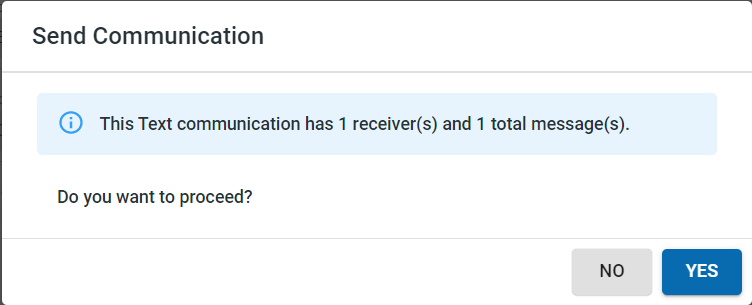
Click yes to send the text messages.
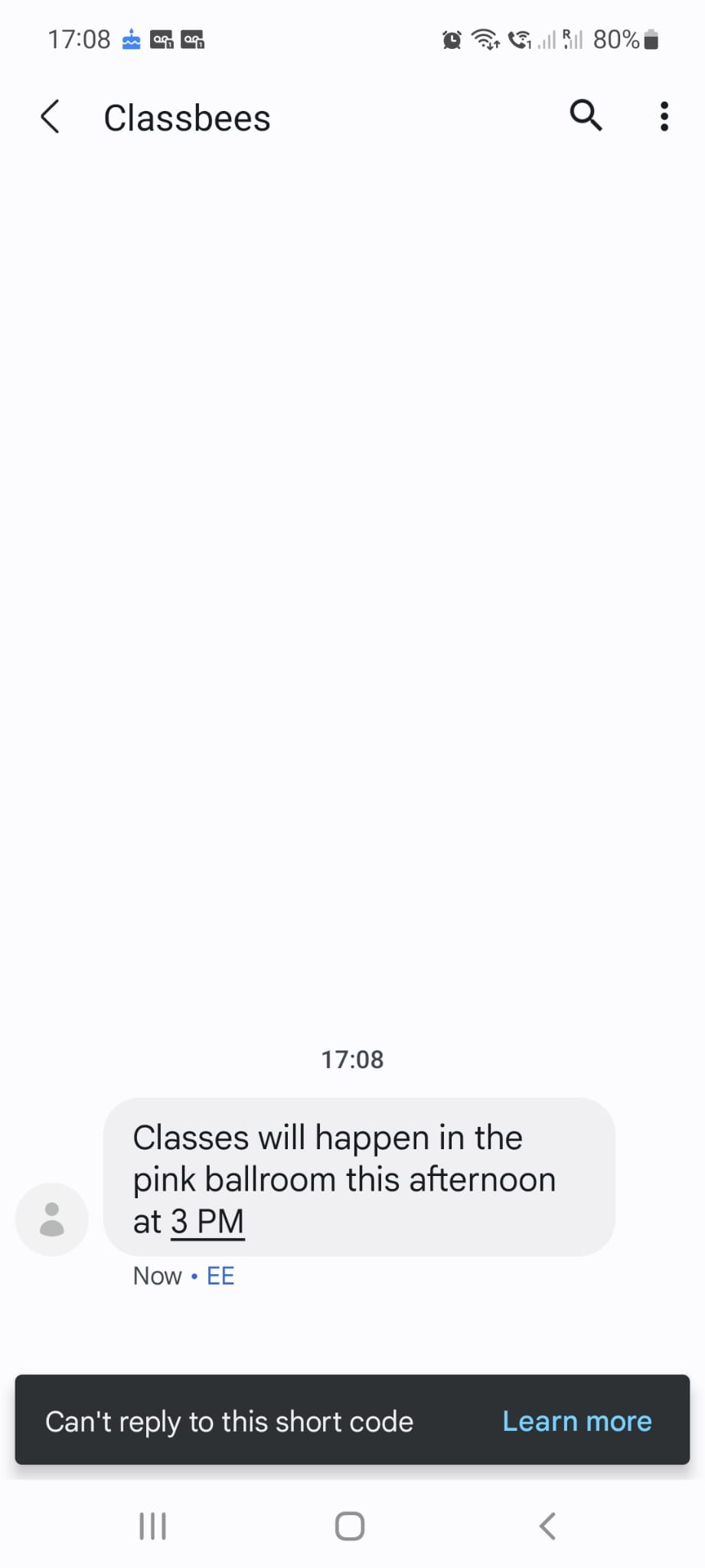
Text messages are sent immediately but the status of the messages in the communications tab will be updated periodically every 15 mins