An invoice is a time-stamped itemized commercial document that is sent to the finance contacts of the student, both as a means of recording the activity/class attended or the subscription and of requesting payment from them. Specifically, an invoice declares in writing what exactly the activity/class/subscription was provided, when the service was provided, in what quantity, and at what price, the total amount due, and the preferred payment method.
Invoices can be generated in the system
In this section the following topics are covered
View Invoices
An invoice can be selected from two places in the system :
-
Student
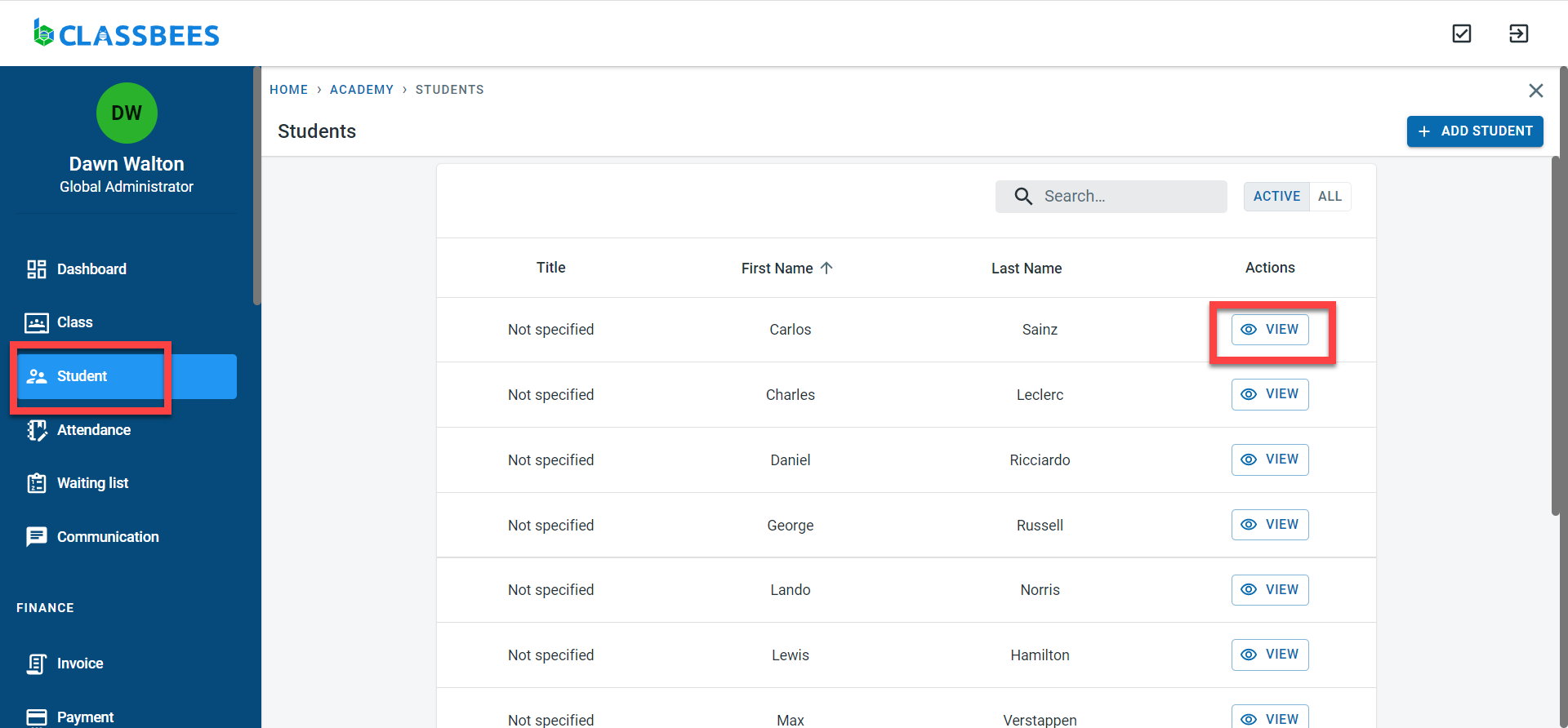
Select student from the main menu. Select the student
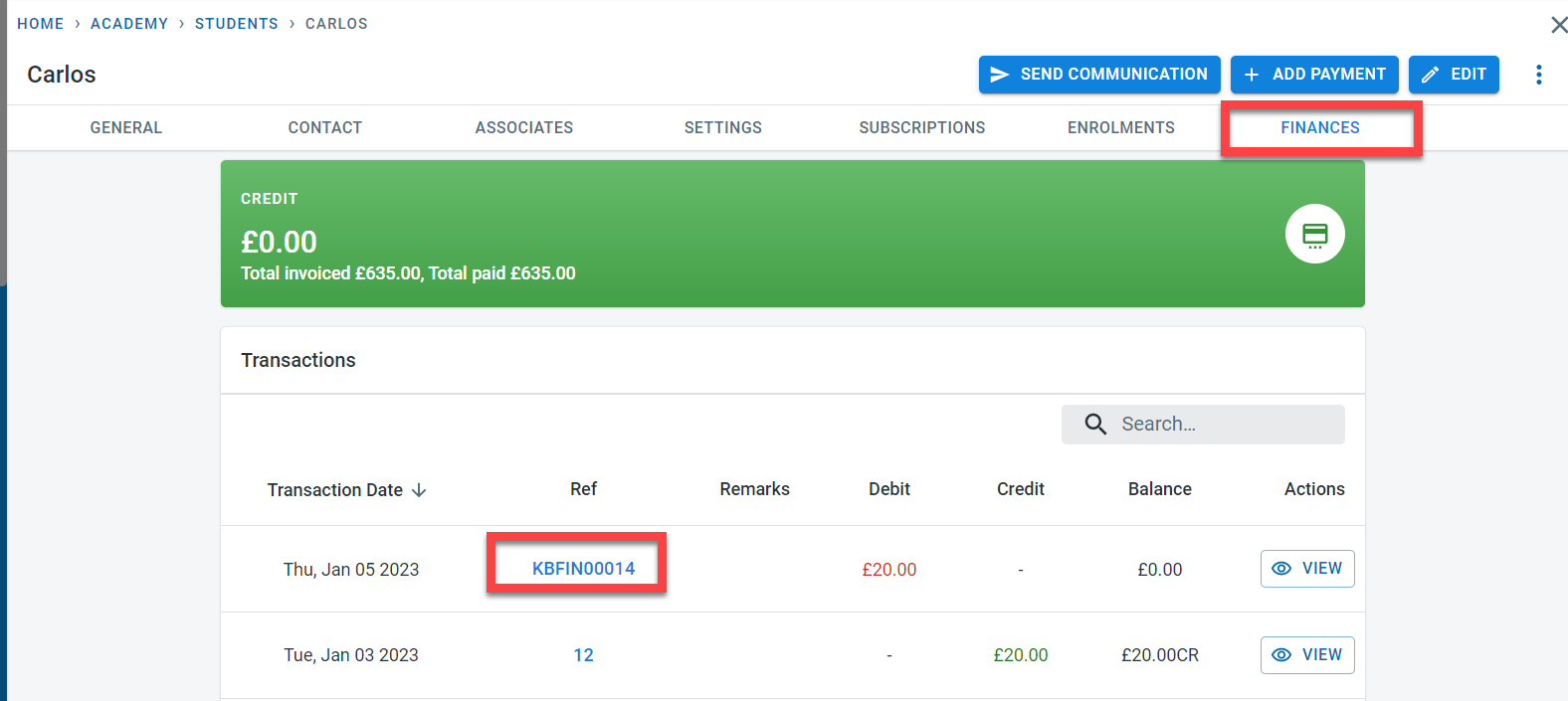
Select “Finance”. Click on the invoice number
2.Invoice screen
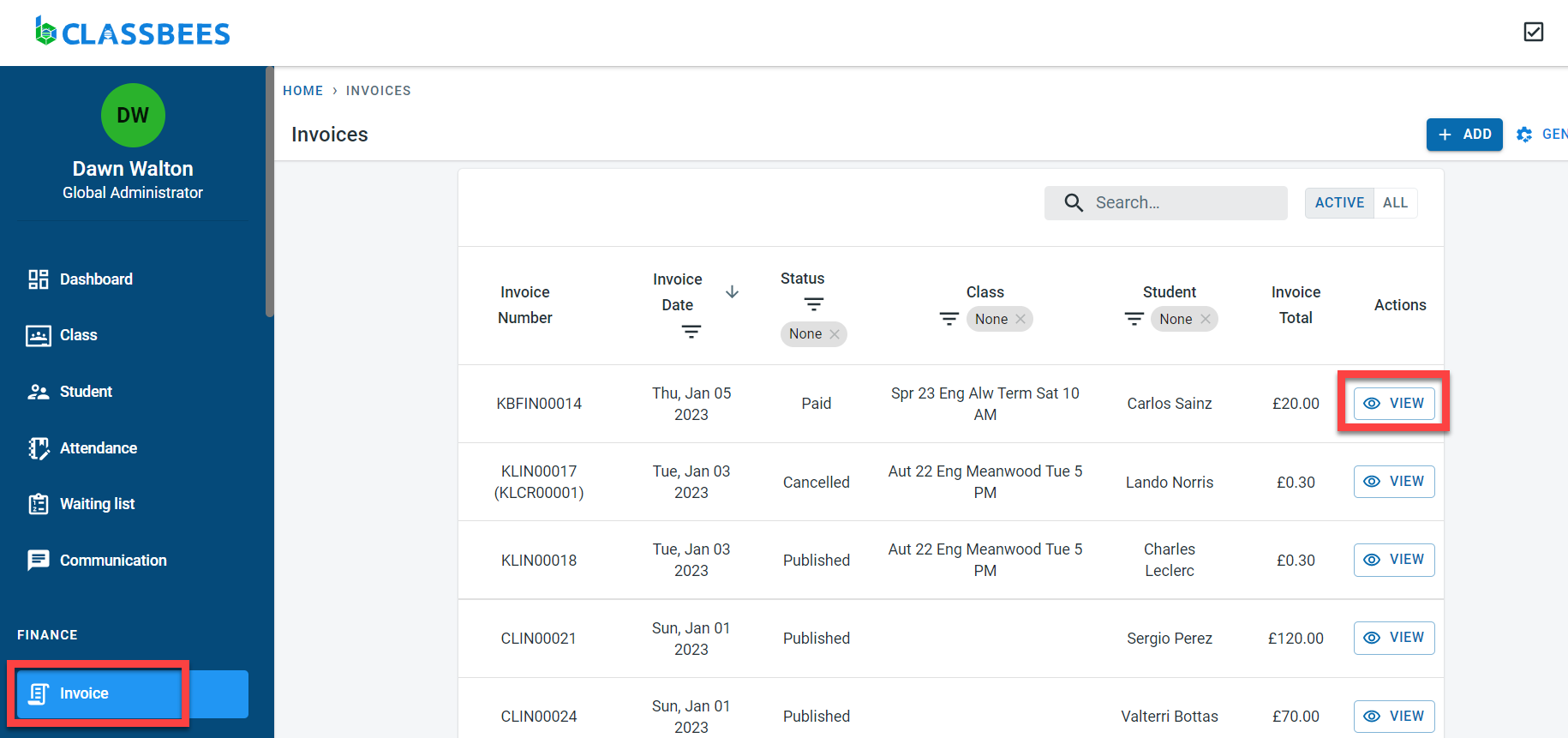
From the main menu , select “Invoice”. Click on “View” next to the invoice
Invoice Sections
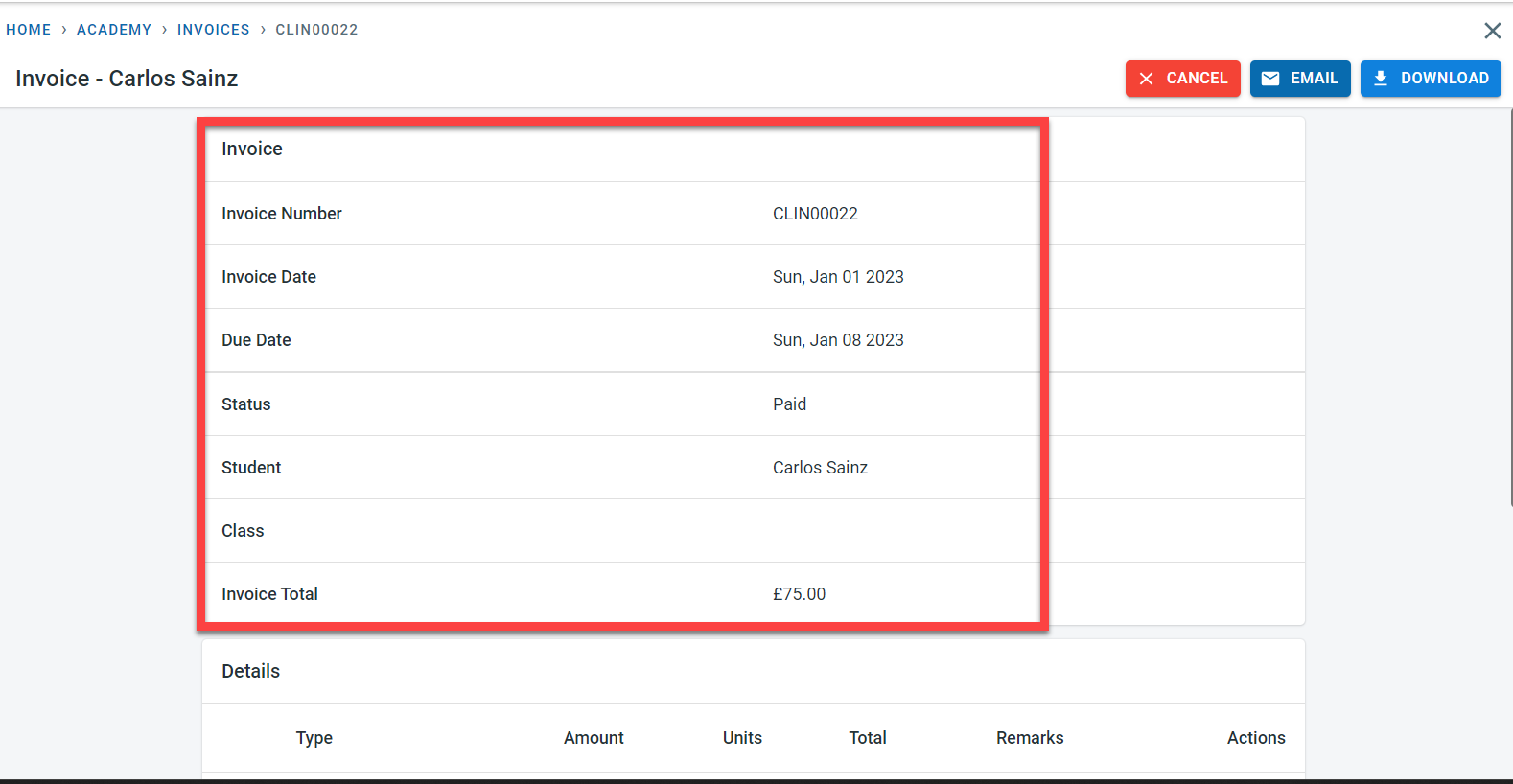
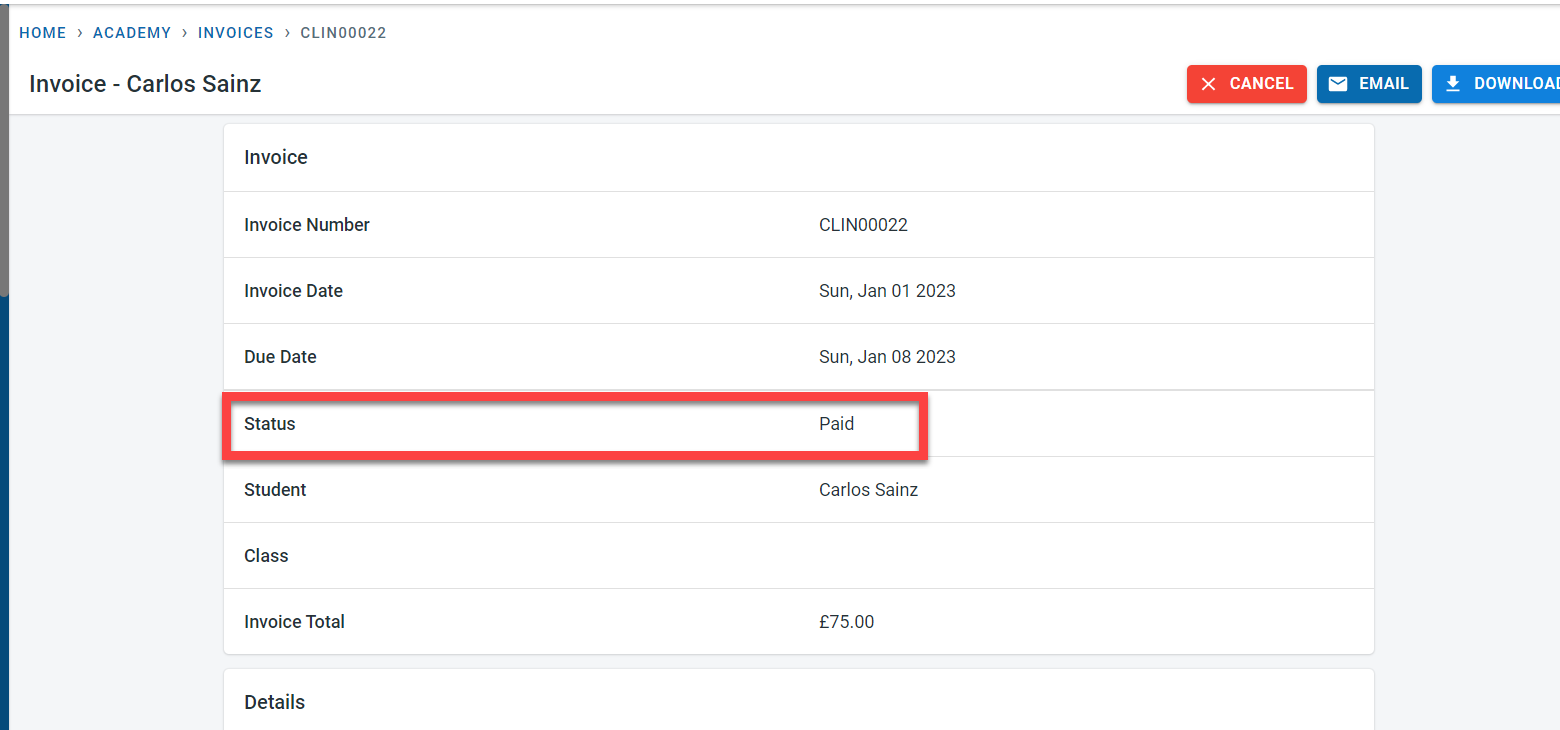
The first section of the invoice shows the invoice number, invoice date, due date, invoice status, student name and invoice total
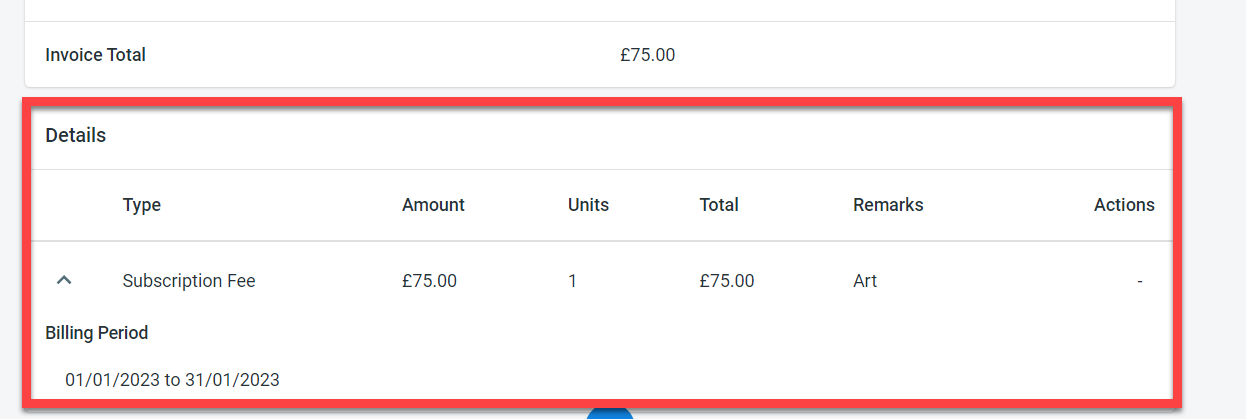
The next section in the invoice shows the detailed breakdown of the invoice.
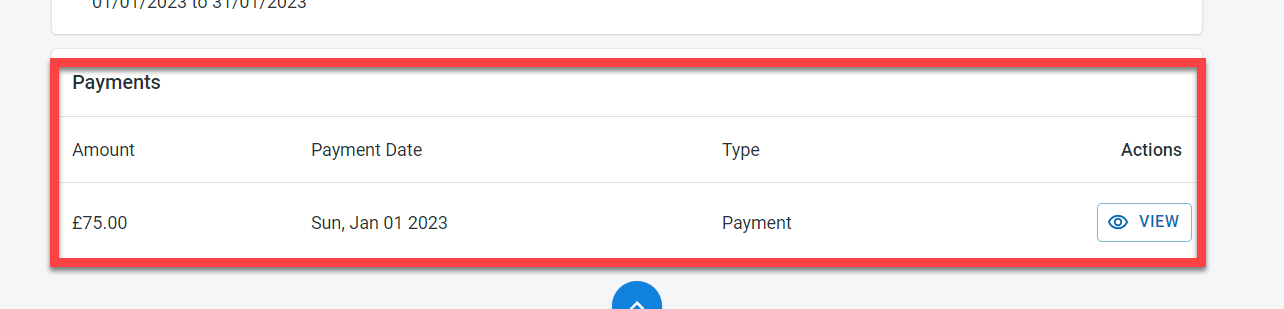
The next section would be the payment - this section would show any payment receipts that are allocated to the invoice.
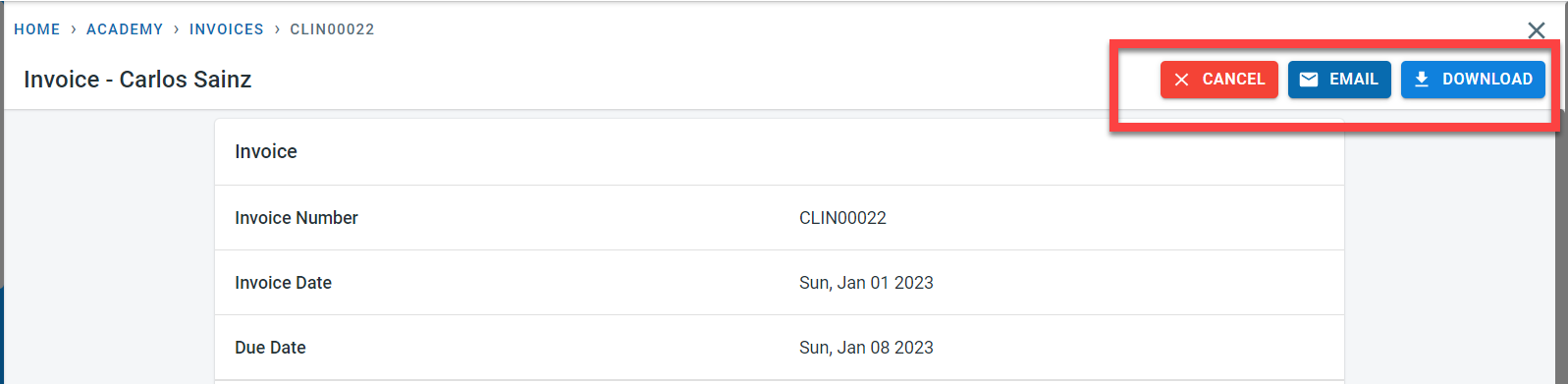
On the top of the invoice is the option to
-
Cancel an invoice to create a credit note
-
Trigger an email manually to the finance contacts of the student
-
Download a local copy of the invoice
The email invoice setting in the academy, email setting in the class invoice setting and the email receipt setting in the student controls whether the invoice can be automatically emailed to the finance contact for the student when the invoice is Published in the system.
Invoice Status
An invoice goes through a number of statuses as part of its lifecycle
- Draft - The invoice is created in the system but it is not a legal document yet as it has not been published. An invoice in the draft status can be edited. There is no invoice number associated with the draft invoice.
- Published - The invoice is a legal document and will have a unique invoice number associated with the published invoice. Published invoices can be automatically emailed to the finance contact of the student automatically based on the setting in the academy, class/ student.
- Cancelled - this status is associated with the invoice when the invoice is cancelled. Cancelled invoices will have a credit note associated with it
- Partially paid - The invoice gets the partially paid status when part of the total amount of the invoice has been settled through one or multiple payments
- Paid - This status is displayed on the invoice when the total invoice amount has been settled through one or multiple payments
One derived status that is associated with the invoice is Overdue - this status is displayed on invoices when the total invoice amount is not paid by the invoice due date.