For enrolment-based invoices, the invoices are generated based on the classes that the student is enrolled in. This type of invoice is generated only when the student is enrolled in the class.
There are three sections here
Invoice for subscription based on enrolment
Invoice Setup
There are three setups that define how invoices will be generated for the students based on enrolment.
- The first setting is the invoice setting for the class that the student is enrolled in. The setting here controls the details displayed on the invoice and the payment terms in dates. The setting over here also controls how many days before the invoice date should the draft invoices be generated and also when the invoice should be published. The first and last dates for the invoices for the class along with the frequency in which the invoice should be generated for the class.
- Invoices are calculated for the fees that are set up in the class. This is the second setting that determines the line items that will be added to the invoice.
- The third setting is the student enrolment to the class - the enrolment type and the payment type when the student .
For term enrolment type, there are three payment types available
- Average over time - The term fees are averaged out to equal amounts that will be invoiced in periodic intervals defined in the class invoice settings
- Actual sessions - for this payment type, the invoice is calculated for the actual sessions that happen within the invoice period. The term fees are divided by the number of sessions in the term to get the cost per session. The cost per session is multiplied by the number of sessions in the invoice period to get the total invoice amount
- One time - for this payment type the whole term fees are raised as one invoice
For drop-in and trial enrolment types, there is only one payment option available
- Actual sessions - For the invoice period, the invoice will pick up only the classes that the student has reserved (or attended based on the invoice setting- Use attendance for drop-in enrolment)
Automatic Invoice generation
Draft invoices will be generated by the system automatically before the invoice date based on the “Days before draft invoices should be generated” value in the class invoice setting. For example, if the invoice date is the 7th of the month and the “Days before draft invoices should be generated” is 5 days, then the draft invoice for the students enrolled in the class will be generated on the 2nd of the month.
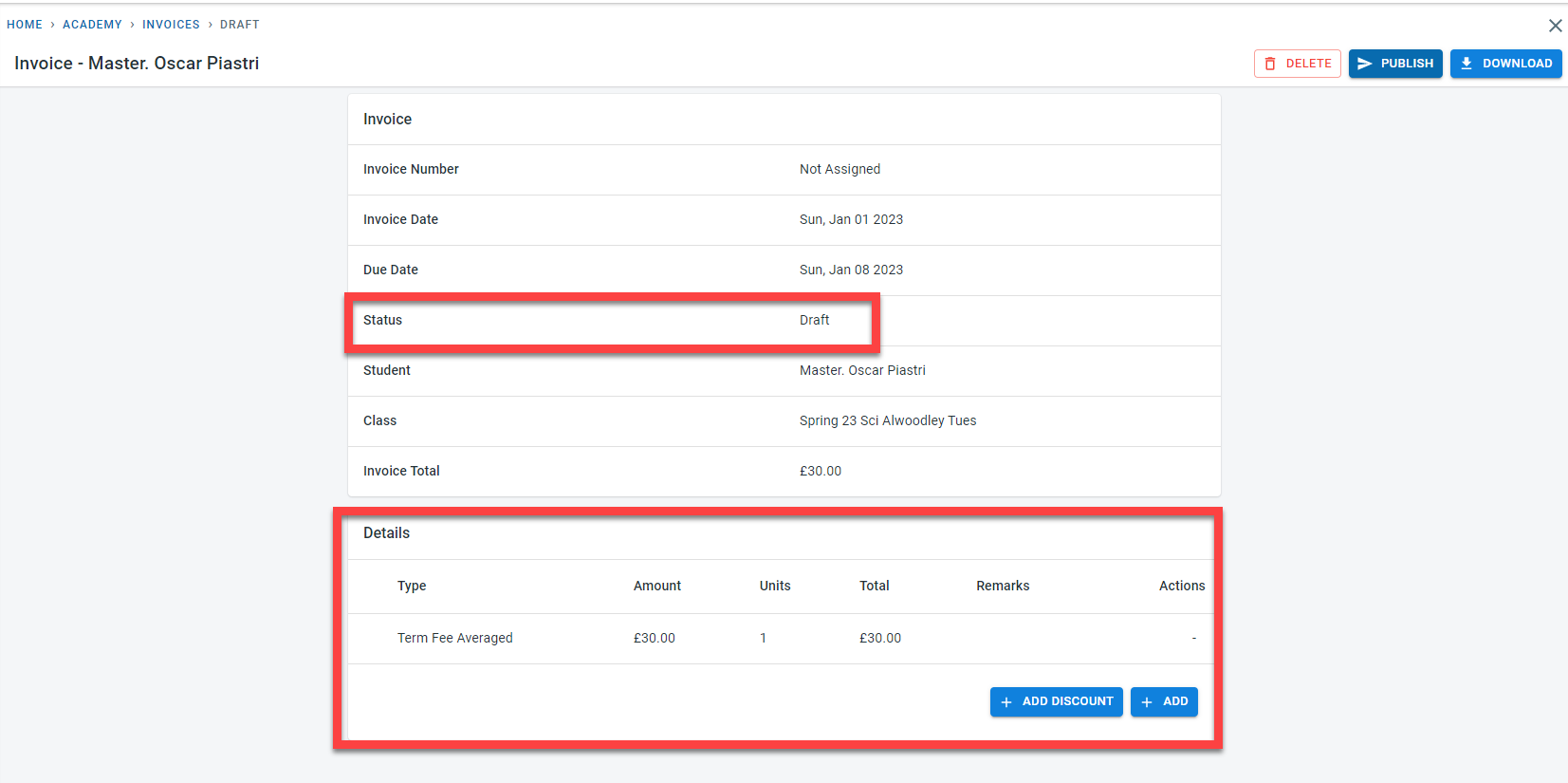
The draft invoice will detail the fees charged in the invoice.
When the invoice is in draft status, it is possible to add extra line items as well as discounts.
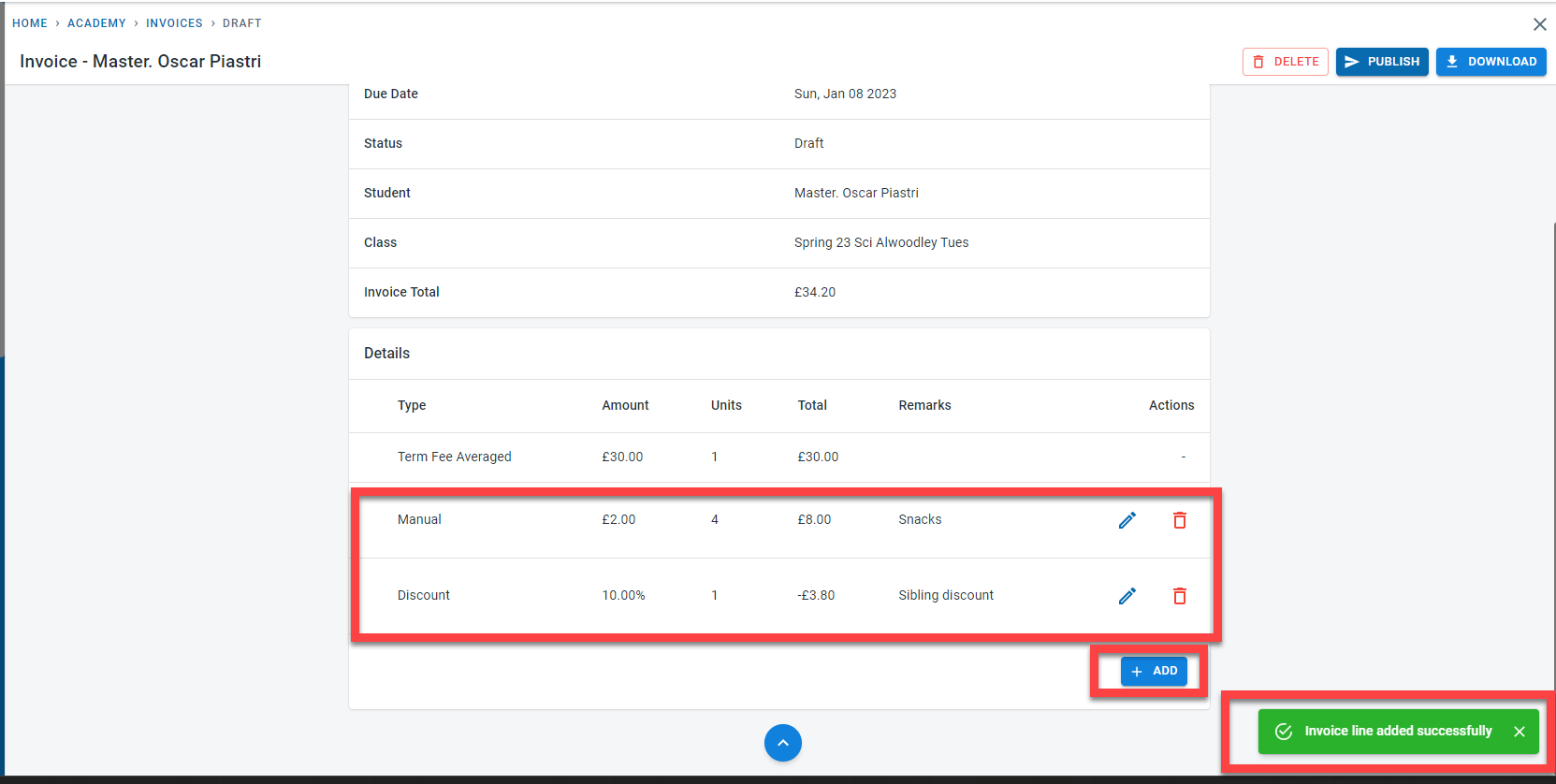
Only one discount is allowed per invoice. Once a discount is added to the invoice, the “Add Discount” button will disappear from the invoice screen
Based on the “Days before auto publish invoice” setting in the class invoice setting the system would automatically publish the invoice. For example, if the invoice date is the 7th of the month and the “Days before auto publish invoice” is 1 day, then the draft invoice for the students enrolled in the class will be published on the 6th of the month.
Generate enrolment invoice
It is possible to generate enrolment invoices manually before the system autogenerates the invoice.
Navigate to the invoice screen. Click on “Generate”
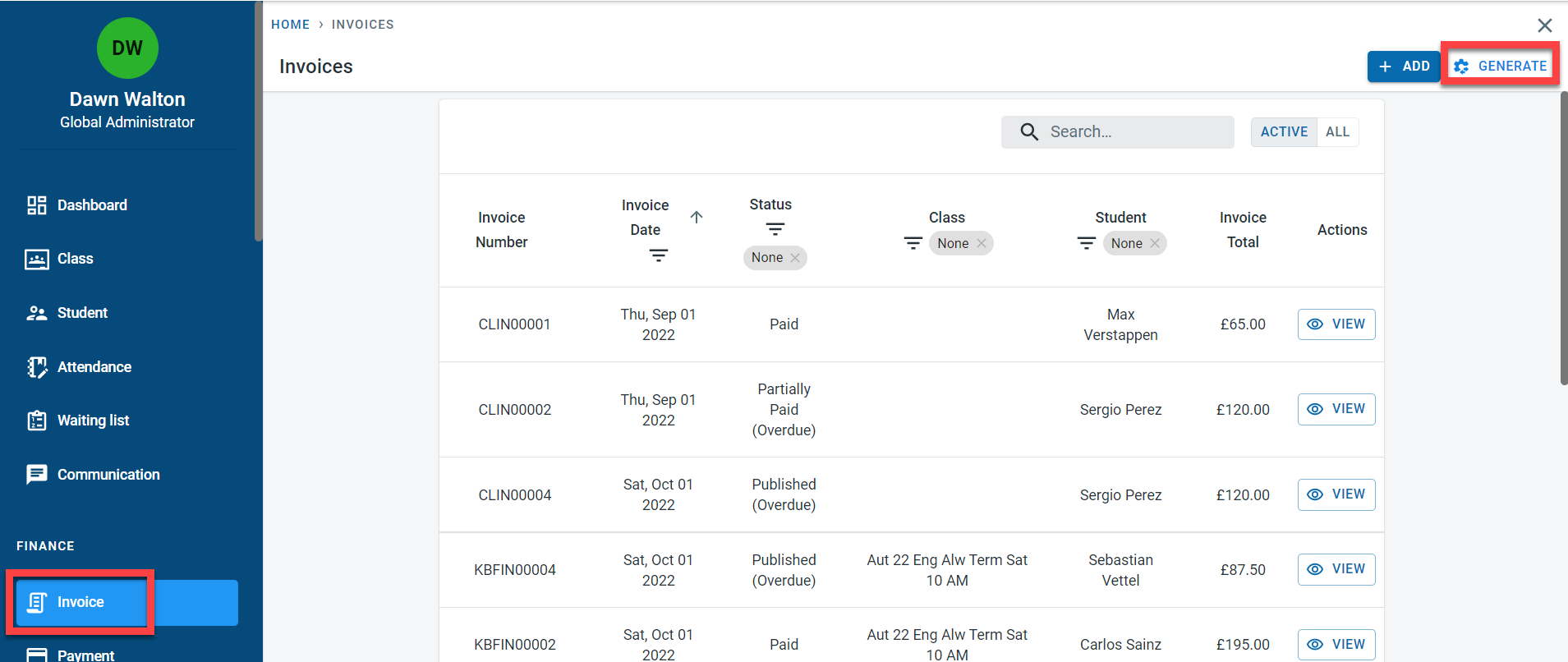
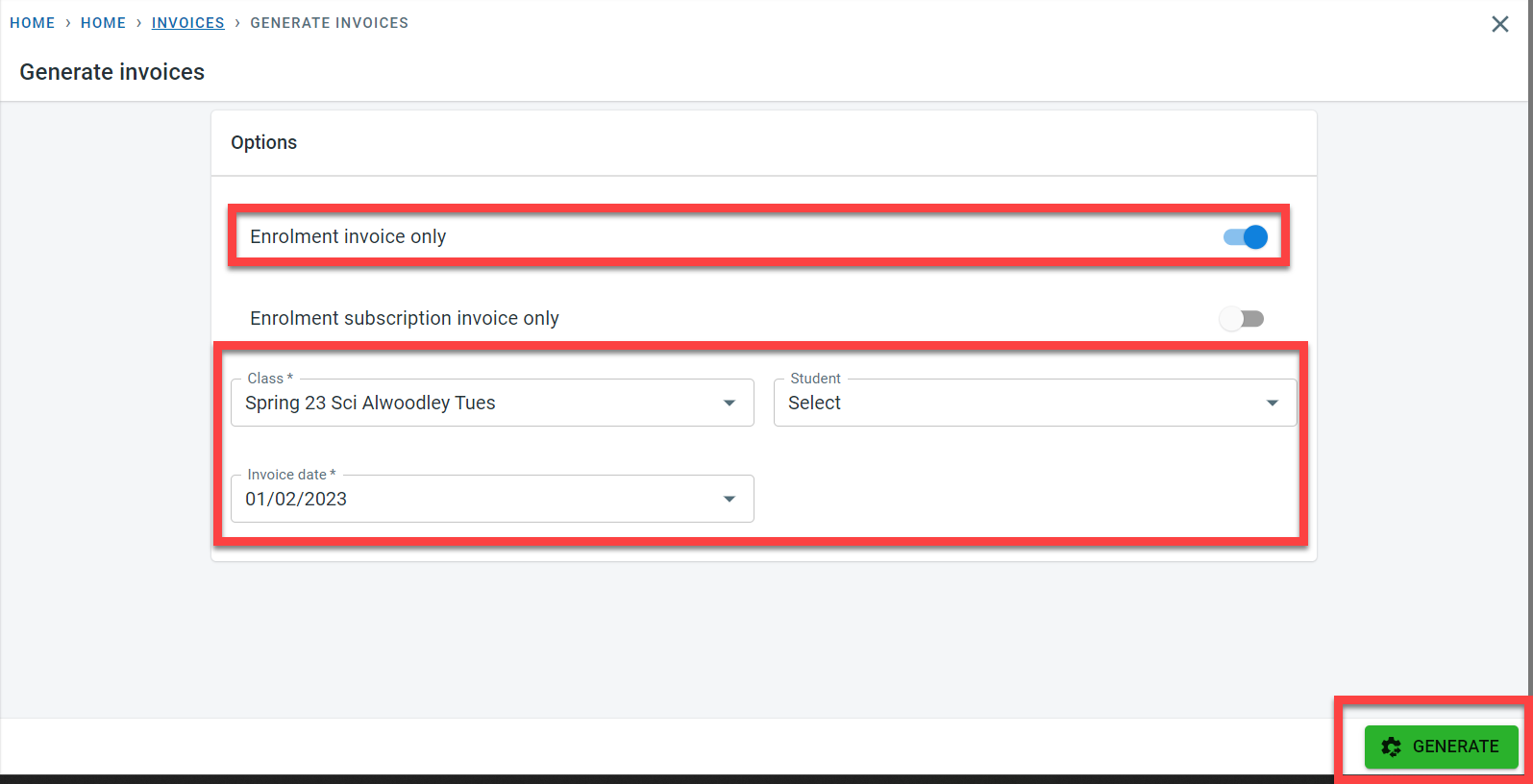
In the “Generate invoices” screen, Select “Enrolment invoice only”.
Then select the class and the invoice date. If the invoice has to be generated for a particular student, then select the student name in the selection screen. Click on “Generate”
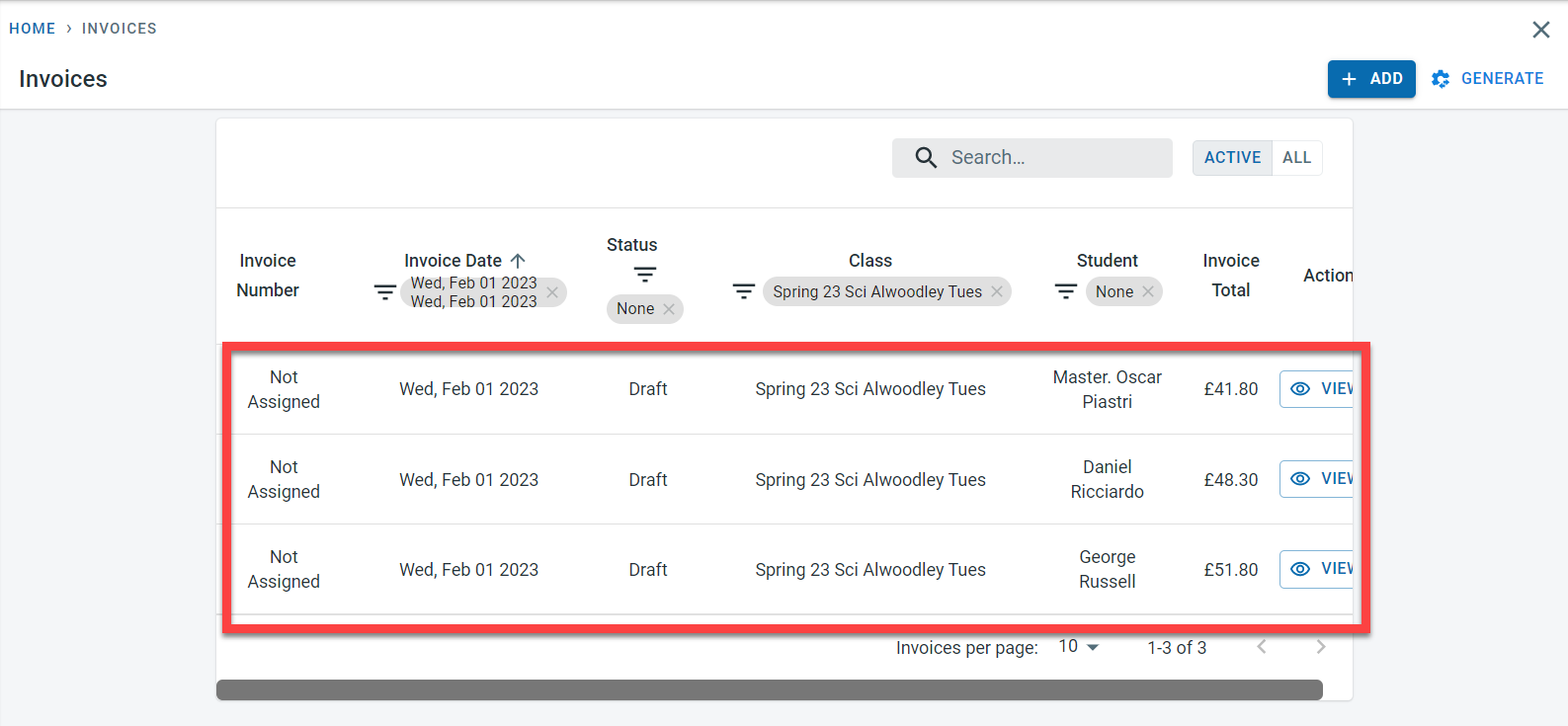
Draft invoices will be generated for the class
Invoice for subscription based on enrolment
It is possible to define subscription fees for the class.
Once the subscription fees are defined for the class, for term time enrolment, it is possible to select the payment type as subscription.
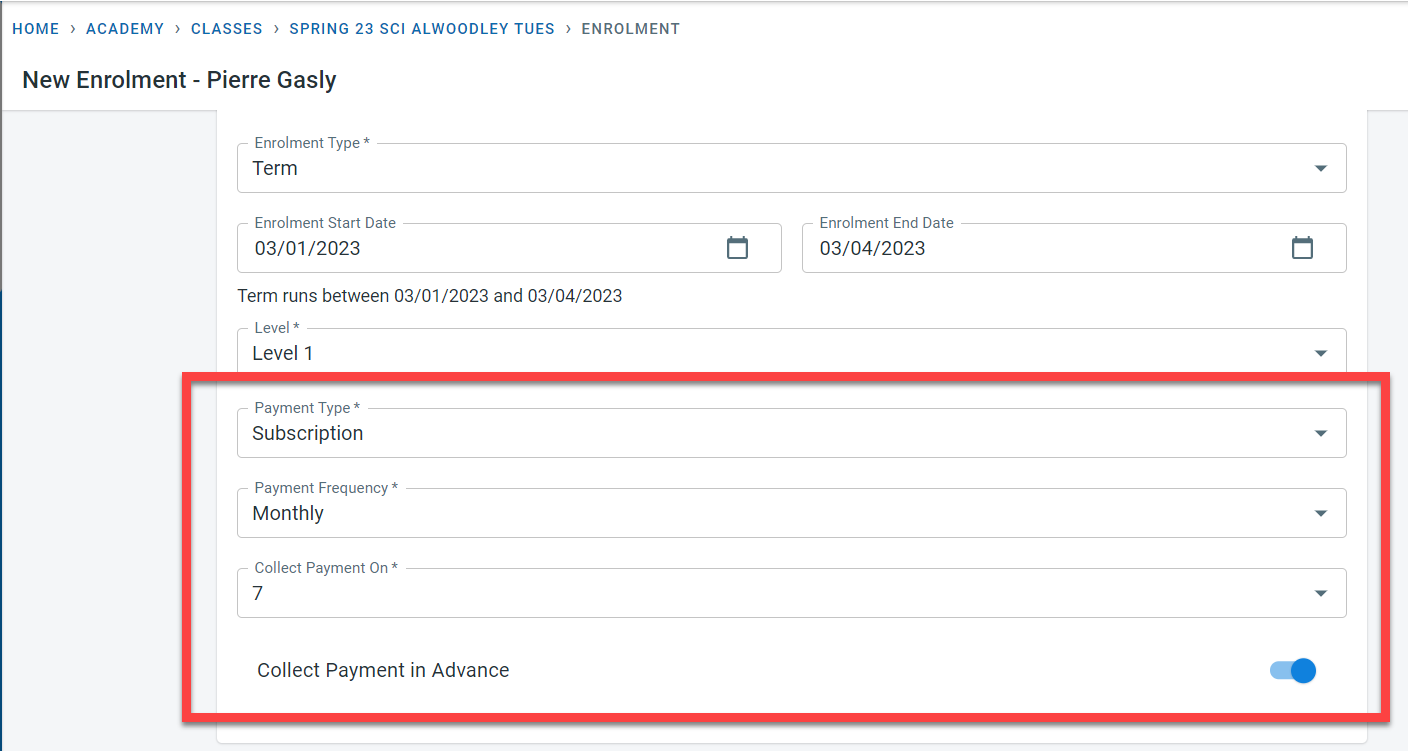
The payment frequency and the payment collection date can be defined for the student during the enrolment.
Invoices would be autogenerated in draft status and would be published based on the invoice setting as seen above.
To manually generate the subscription invoices for enrolment, navigate to the invoice screen. Click on “Generate”
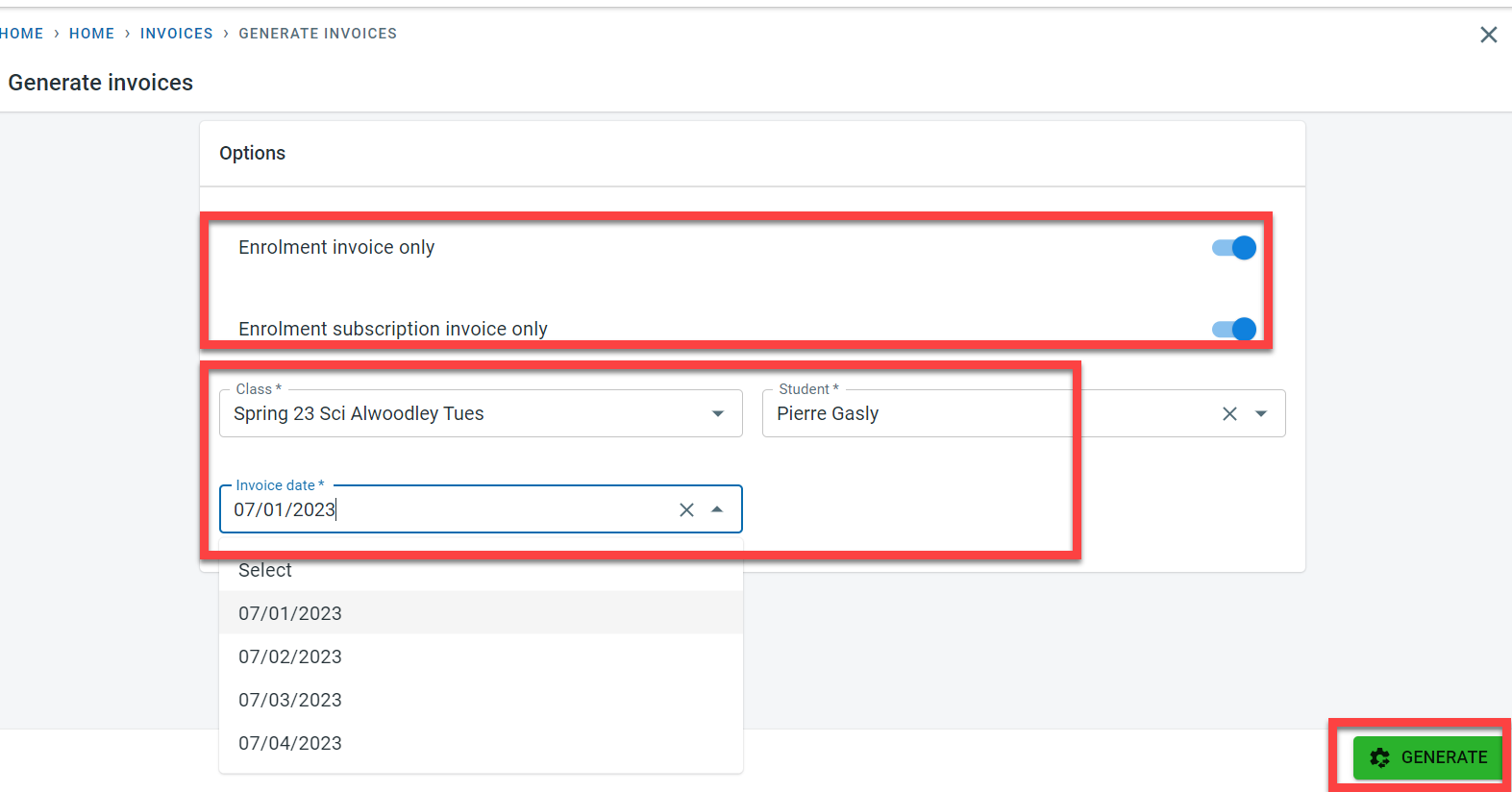
In the “Generate invoices” screen, Select “Enrolment invoice only” and then select “Enrolment subscription invoice only”
Then select the class, the student, and the invoice date. The invoice date is populated based on the date entered in the “Collect payment on” field during the student enrolment to the class. Click on “Generate”.
The draft invoice would be generated for the student.
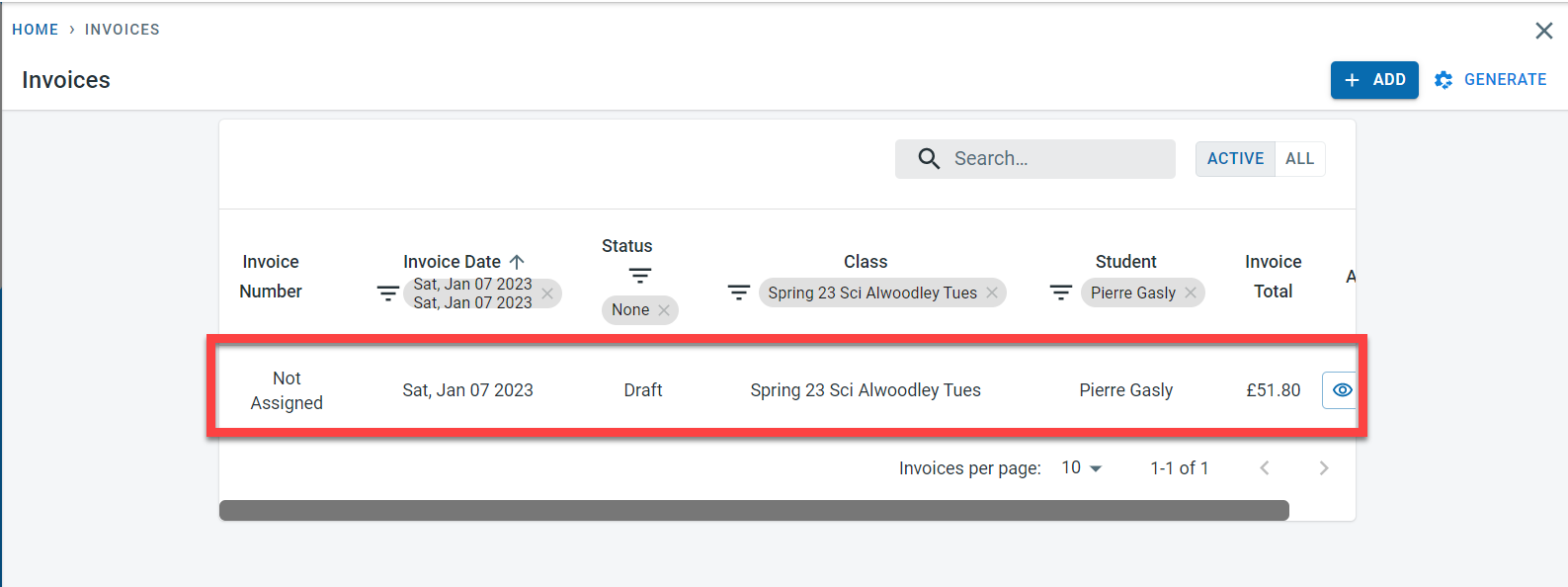
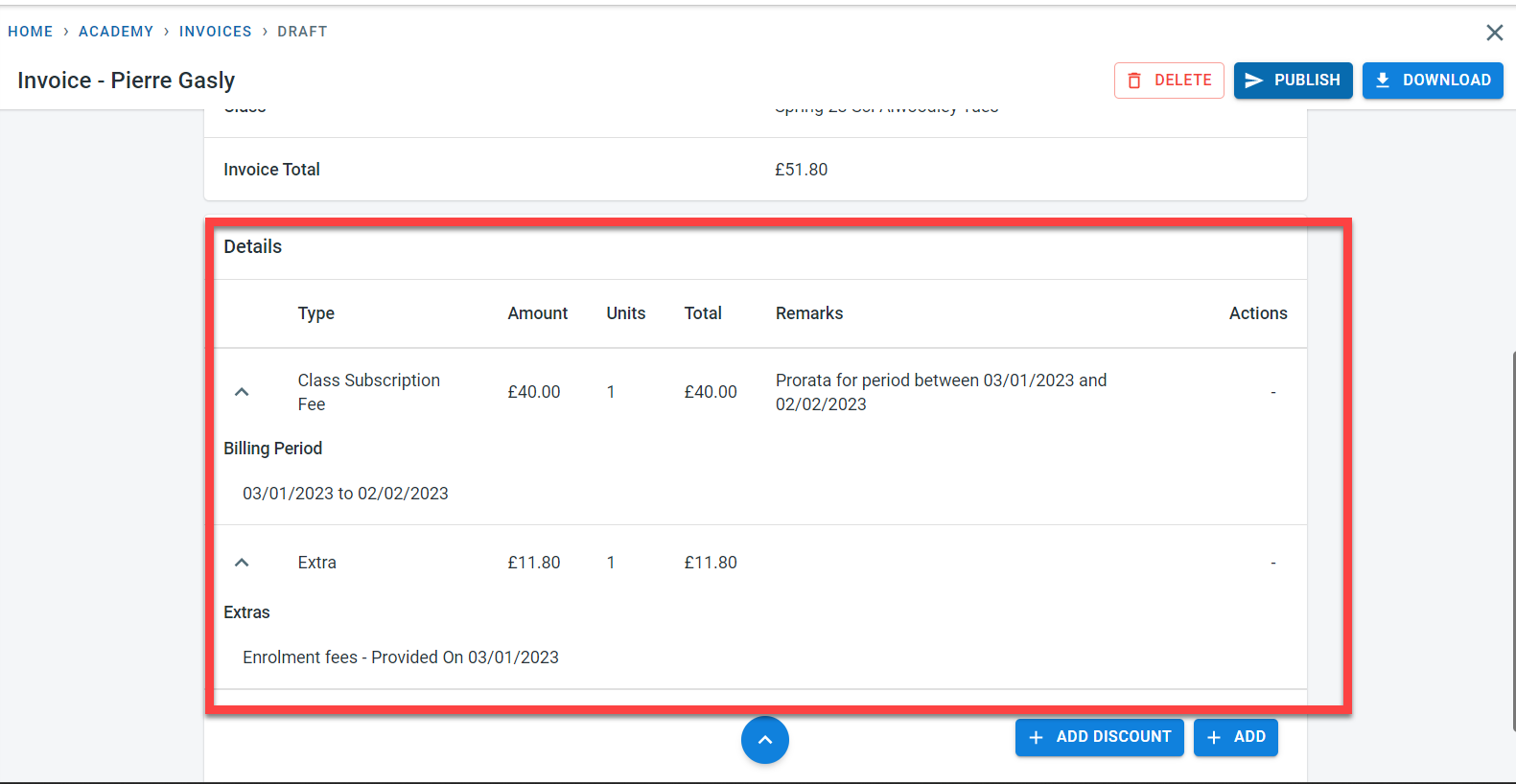
Details of the invoice are shown below