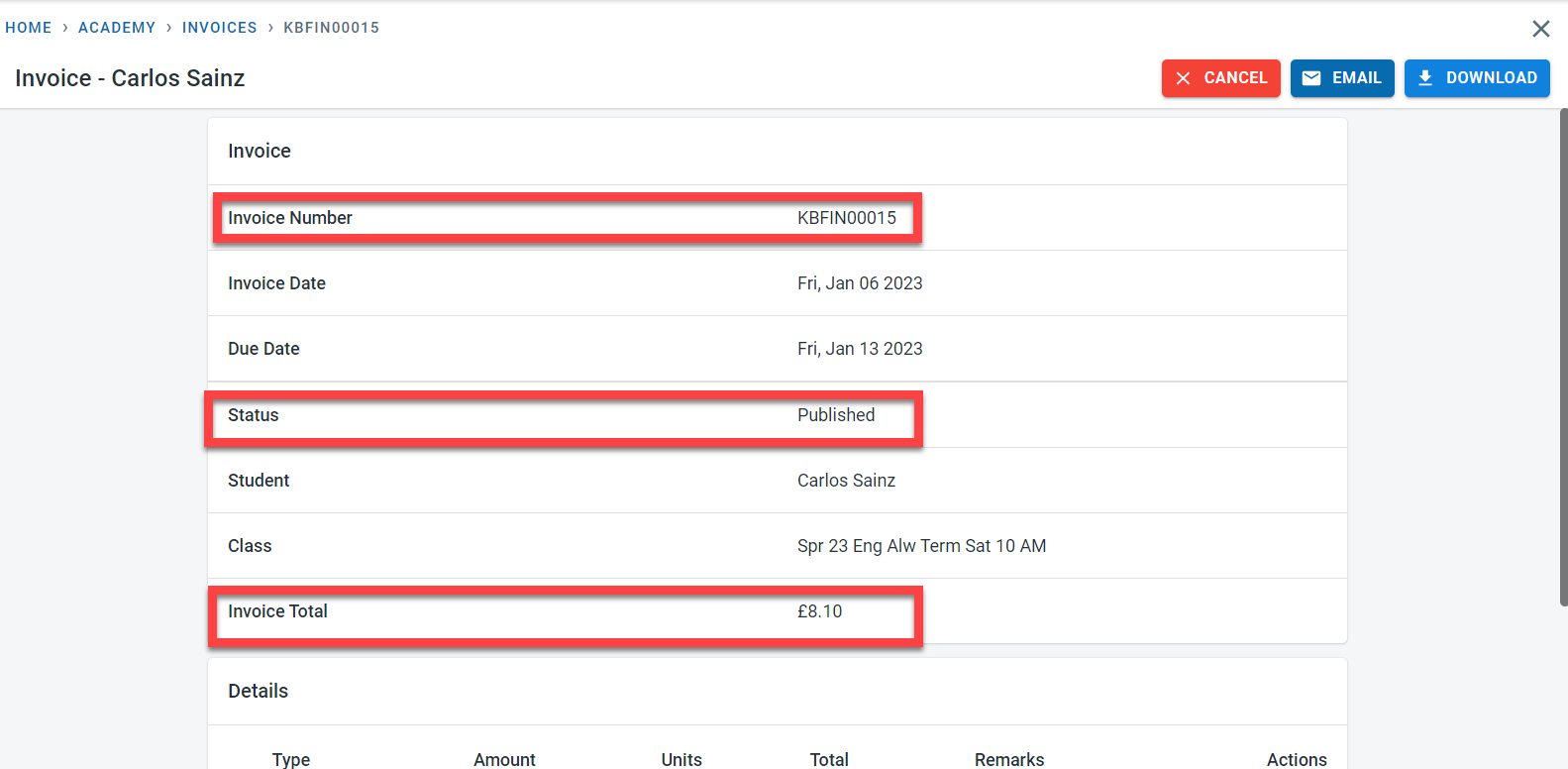
Most of the invoices in Classbees can be generated automatically. If needed, It is possible to generate the invoices manually for individual students
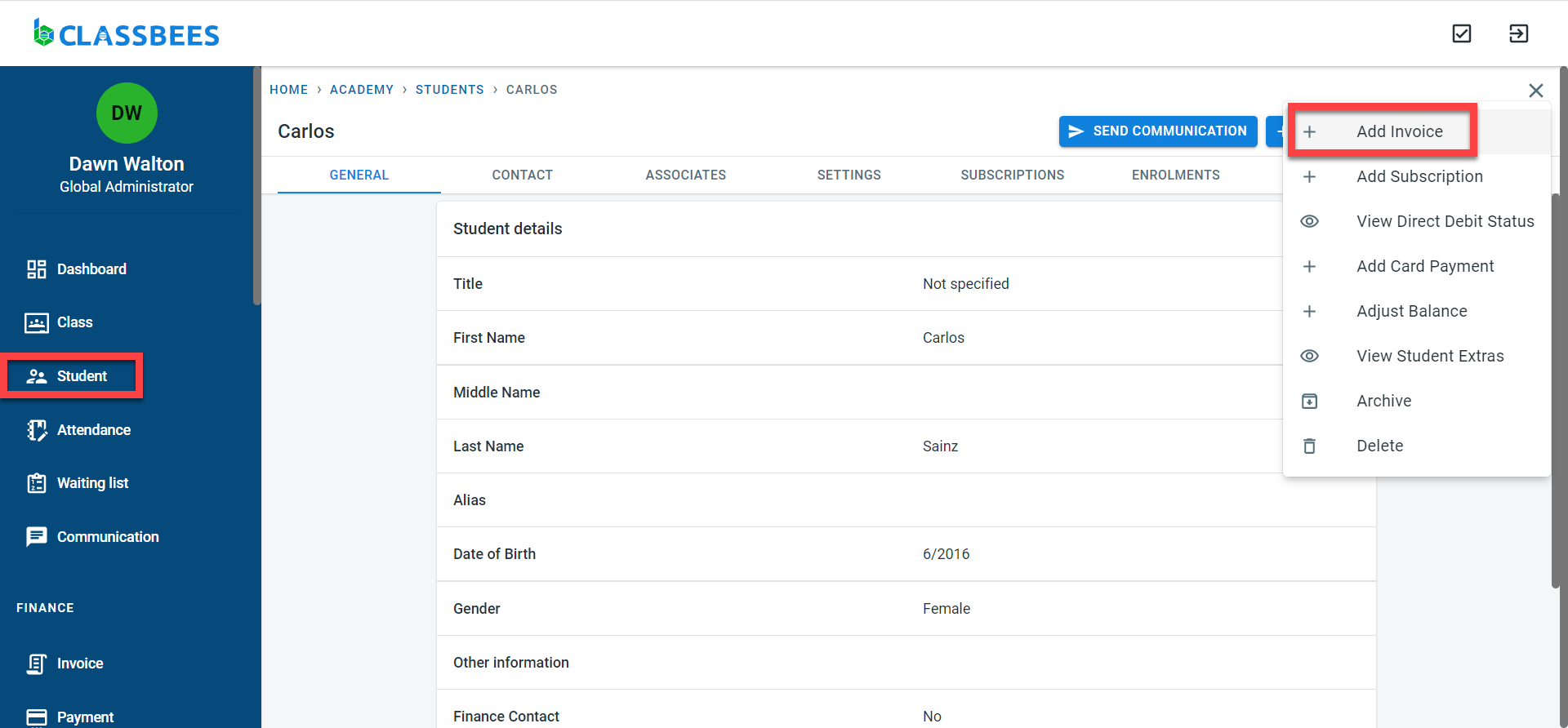
To manually add an invoice for a student, you can select the student from the “Student” screen. Click on “Add Invoice”
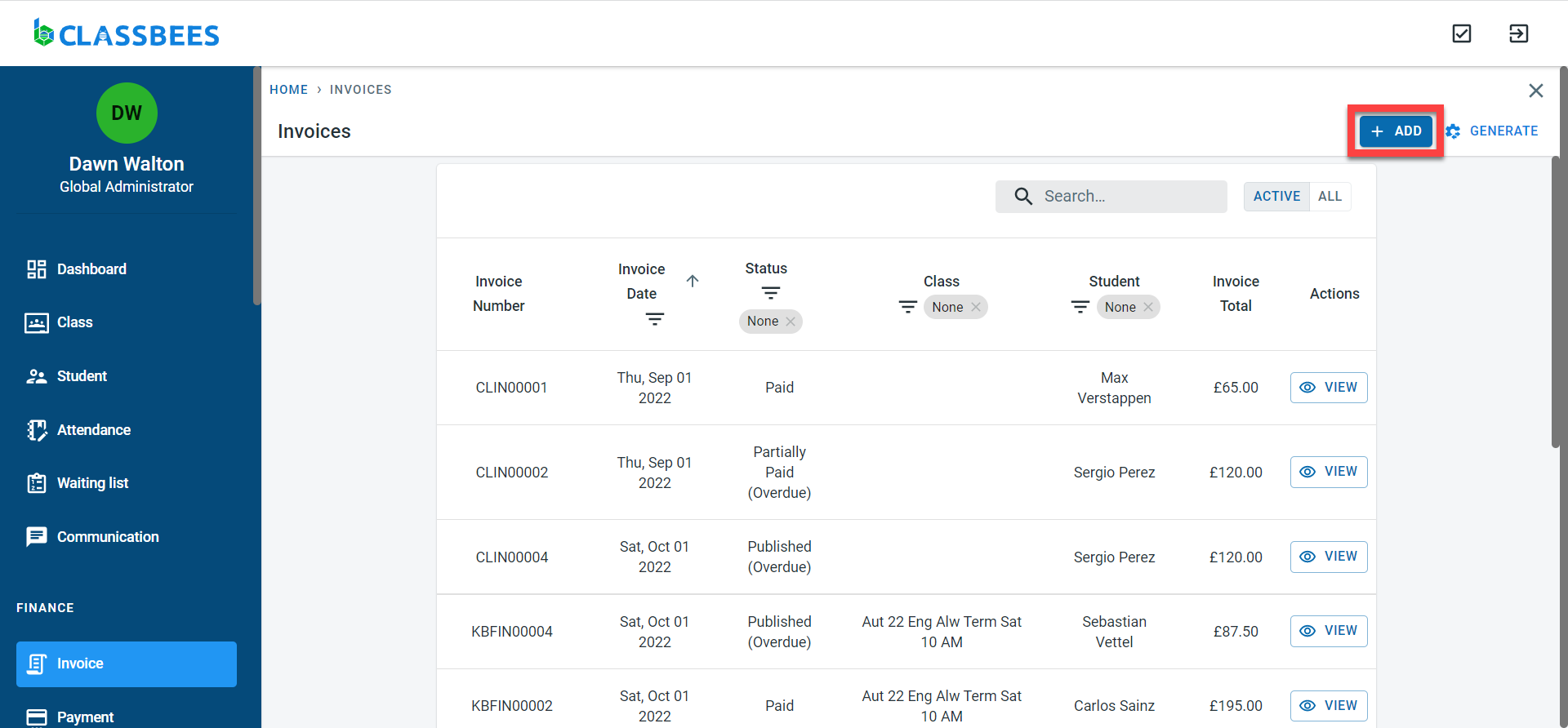
Invoices can be created from the Invoice screen as well
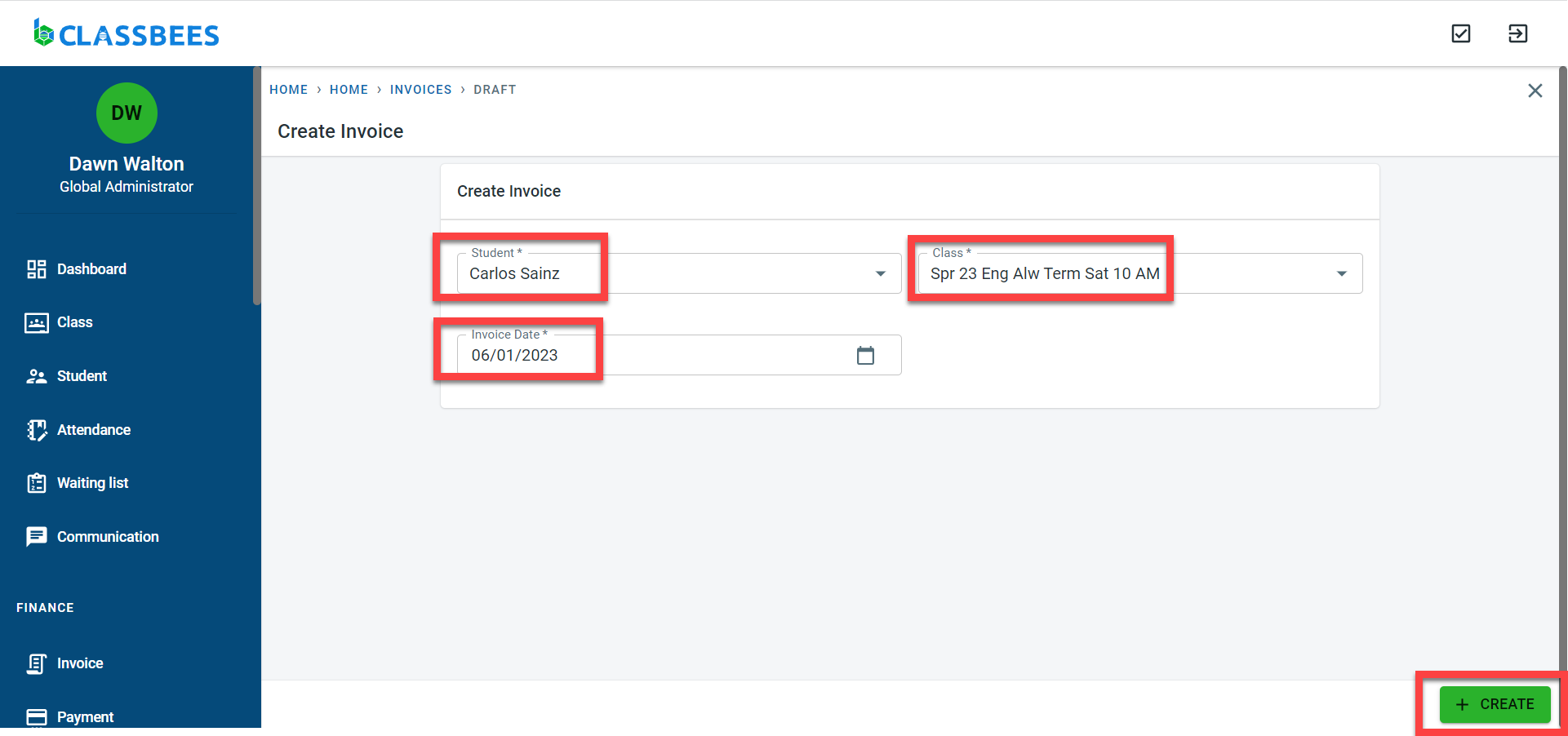
Enter the student name, select one of the classes in which the student is enrolled, and select an invoice date. Click on “Create”
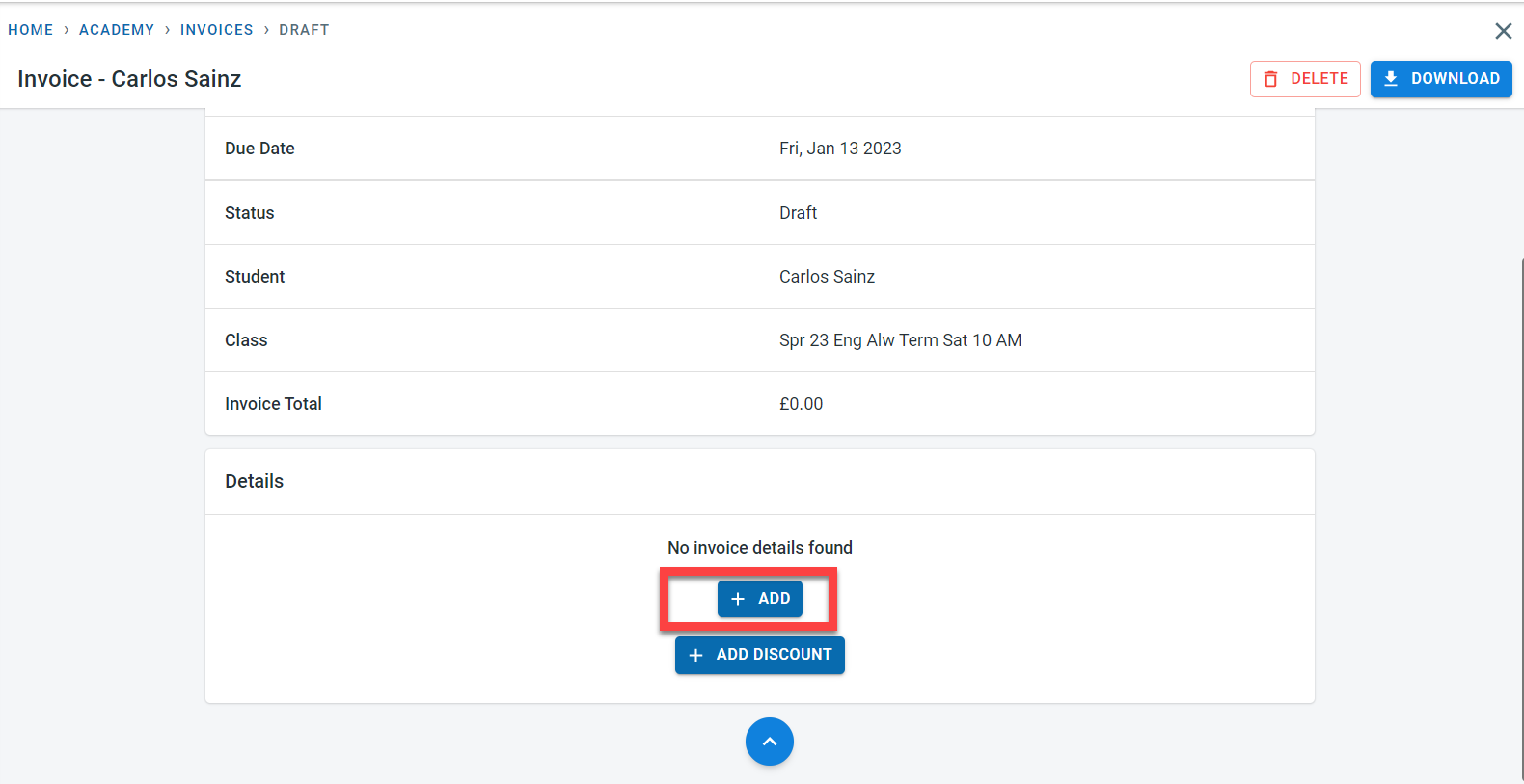
In the Student invoice screen, in the details section, click on “ADD” to add a line item for the invoice.
Enter the amount and the quantity for the line item. Also, enter a description for the line.
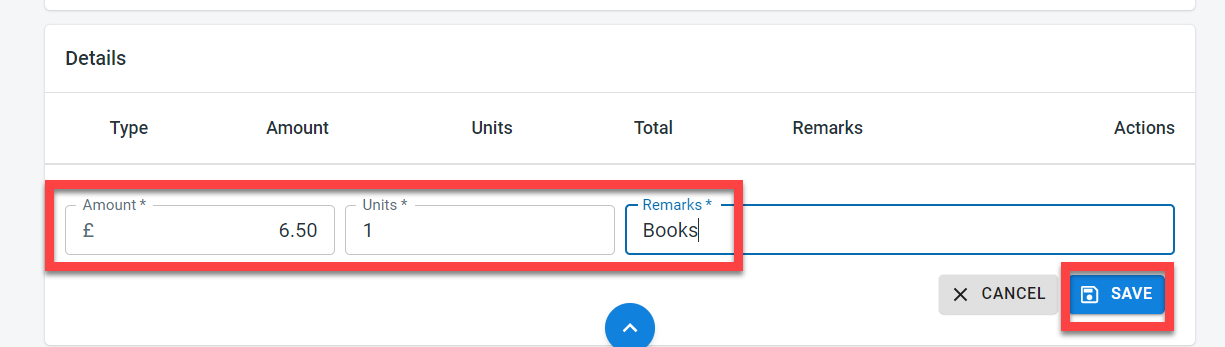
Click on “Save”
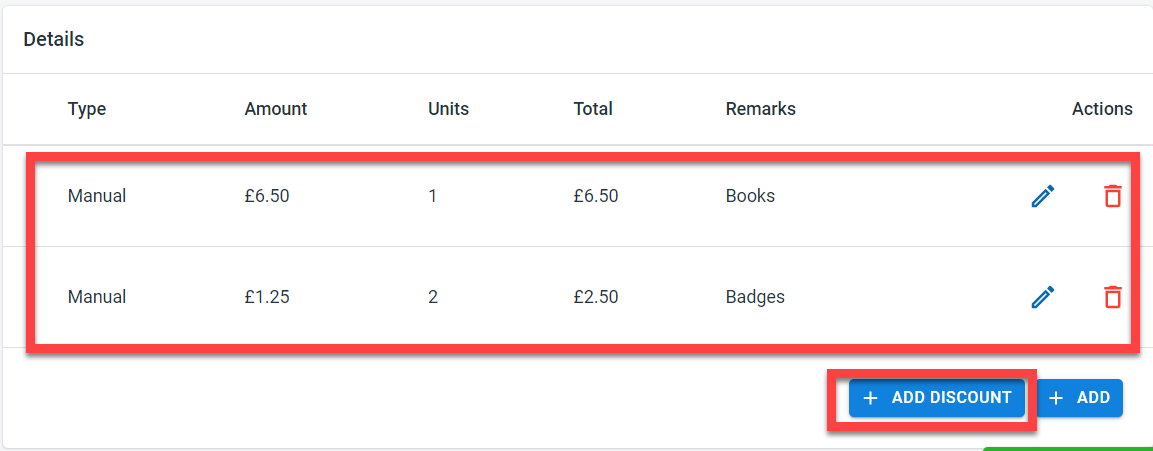
If a discount has to be applied to the invoice, click on “ADD DISCOUNT”
Select if the discount is an amount or percentage. Enter the discount amount/percentage and a description of the discount
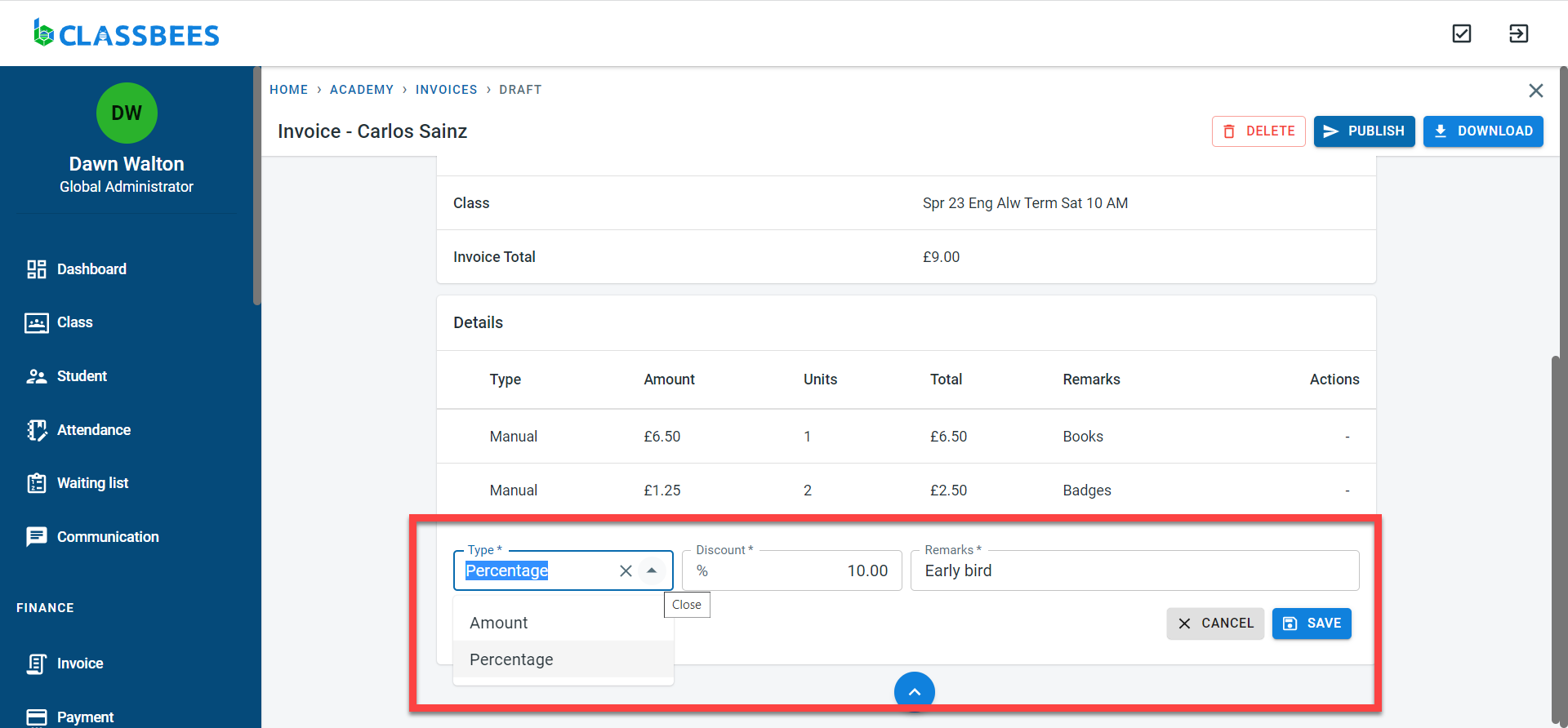
Click on “Save”
The invoice total will be calculated as line items are added to the invoice
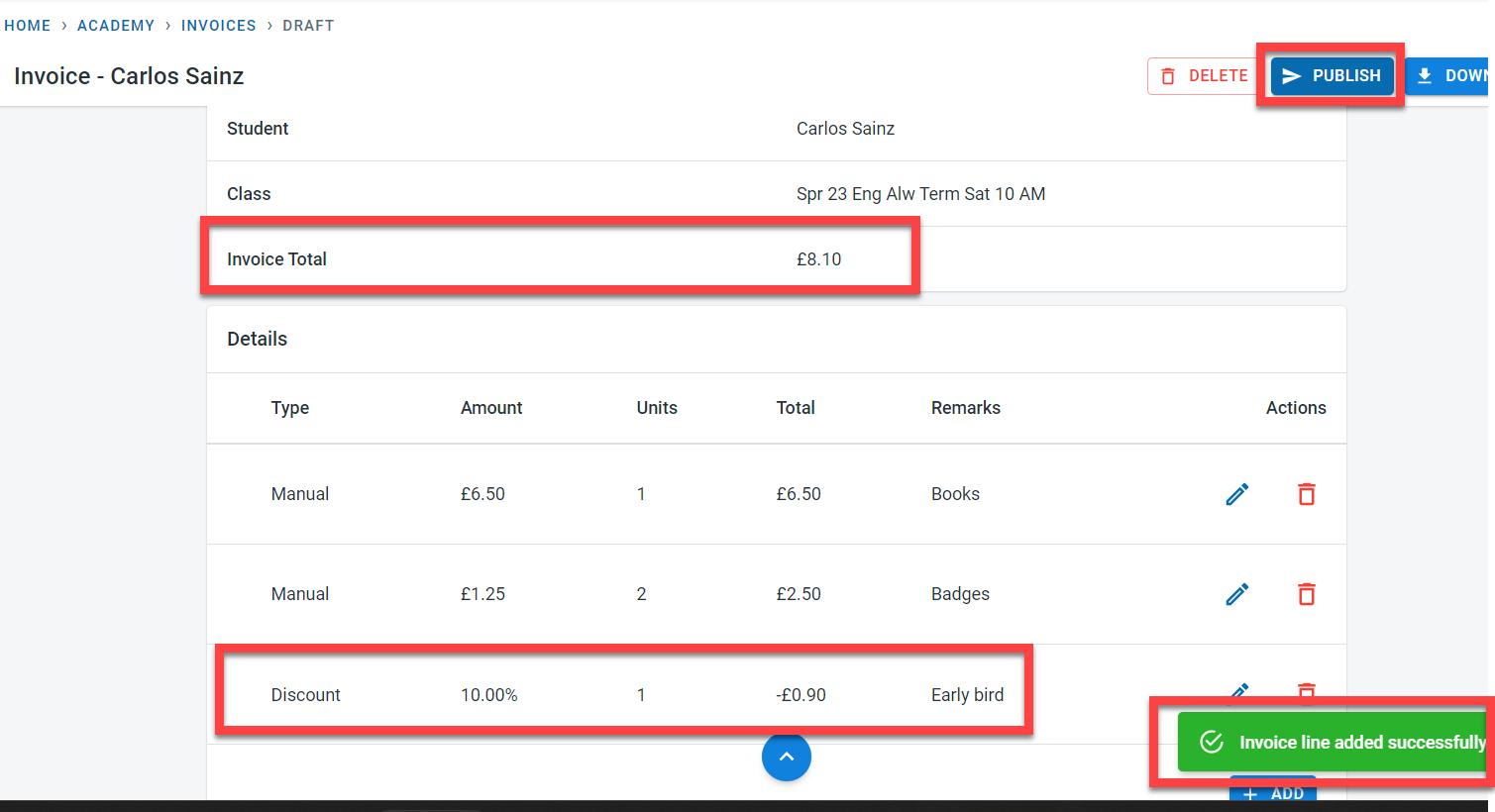
Once all entries have been added, click on “Publish”.
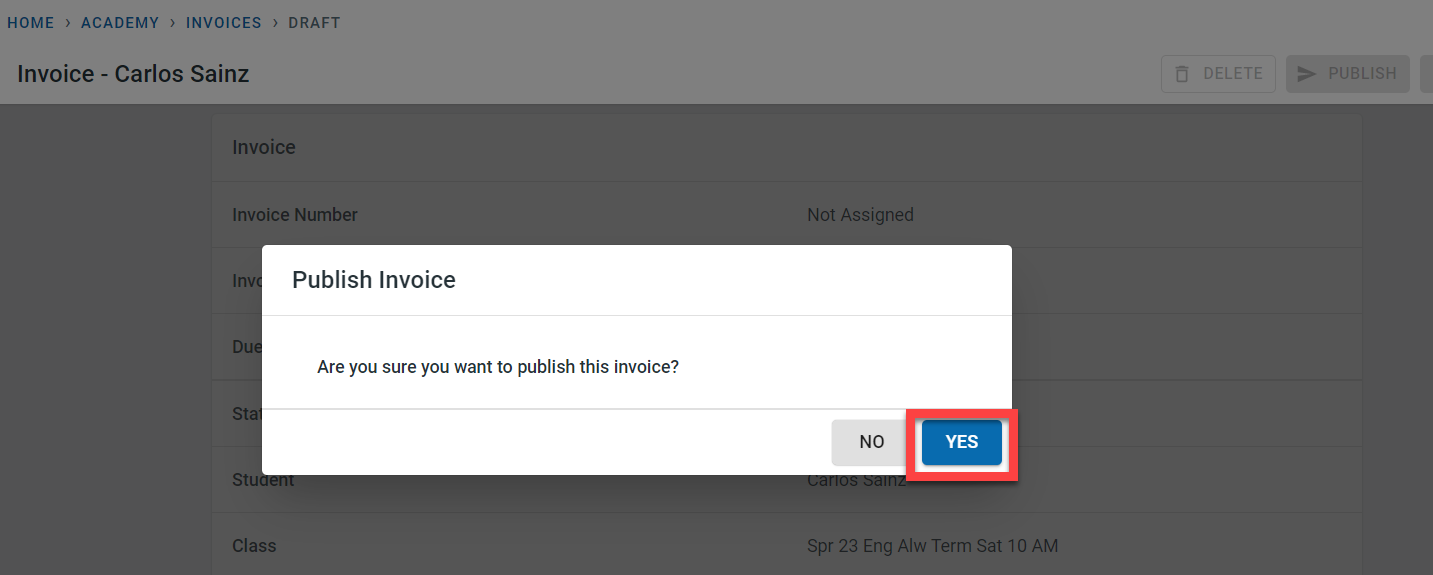
Press “yes” in the “Publish invoice” pop-up. The invoice will be published with a new invoice number.