Before collecting direct debit, it is necessary to connect the academy/club’s stripe connect account to Classbees.
Once the academy is linked to the stripe account, the direct debit status for individual students can be seen at the academy level
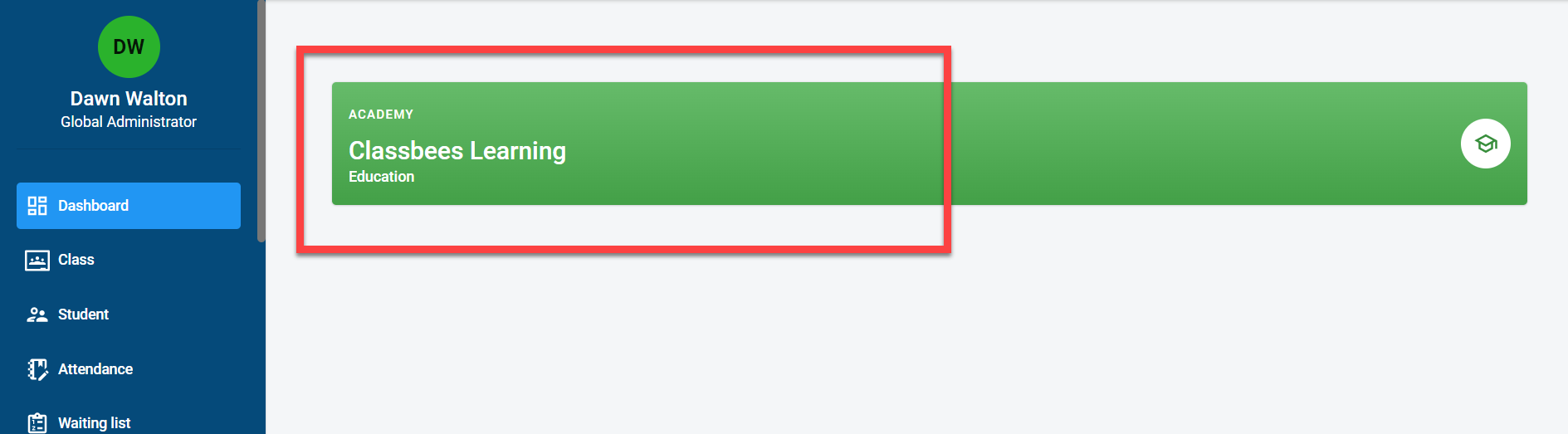
Click on the academy
Click on “View Direct Debit”
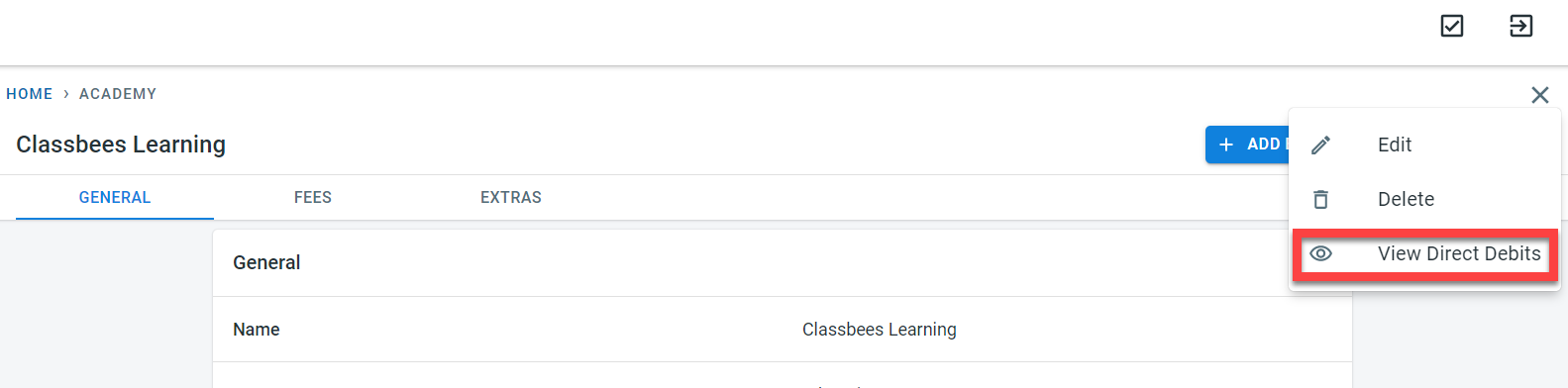
Select “View Direct Debits”.
The student’s direct debit can be viewed directly from the student as well.
Click on “View” next to the student
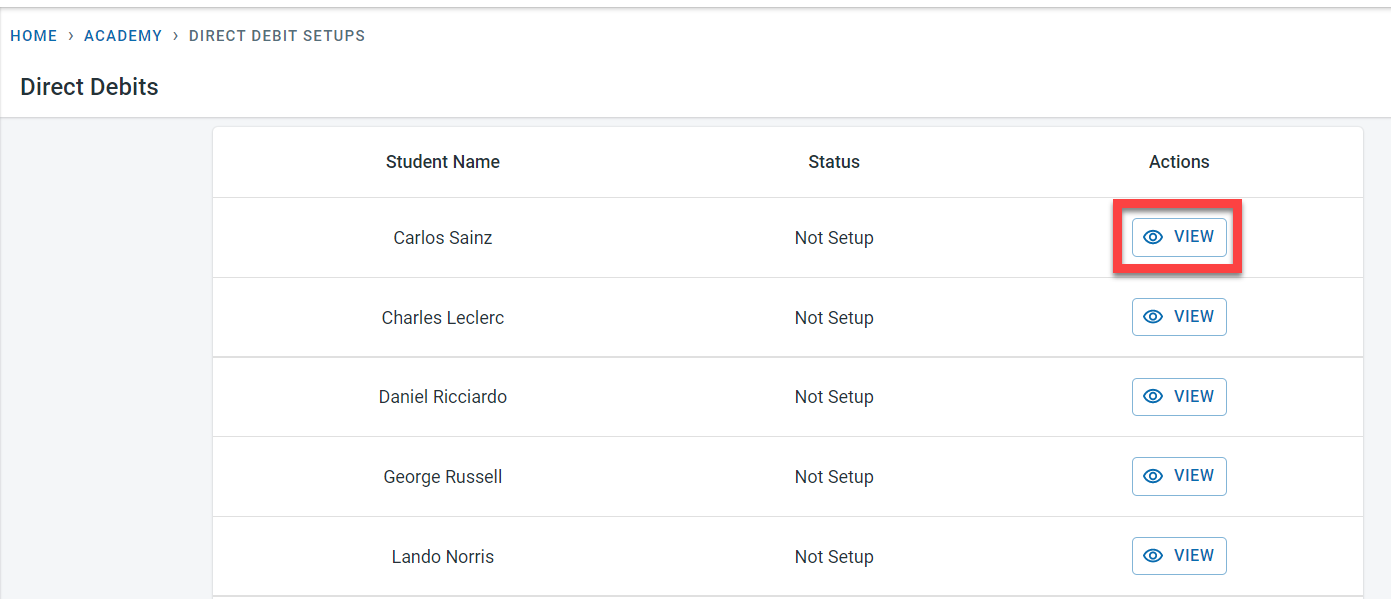
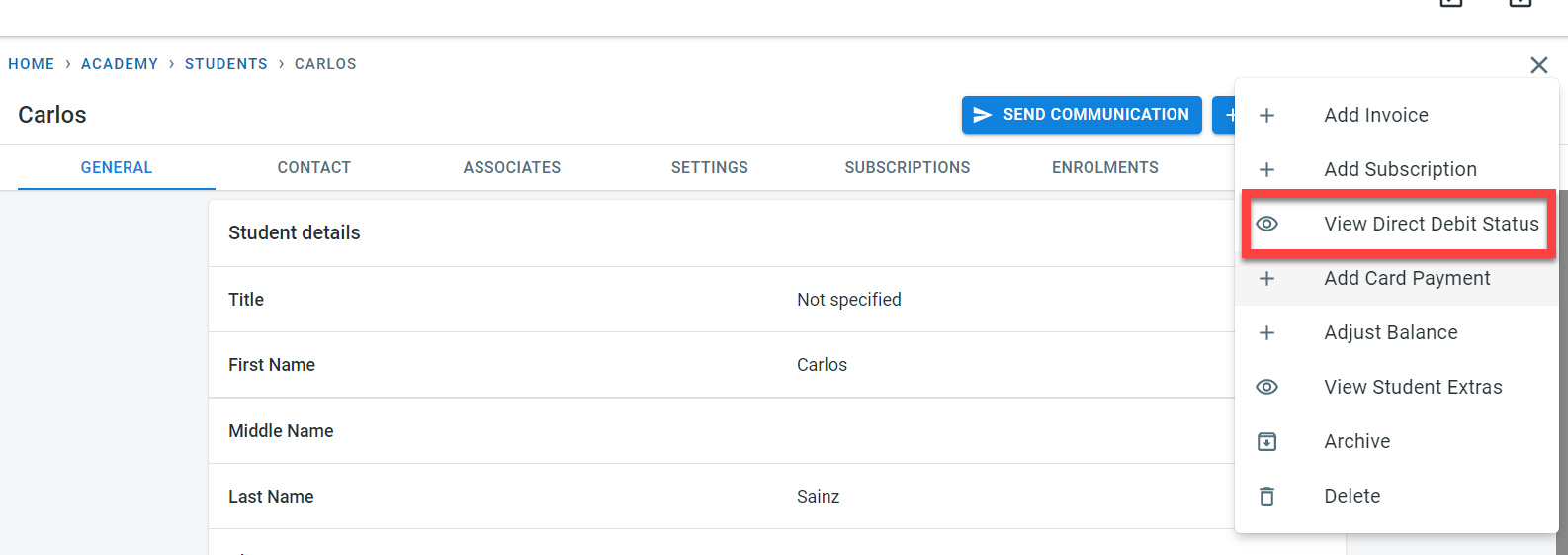
Click on “View Direct Debit Status” to see details of the direct debit of the student
If direct debit has not been set up for the student yet, the following screen will be displayed
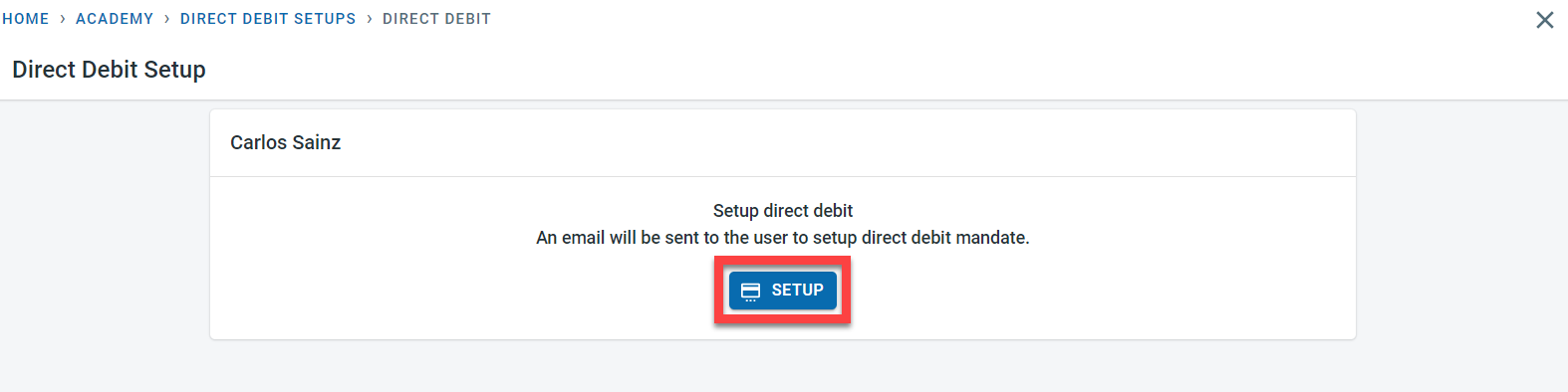
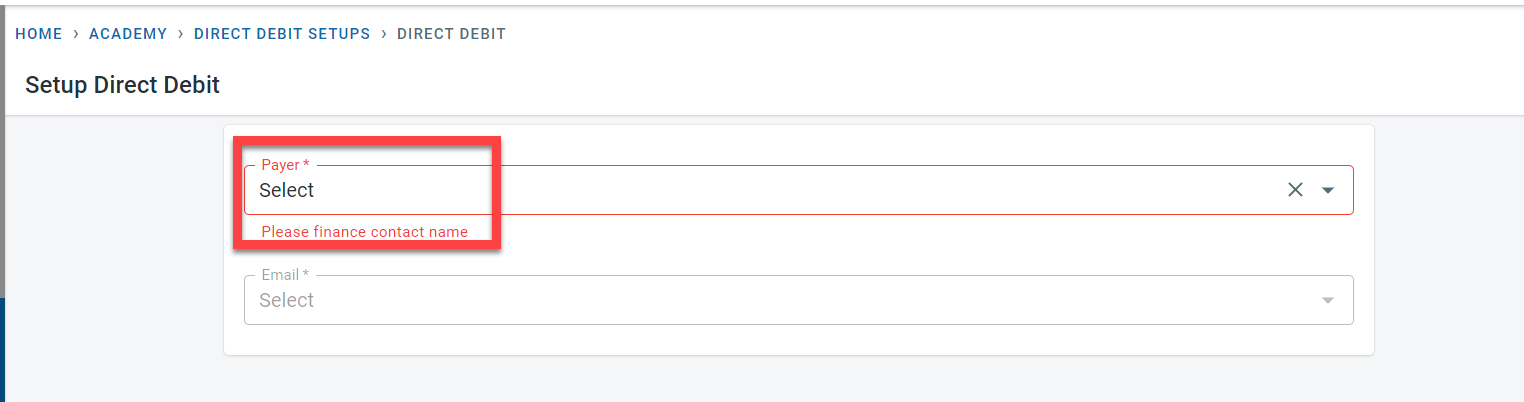
Click on “Setup” to initiate the direct debit for the student. Under the Payer column, select one of the finance contacts.
Select the email address for the finance contact and click on setup.
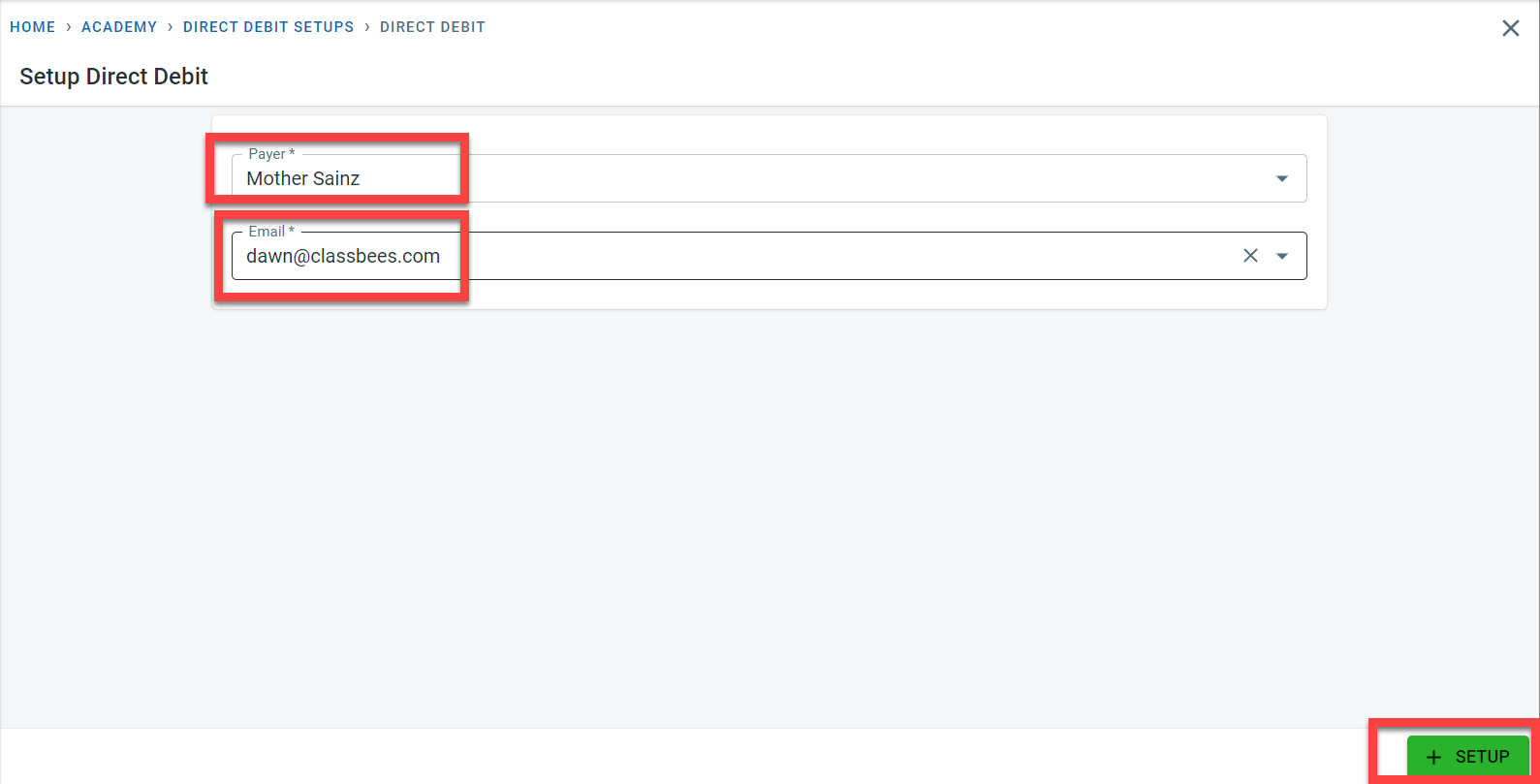
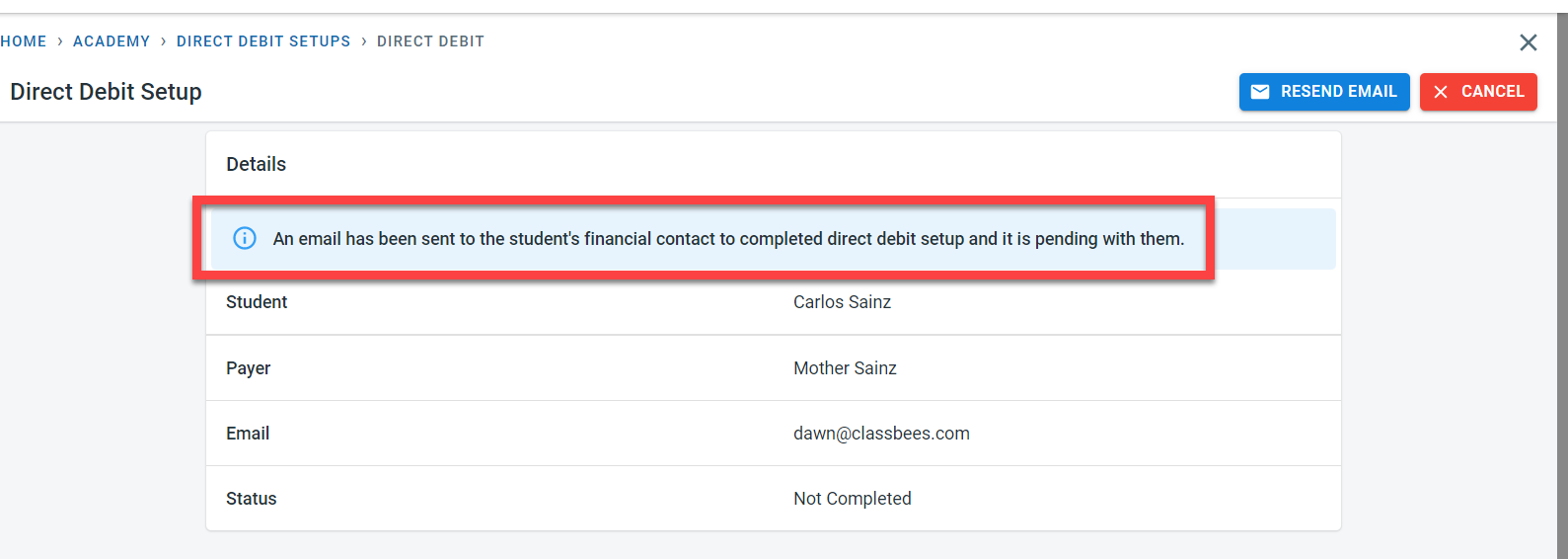
An email will be sent to the finance contact.
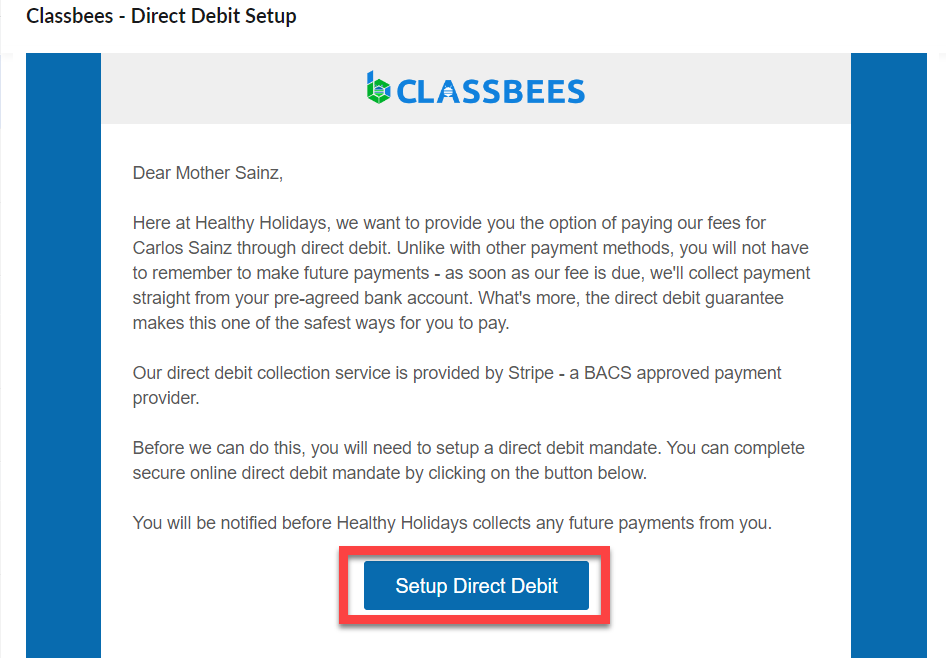
In the email, the finance contact for the student should click on “Setup Direct Debit”
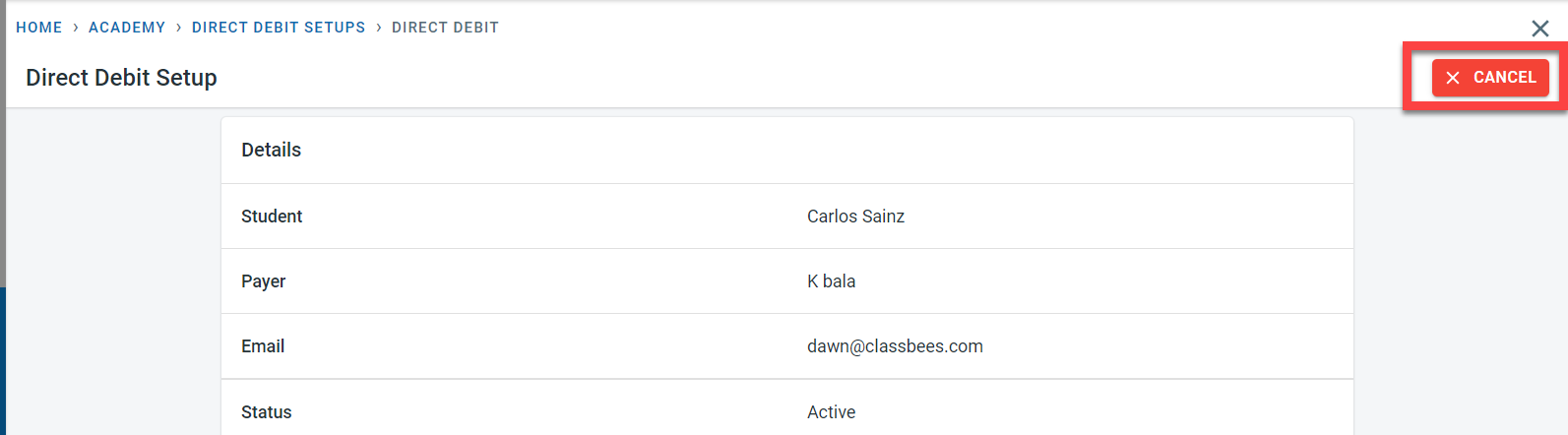
Once the direct debit is set up, the status of direct debit for the student would be “Active”

To cancel the direct debit, click on “View” next to the direct debit setup for the student. In the Direct debit screen, click on “Cancel”
Collecting fees through direct debit
Manage systems checks the outstanding balance of all students who have got an active direct debit set up. If the outstanding balance is greater than 5£, the system picks up the outstanding balance and passes it on to Stripe to collect the outstanding amount through direct debit.
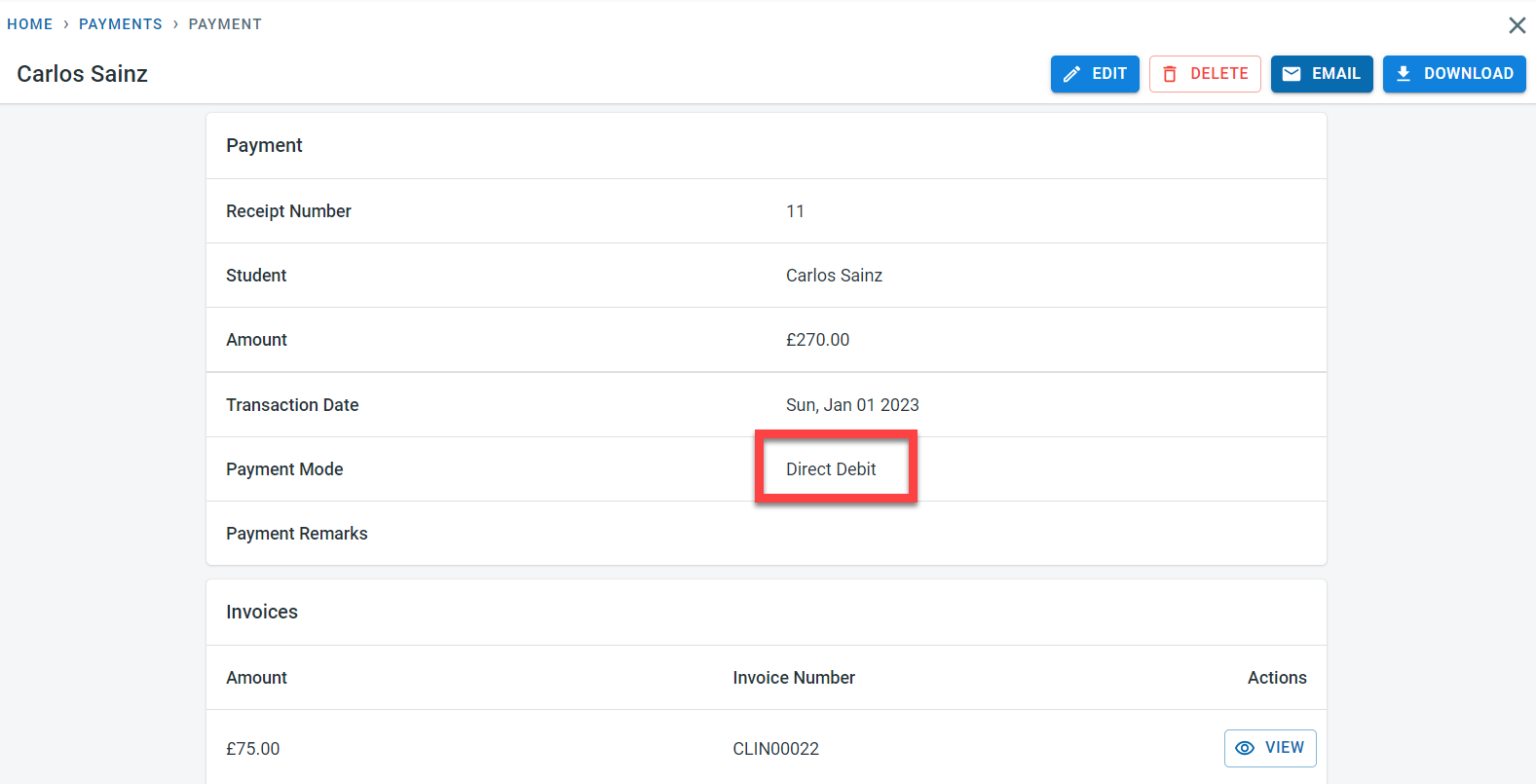
Once the fees is collected Stripe passes the successful collection amount to Classbees manage. This is recorded automatically as payment againt the student with the payment type as “Direct Debit”.