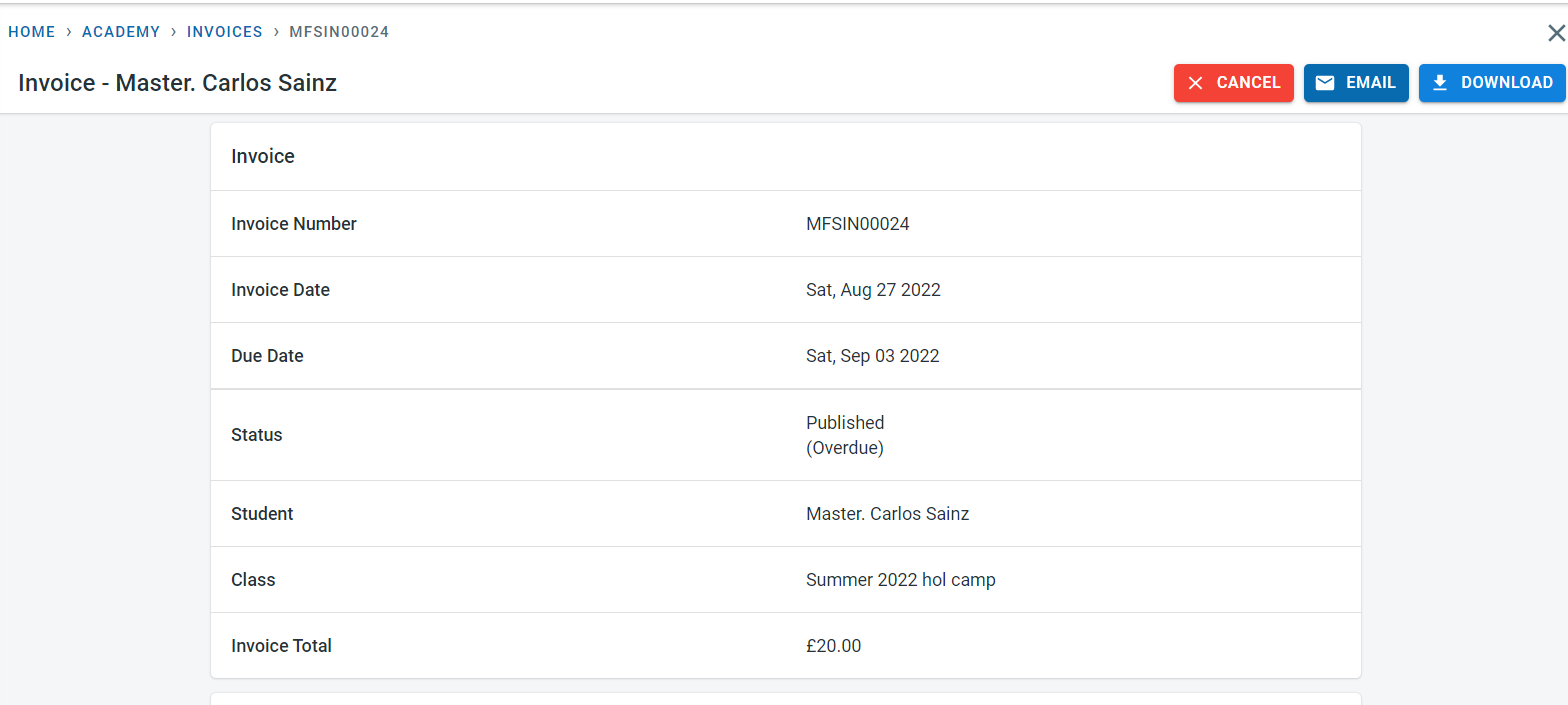
Student transactions have been introduced to provide a single view of student finance. This is achieved by combining invoices, credit notes, and payments into one single view instead of separate sections.
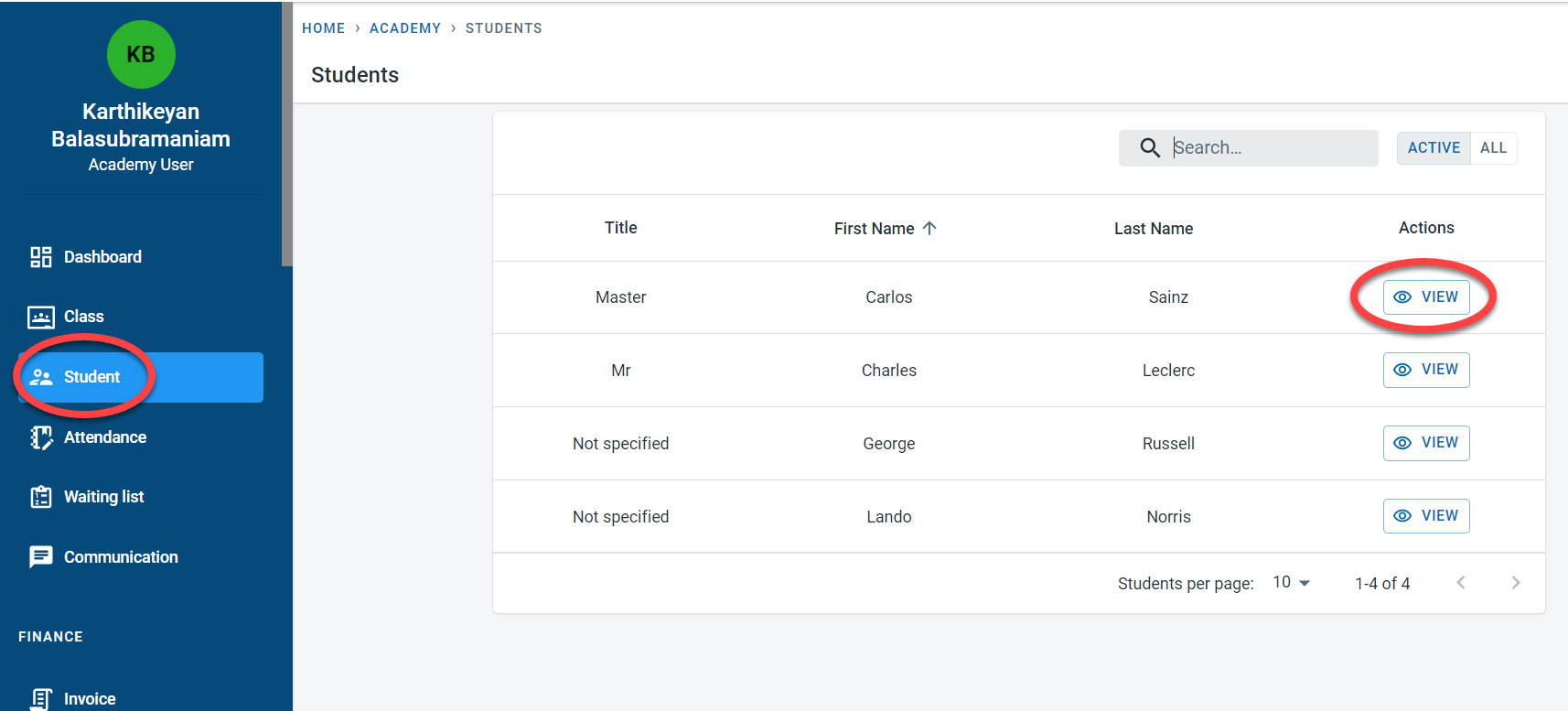
In the student screen, select “View” next to the student
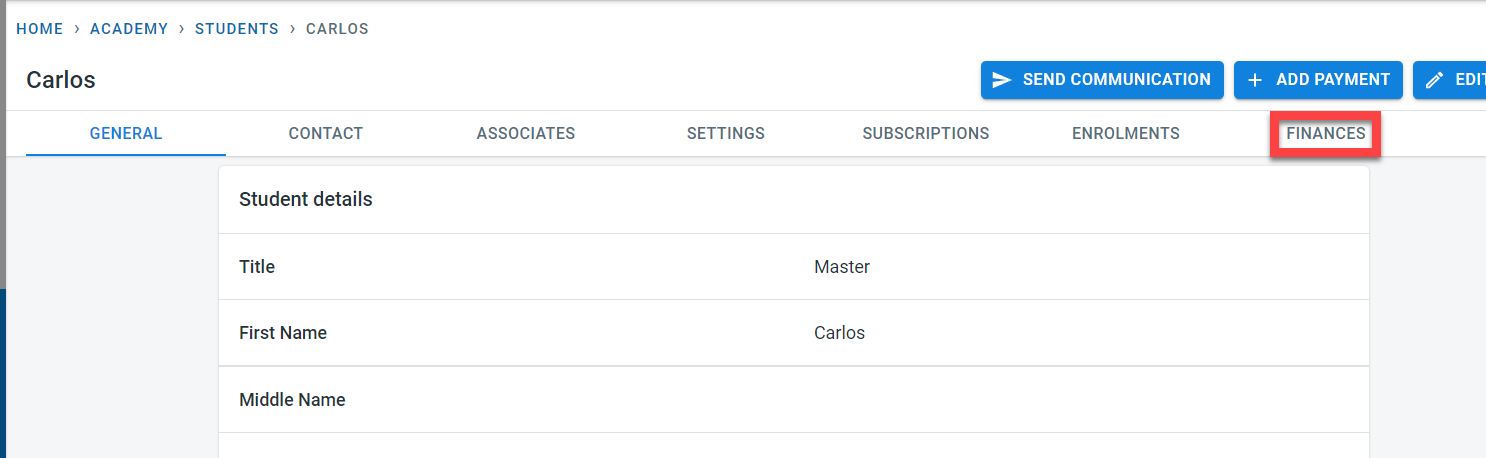
Click on “Finance” on the student screen
The student transactions are displayed by default in descending order by the date of the transaction
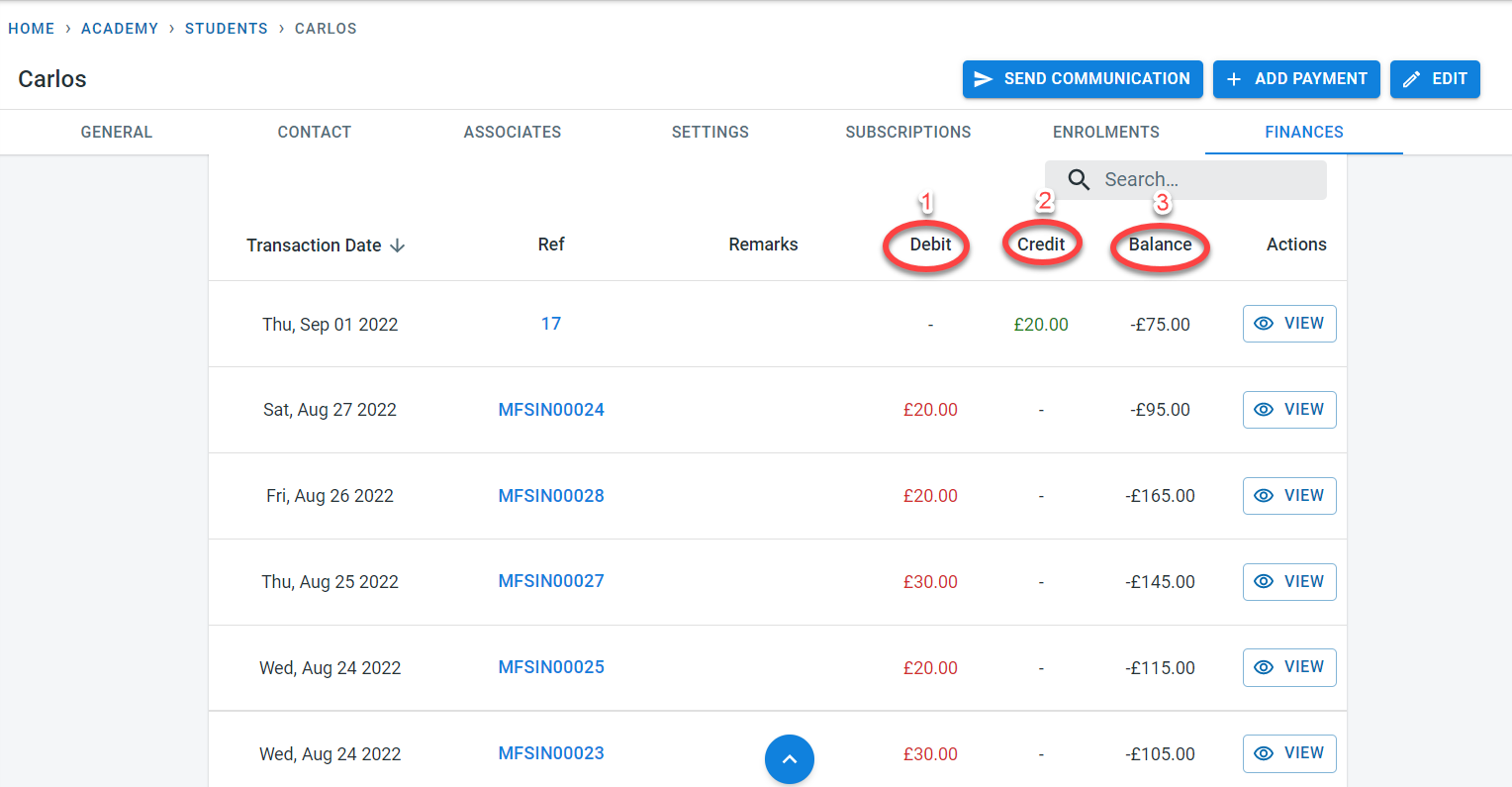
In the student transaction,
- All invoices raised for the student will be displayed under the debit column
- All credit notes and payments for the student will be displayed under the Credit column
- For each transaction, the balance column displays the statement balance after taking into the transaction value. Any transaction recorded under the debit column would increase the statement balance as it is negative and the transactions recorded in the credit column will decrease the statement balance as it is a positive value.
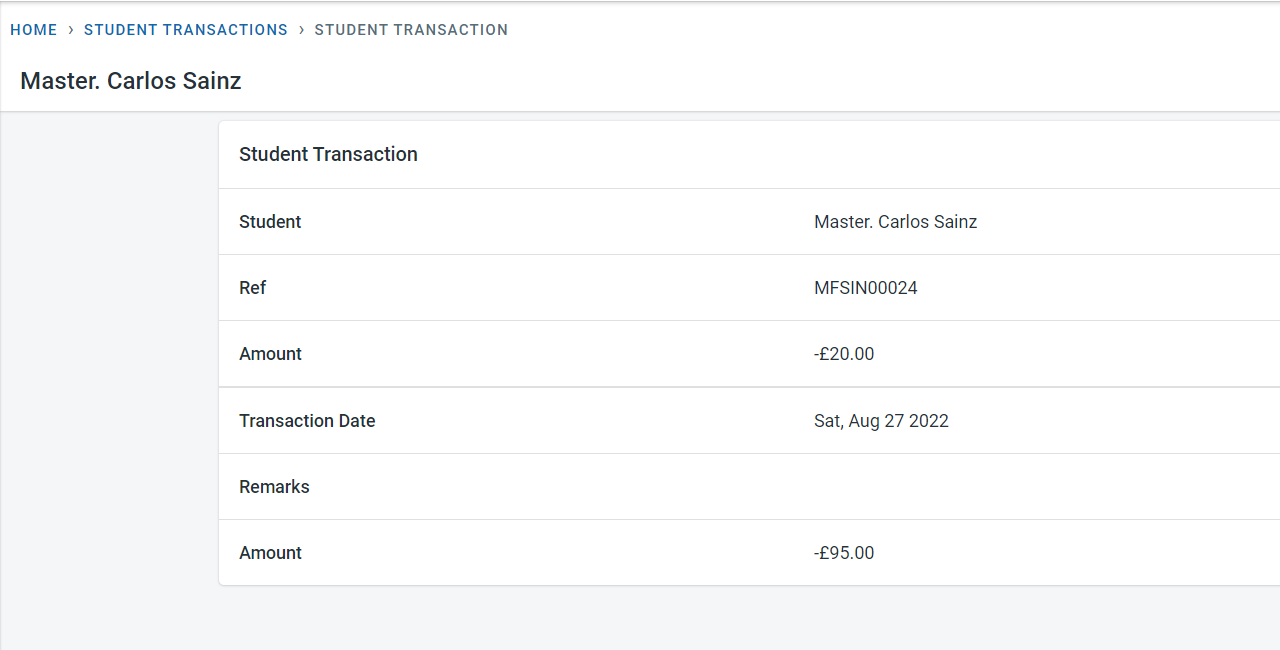
Please note: Clicking on “view” next to the transaction would display the transaction details.
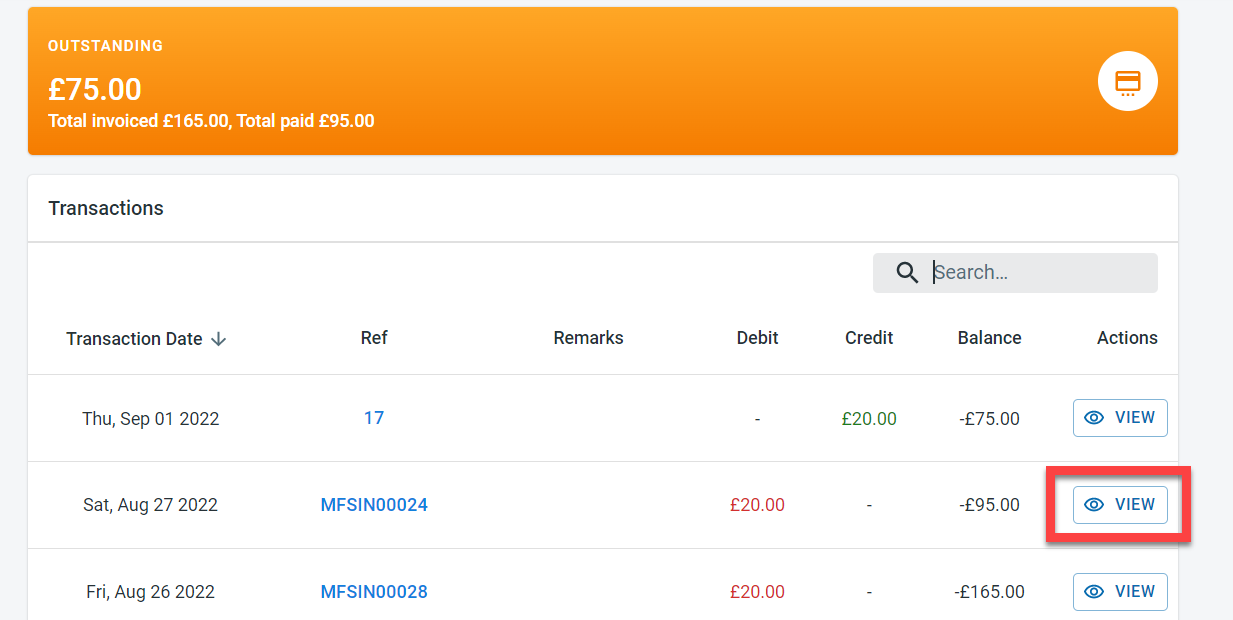
Shown below is the Student transaction.
In order to view the invoice, credit note, or payment in detail, click on the number (invoice number, credit note number, or payment number)
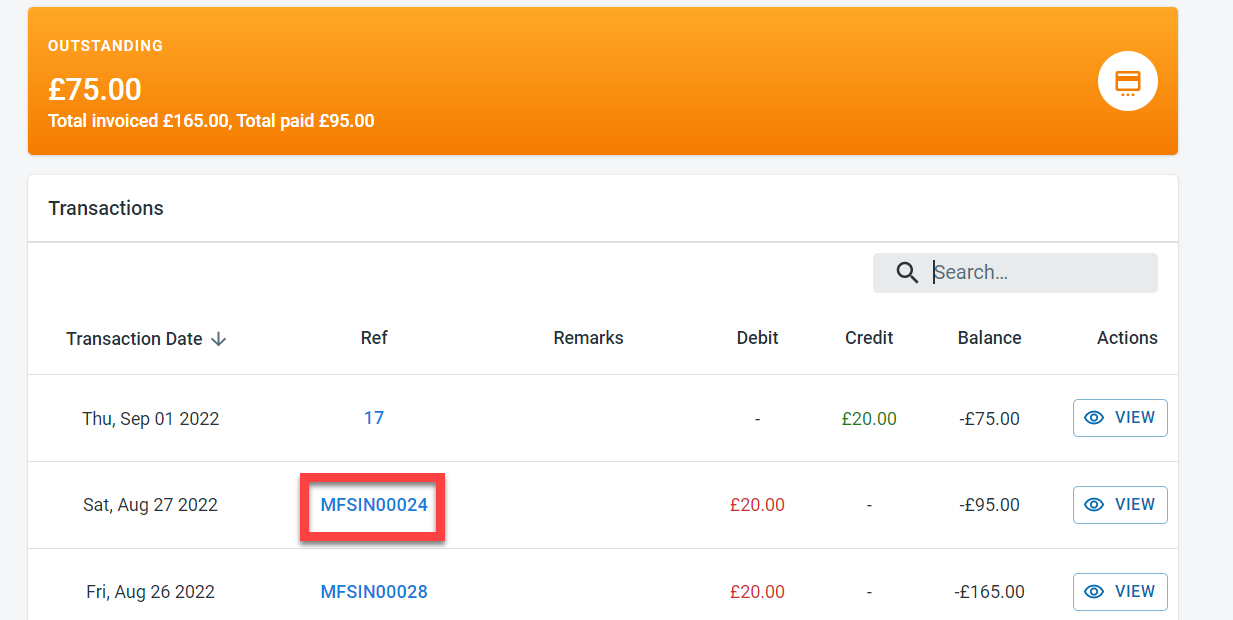
Clicking on the number would open the relevant financial document