Course defines the offering of the academy or club. The course is a logical grouping of the classes or activities offered to the students.
Under the course, the different levels offered within the course will be defined. Levels identify the different stages of the course. Under the level, the assessment criteria for that particular level can be defined.
Extras can also be defined at the course level which will be available only for the classes assigned to that course.
Adding a new course
Navigate to the Course section from the Manage menu
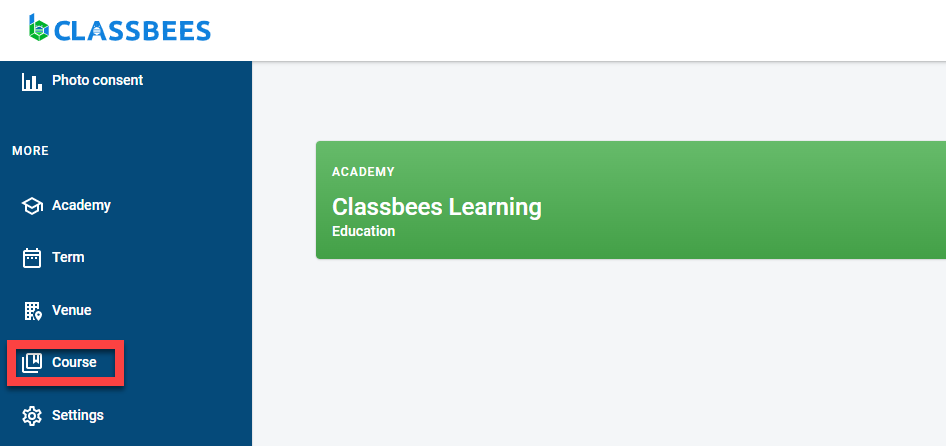
If there are no courses defined in the academy, the “ADD COURSE” option will be displayed. Click on “ADD COURSE” to add a new course.
Course details are split into two sections - General and Contact details.
a. General - This section is used to define the name of the Course and a description. Two additional fields can be set at course level
- Invite-only admission - classes assigned to this course can be booked only when the academy or club sends an invite to the student. The class will not be visible in the search website
- SEND Friendly - The class or activity under this course will be friendly to students with Special Educational Needs and Disabilities (SEND)
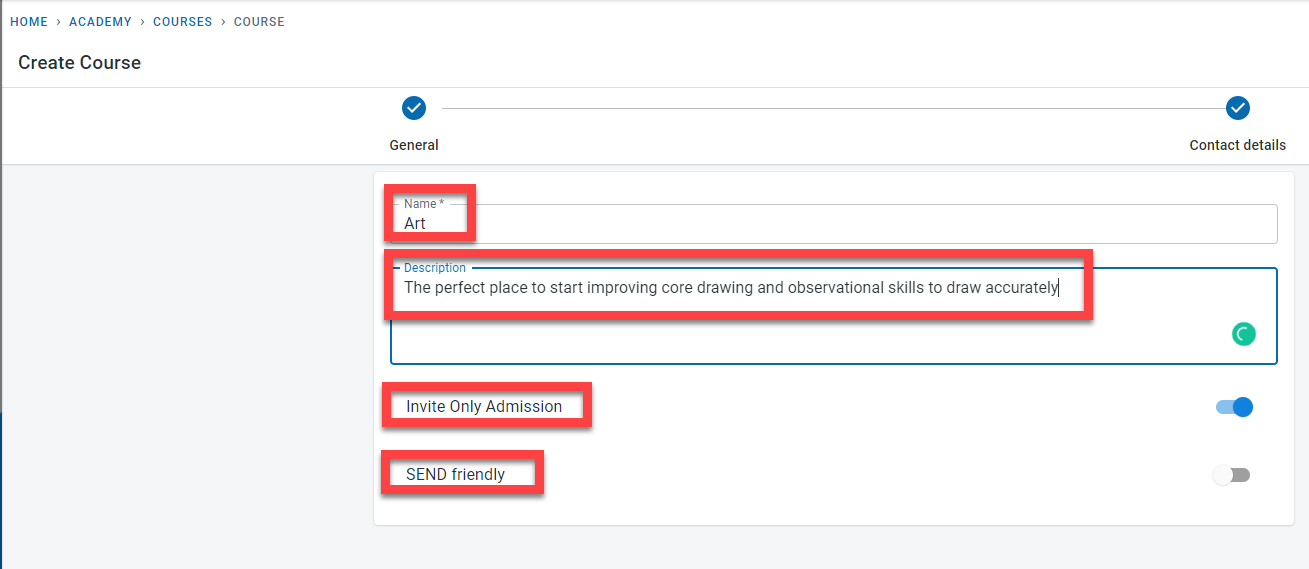
Click on Next to continue.
b. Contact details- The contact details screen is used to add the email address and phone details for the offering
Click on “CREATE” to save the course.
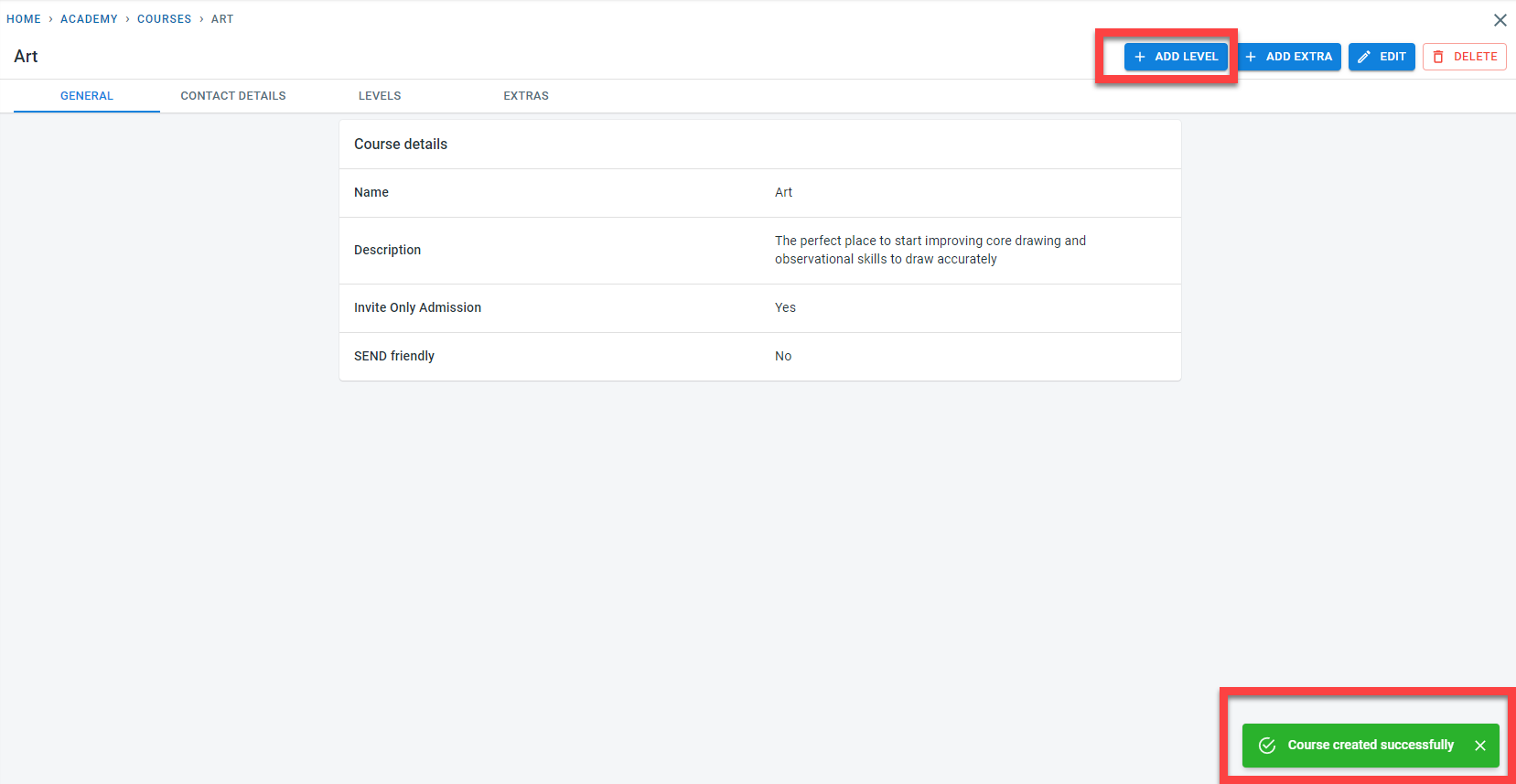
A message would be displayed to confirm that the course has been created successfully. Once the course is created, levels and extras can be added to the course.
c. Levels - This screen is used to capture the different levels within the course. Click on “ADD LEVEL” at the top of the course screen.
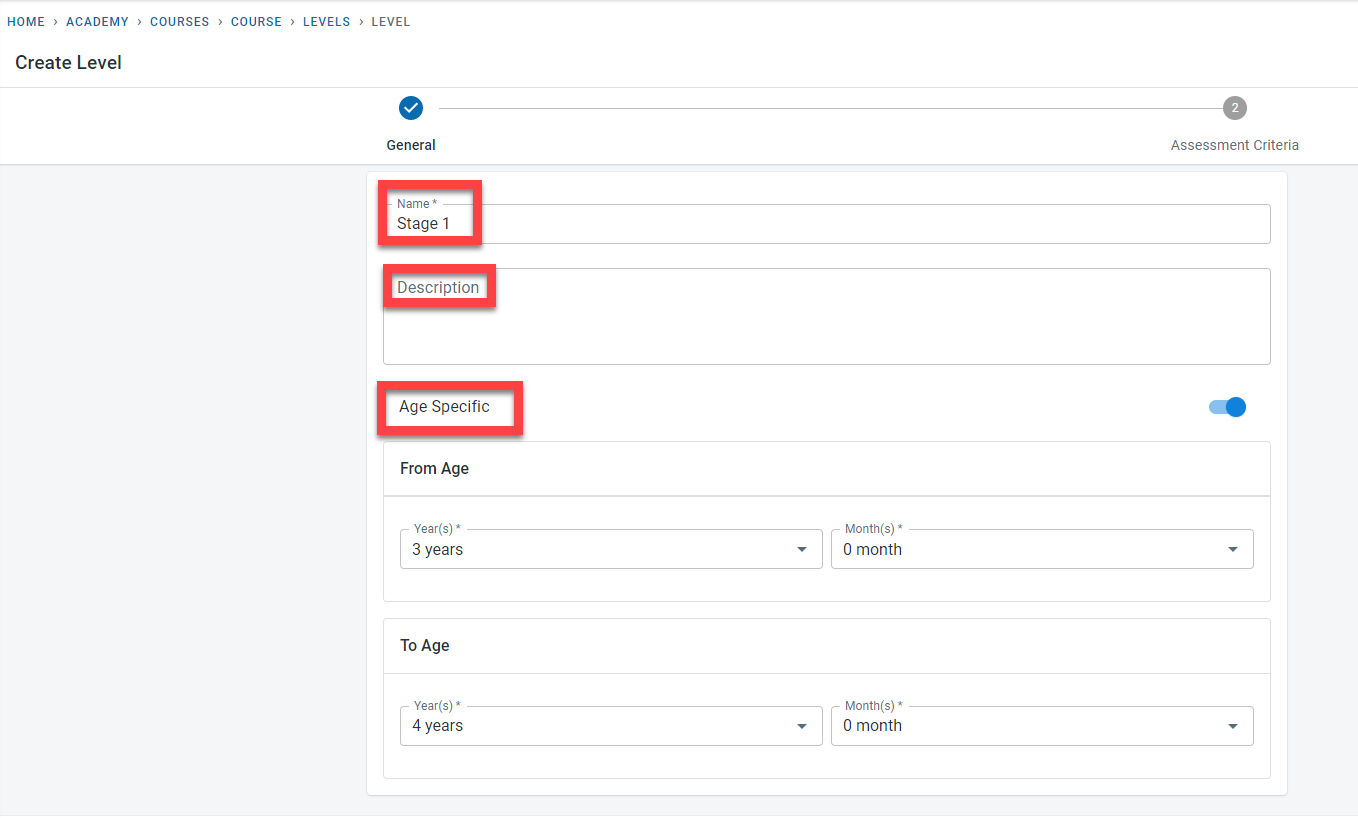
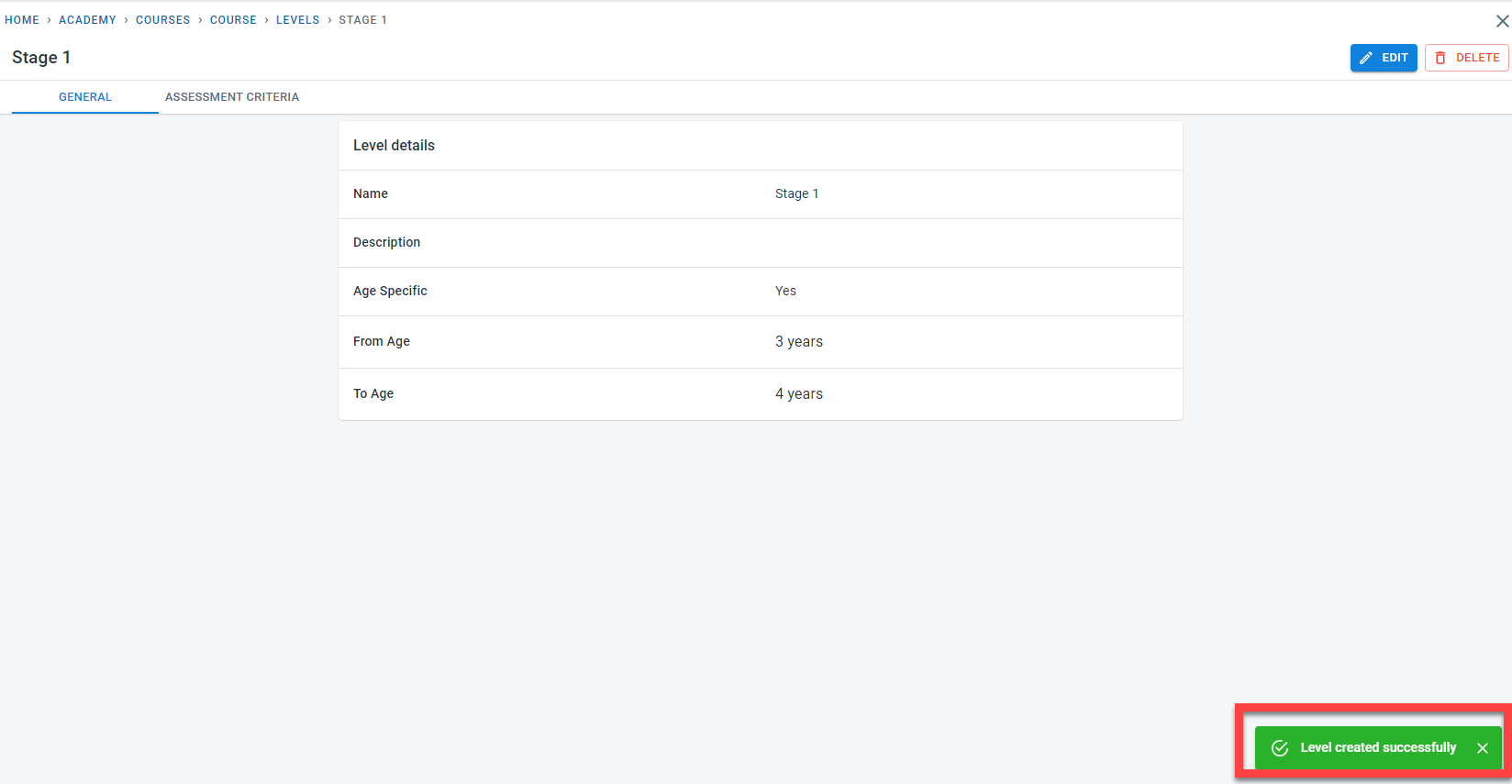
Enter the name and description for the level. Levels could be age specific- if they are age-specific, toggle the “Age Specific” button. Defining an age here allows restricting students within a certain age for a particular level. To specify the age range that would be eligible to be in the level, add the “From Age” and “To Age” values.
If assessment criteria are to be added, click on the “Assessment Criteria” section.
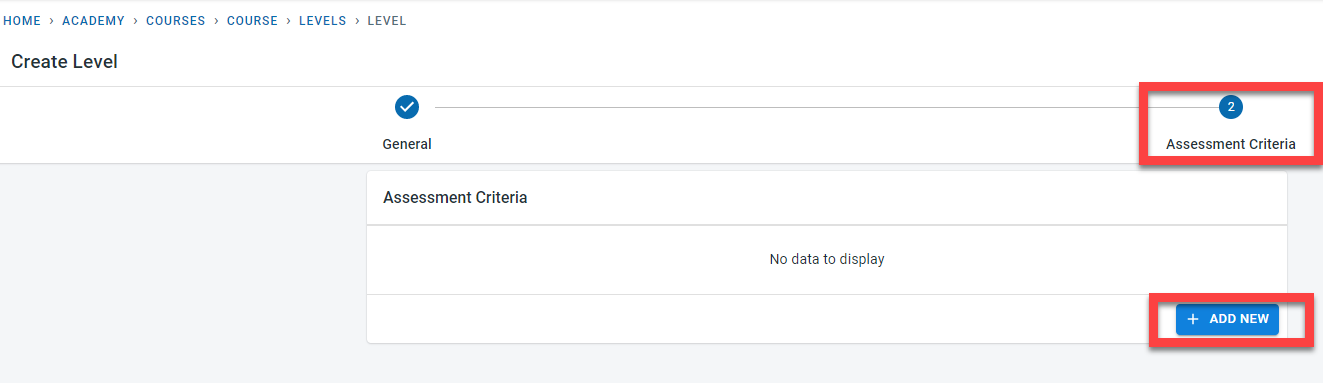
Click on “ADD NEW” to enter new assessment criteria.
The assessment criteria field allows capturing the assessments required to move a student from the current level to the next level. Enter the assessment criteria and a description. Click on the Green tick. Click on “Create new” and repeat the steps to add additional assessment criteria.
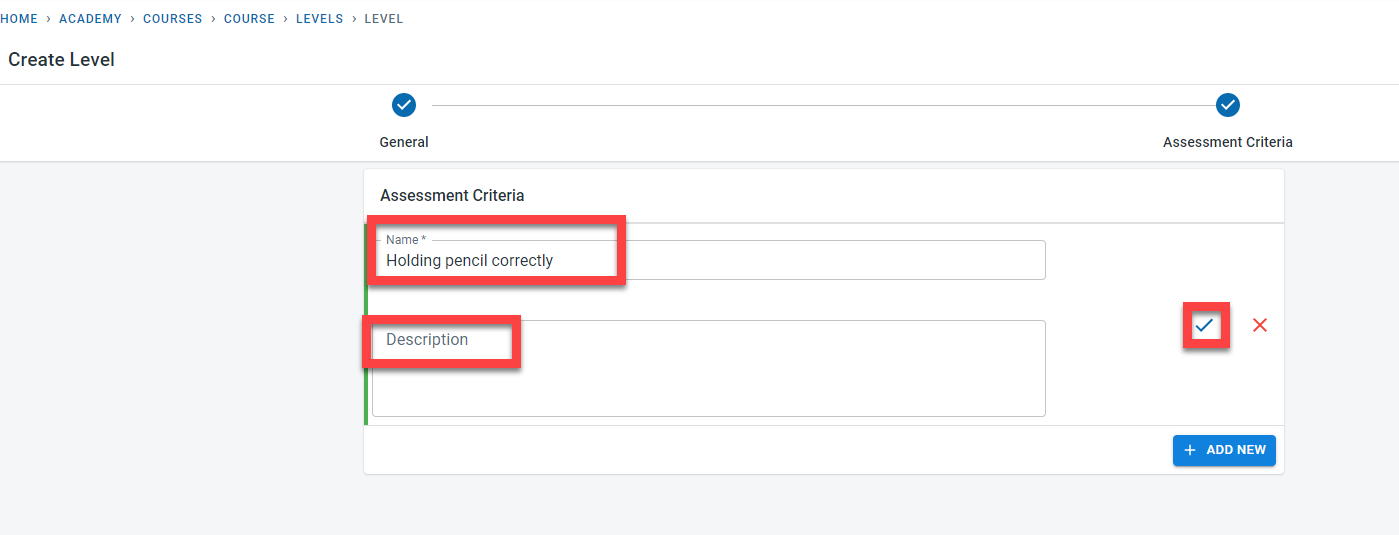
Click on “CREATE” to save the level
d. Extras- To add extras at the course level, click on “ADD EXTRA” at the top of the course screen
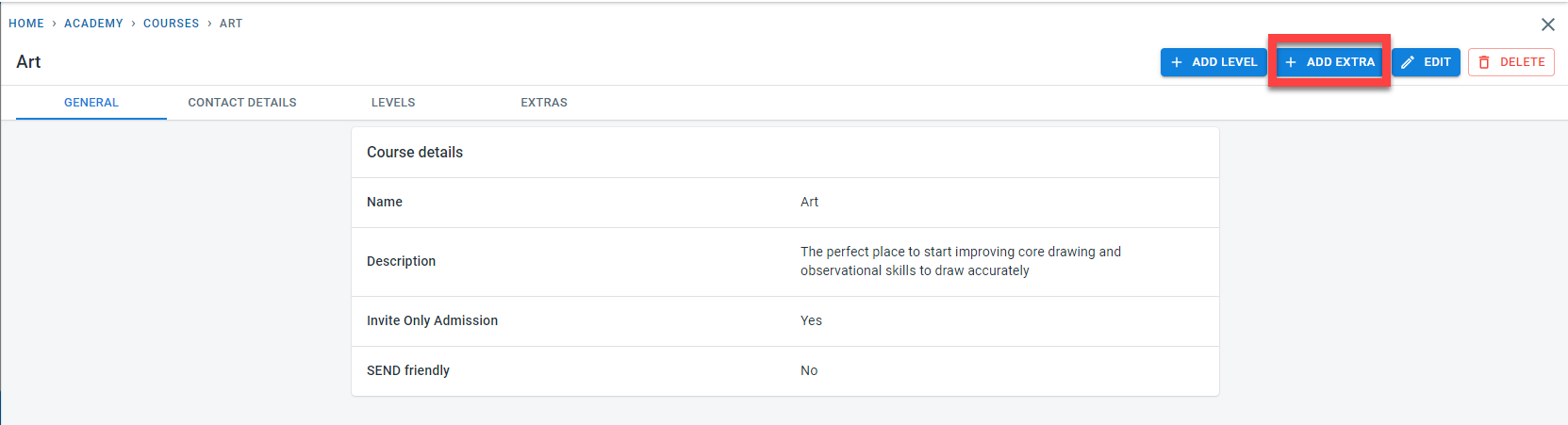
Steps to add extras at the course level are the same as those defined for the extras at academy level.
View existing course
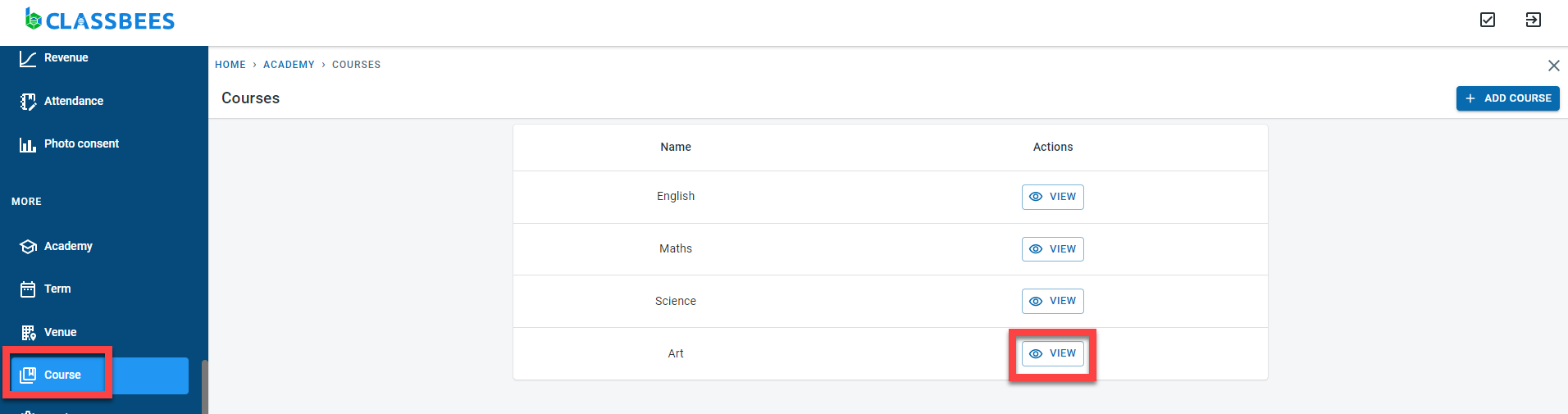
Click on the “Course” module from the side menu
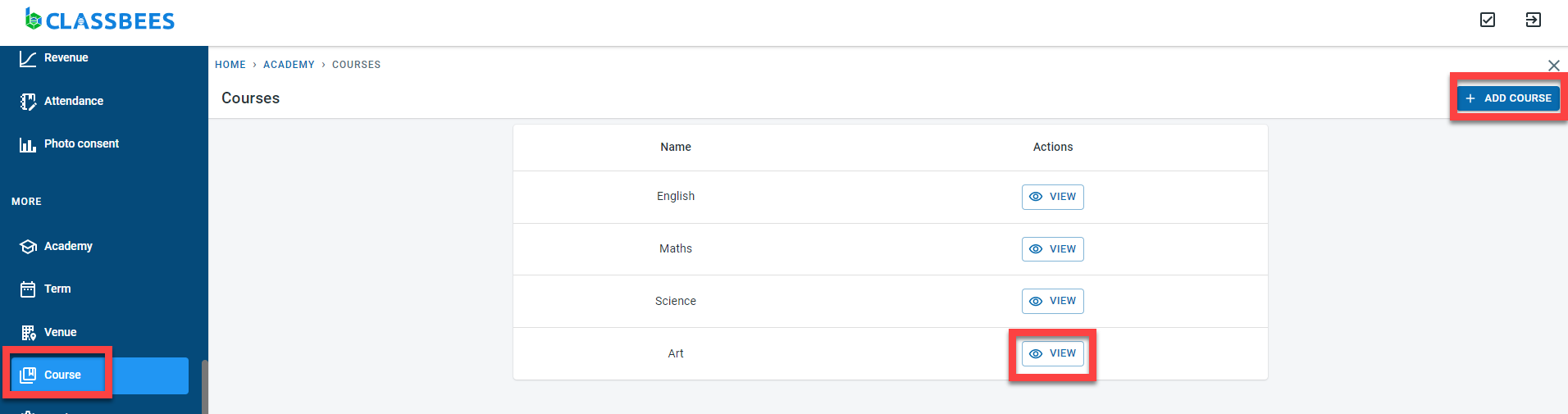
In order to add additional course to the academy, click on the “Add Course” button in the top right corner.
Click on the “View” button next to the course to view general, levels, extras, and other information about the existing course.
Edit existing courses
In the Course section, Click on the “Course” module from the side menu. Click on “View” next to the course.
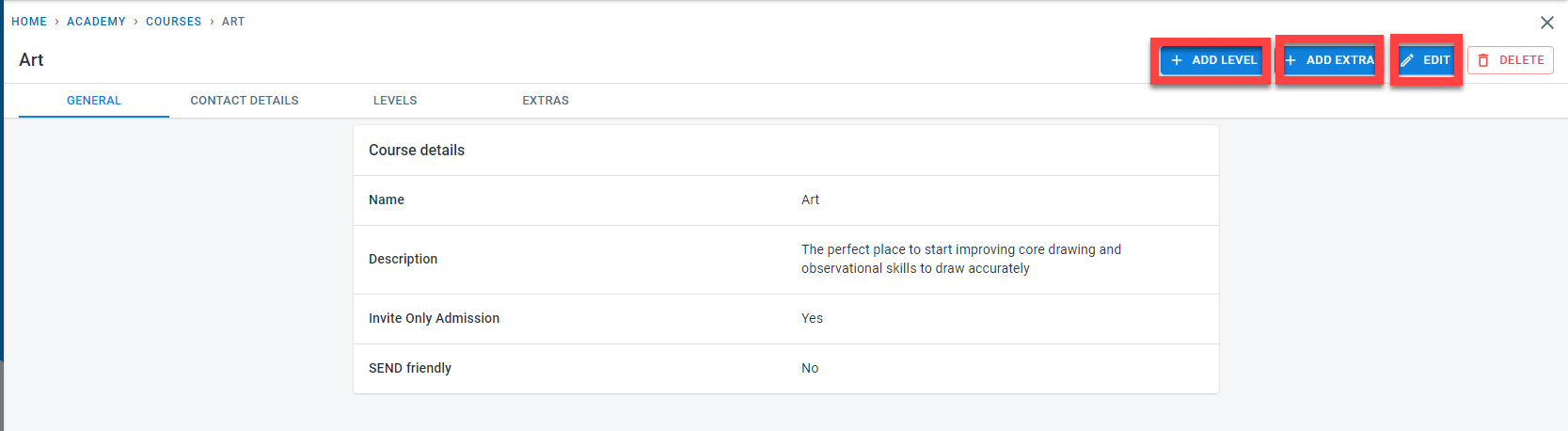
Clicking on the Edit button on the top right corner of the Course screen to edit the general and contact details for the course information. New levels or extras can be added by clicking on the “Add Level” or “Add Extra” buttons
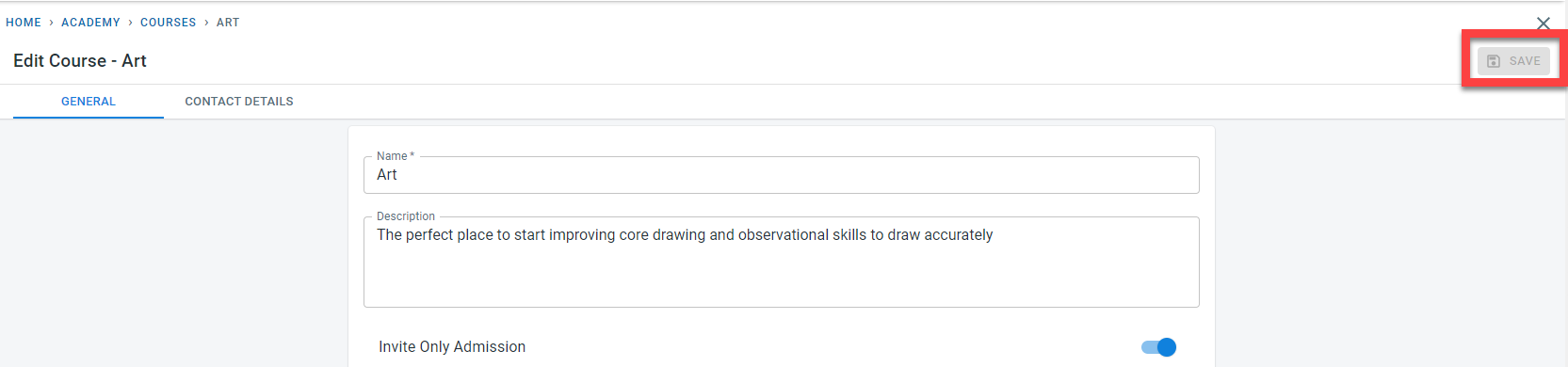
The “Save” button on the top right corner remains greyed out until any changes to general information or other tabs are made.
In this example, the description is amended
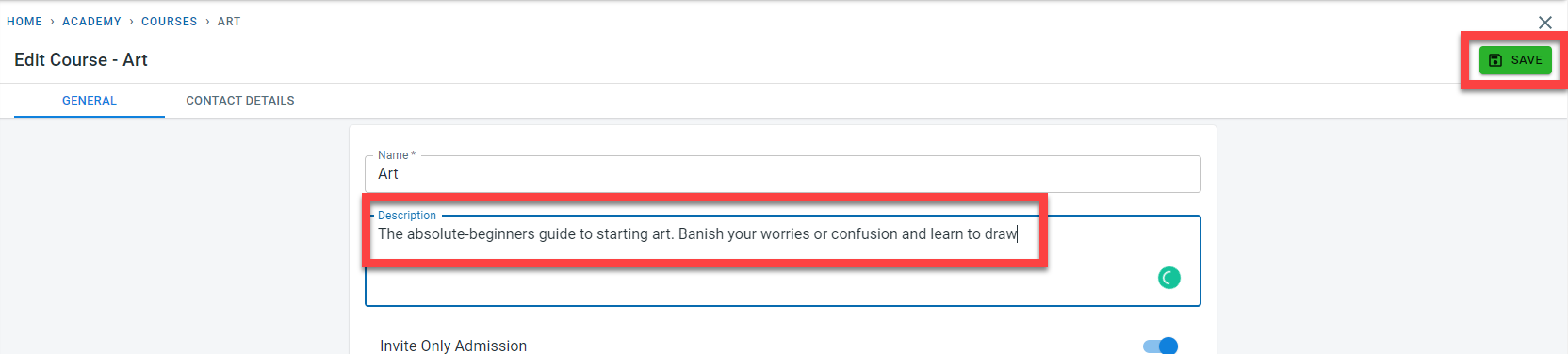
Once done, clicking on “Save” will save the amendments.
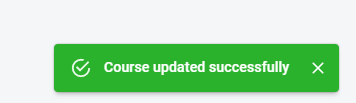
Changes are acknowledged by the “Course updated successfully” message.
Deleting an existing course
In the Course section, Click on the “Course” module from the side menu. Click on “View” next to the course.
Click on the “Delete” button on the top right corner of the Course screen to delete the course and the other defined information.
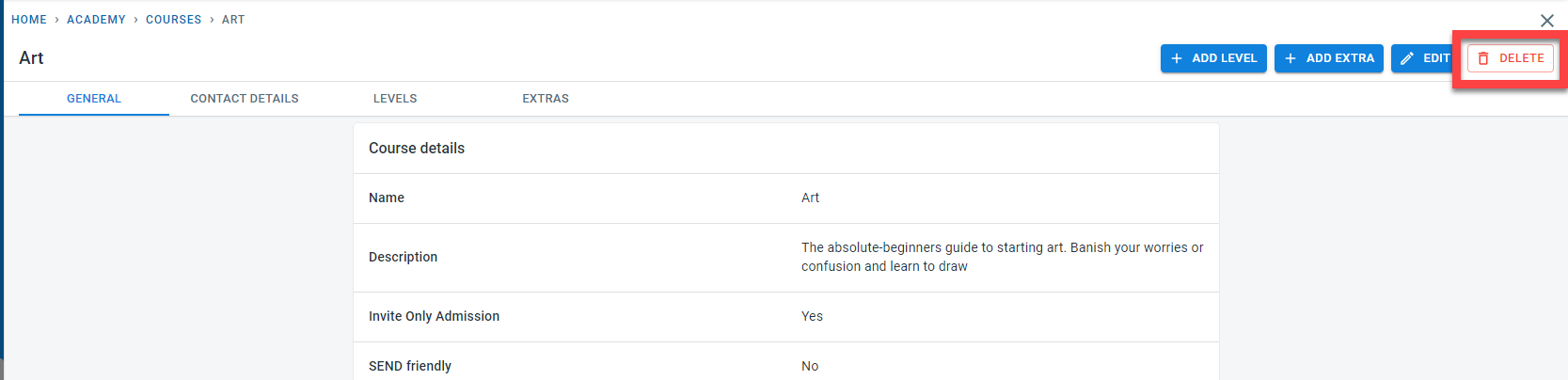
This action is irreversible and will impact the dependent data within other modules including class and enrolment.
Click on “Yes” in the popup to confirm the course deletion. Click on “No” in the popup to cancel the deletion of the course.
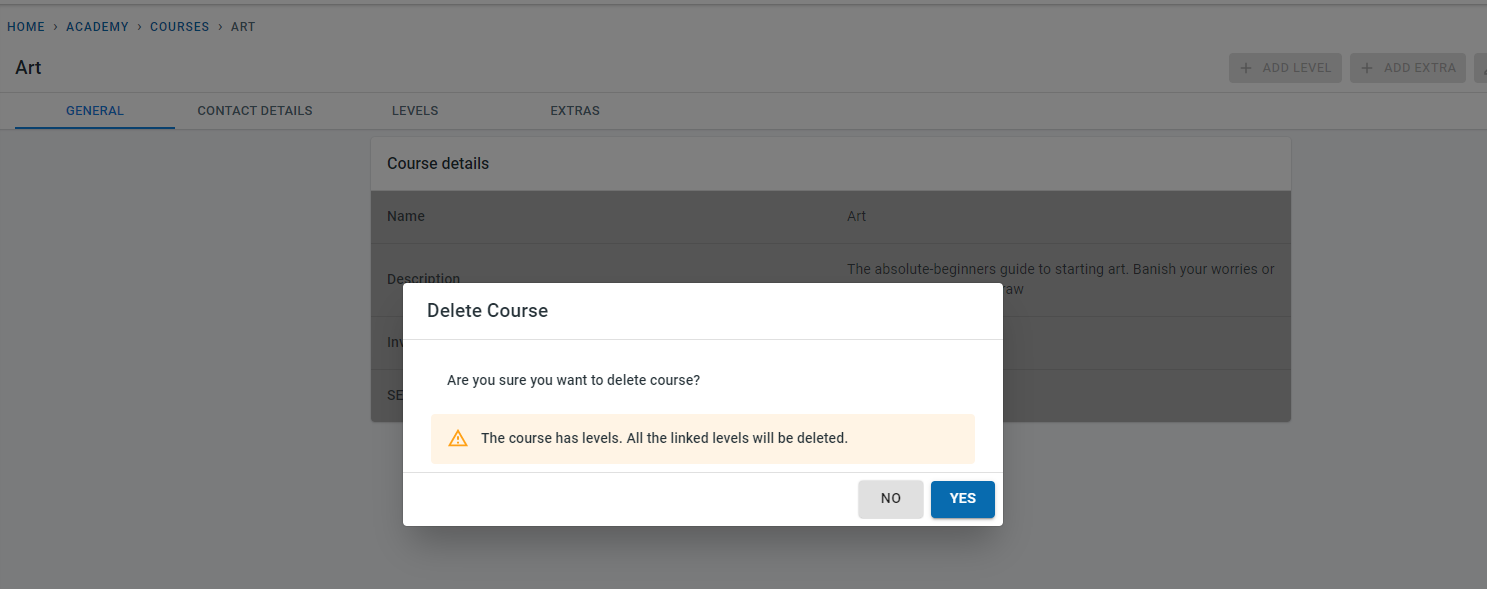
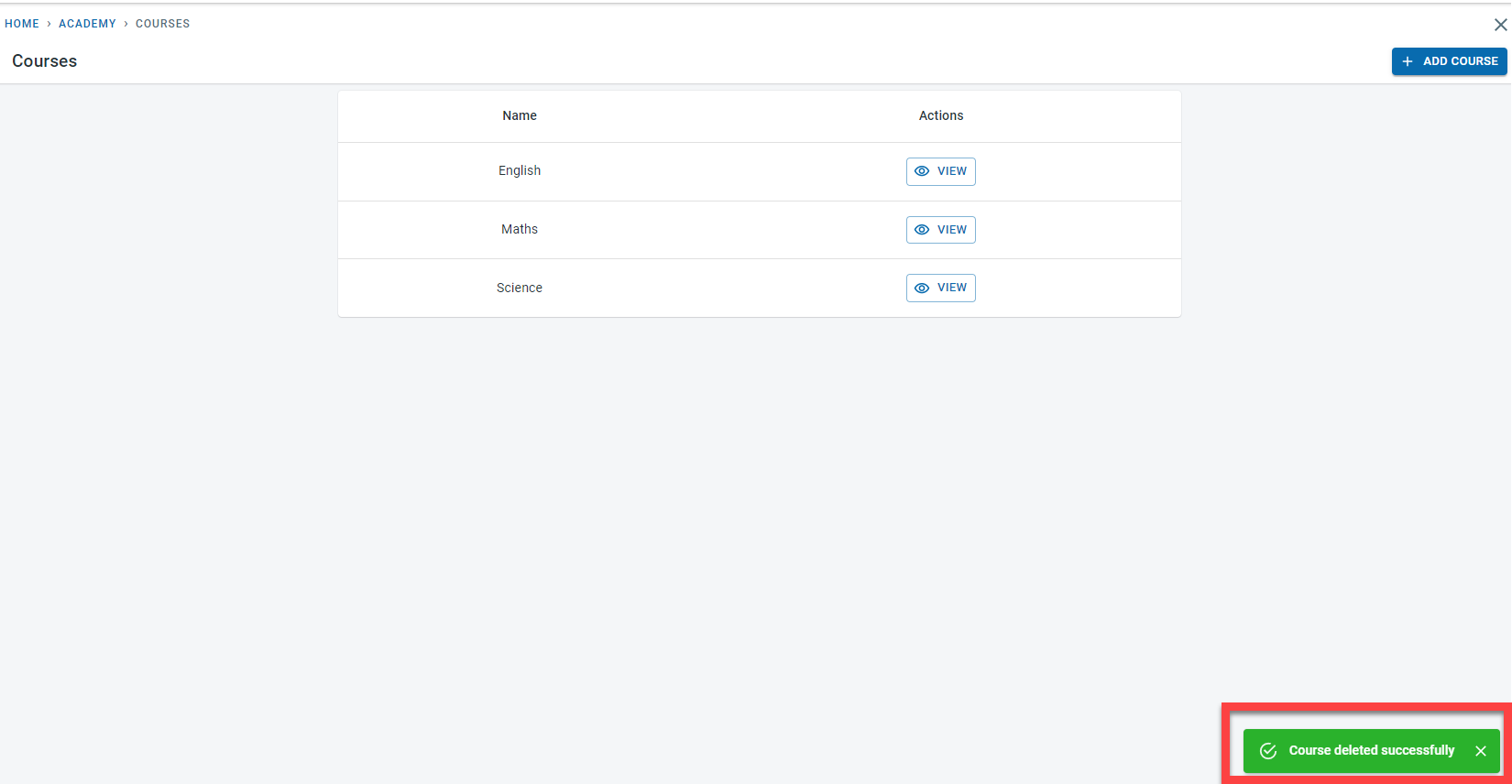
Once deleted, an acknowledgment message appears to confirm the deletion of the course.