Venue is the place where the class or activity will be conducted. The venue is a physical location and will be linked to an address. A venue can also be a virtual location (for online classes).
Adding a new venue
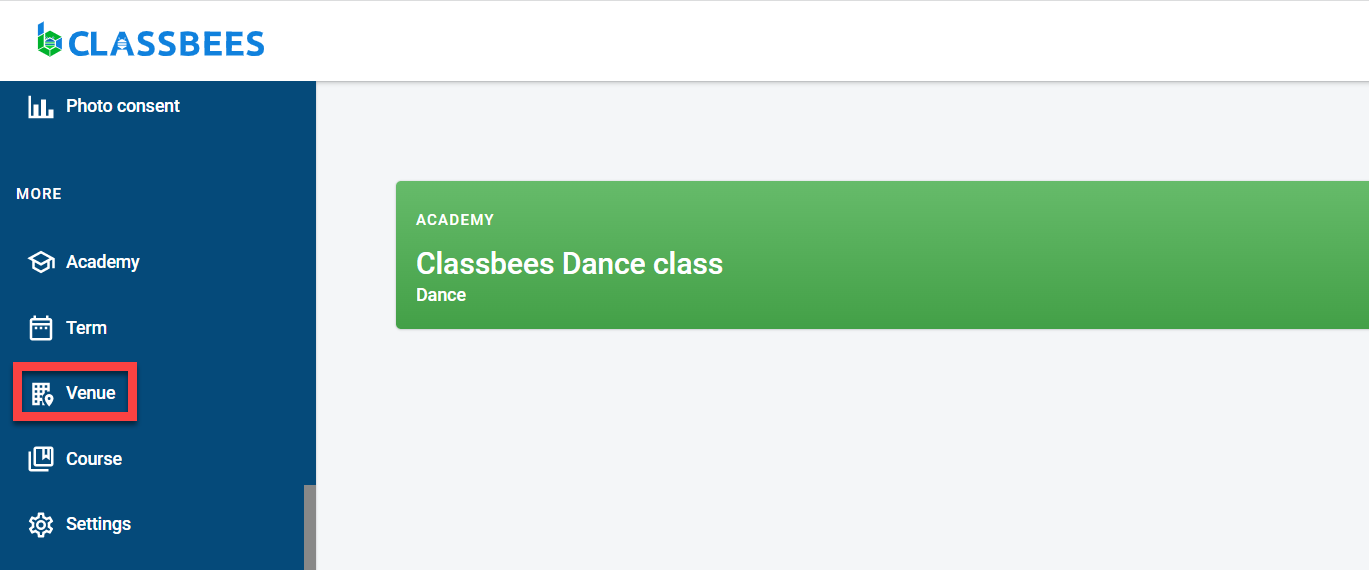
Navigate to the Venue section from the Manage menu
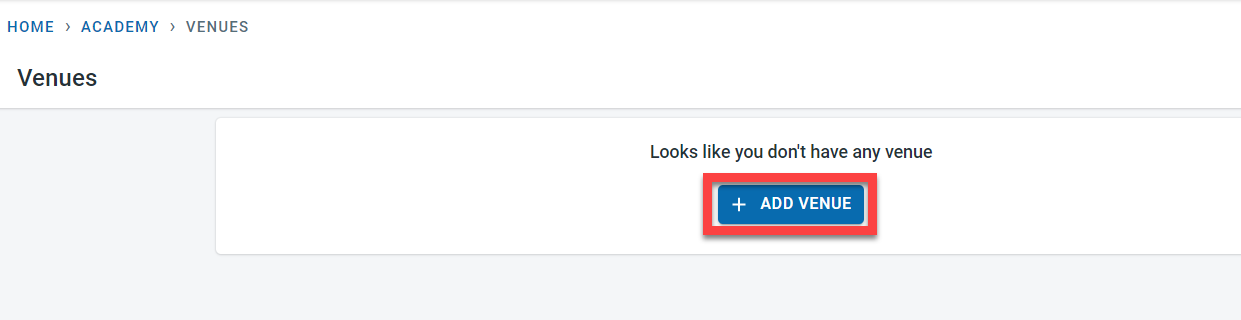
If there are no Venues defined in the academy, the “ADD VENUE” option will be displayed. Click on “ADD VENUE” to add a new venue.
Venue details are split into four sections - General, Address, Contact, and Other.
a. General - This section is used to define the name of the Venue and a description.
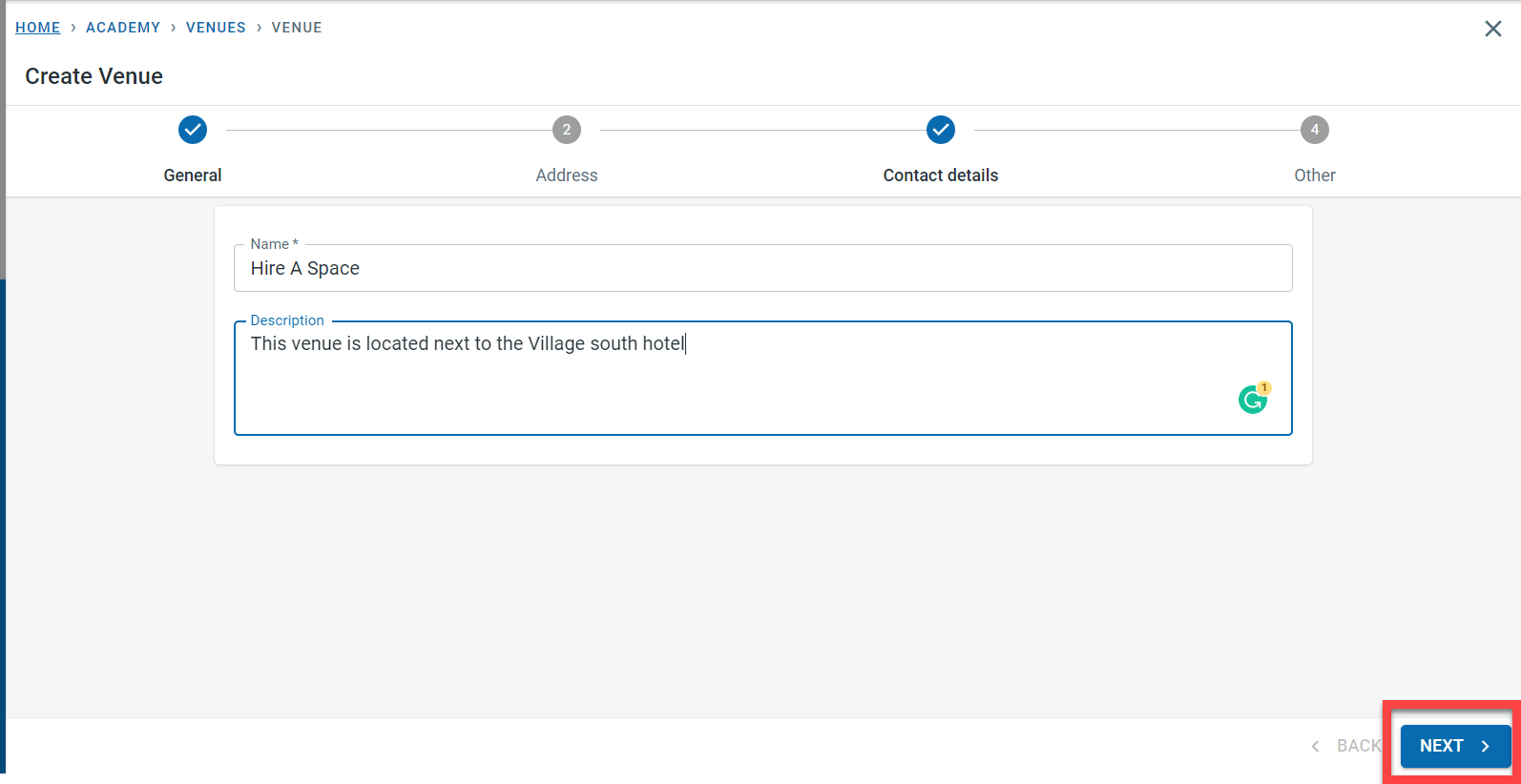
Click on Next to continue.
b. Address - The address screen is used to define the location of the Venue.
Venue addresses can be populated by using the autofill option or by entering the address manually. The toggle button on the right corner should be used to enter the address manually.
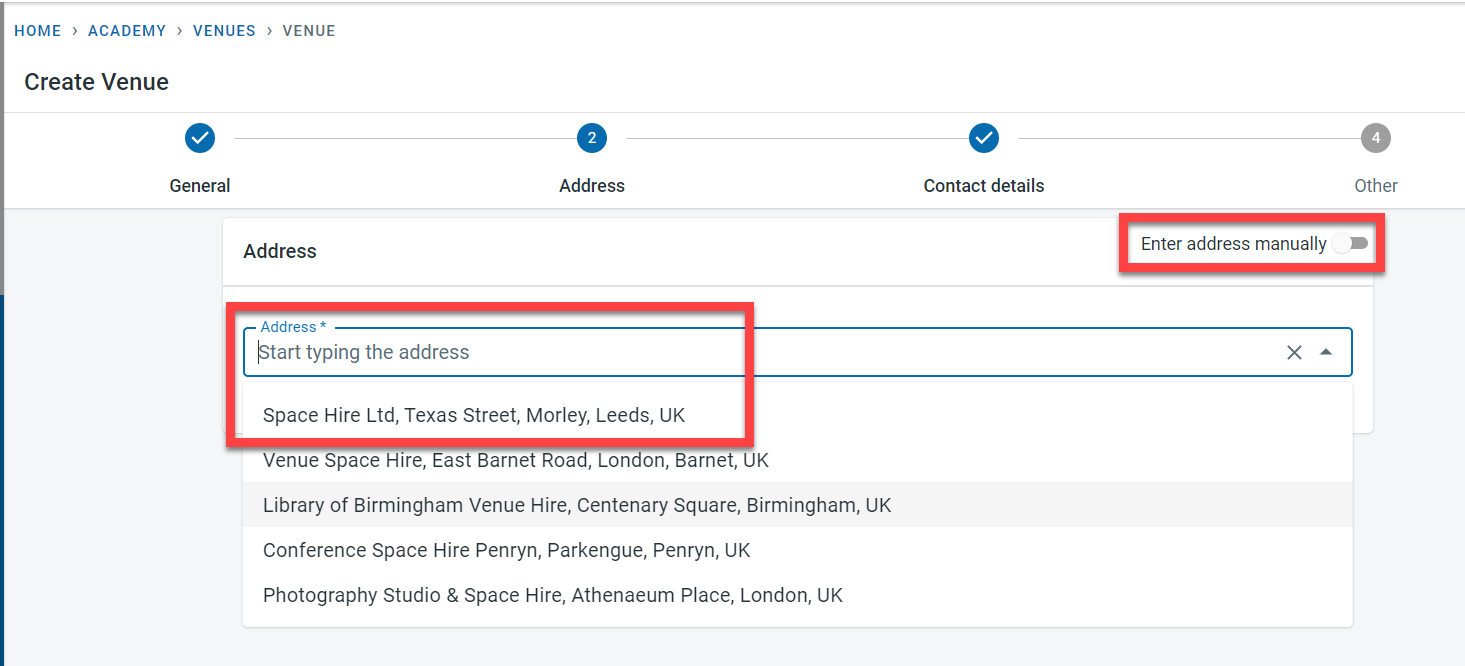
Click on Next to continue.
c. Contact Details - This screen is used to capture the telephone number and email address of the venue. These are not mandatory fields. Multiple emails and telephone numbers can be added if needed by clicking on “Add New” button
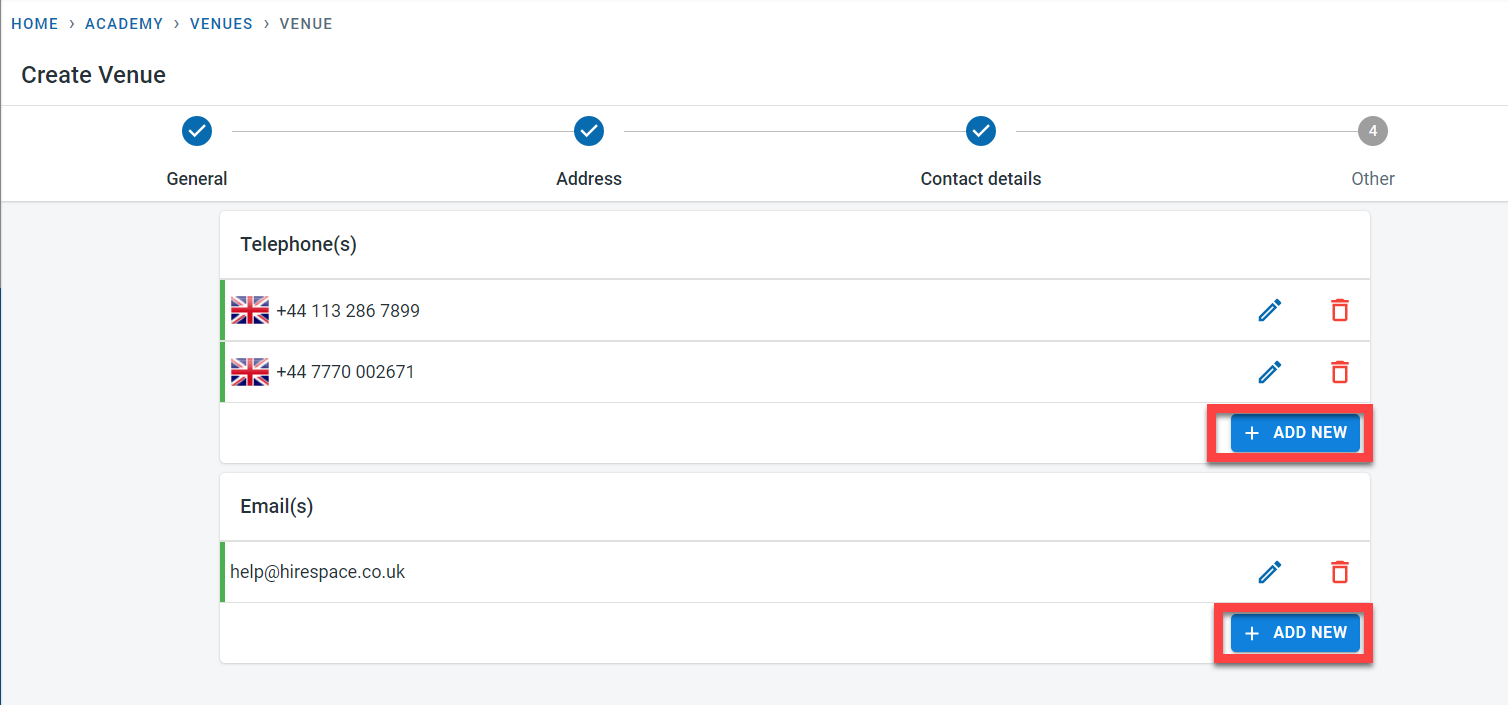
Click next to continue
d. Other - The other screen is used to capture miscellaneous information about the venue including parking information, other facilities, baby care, entertainment, and other additional details.
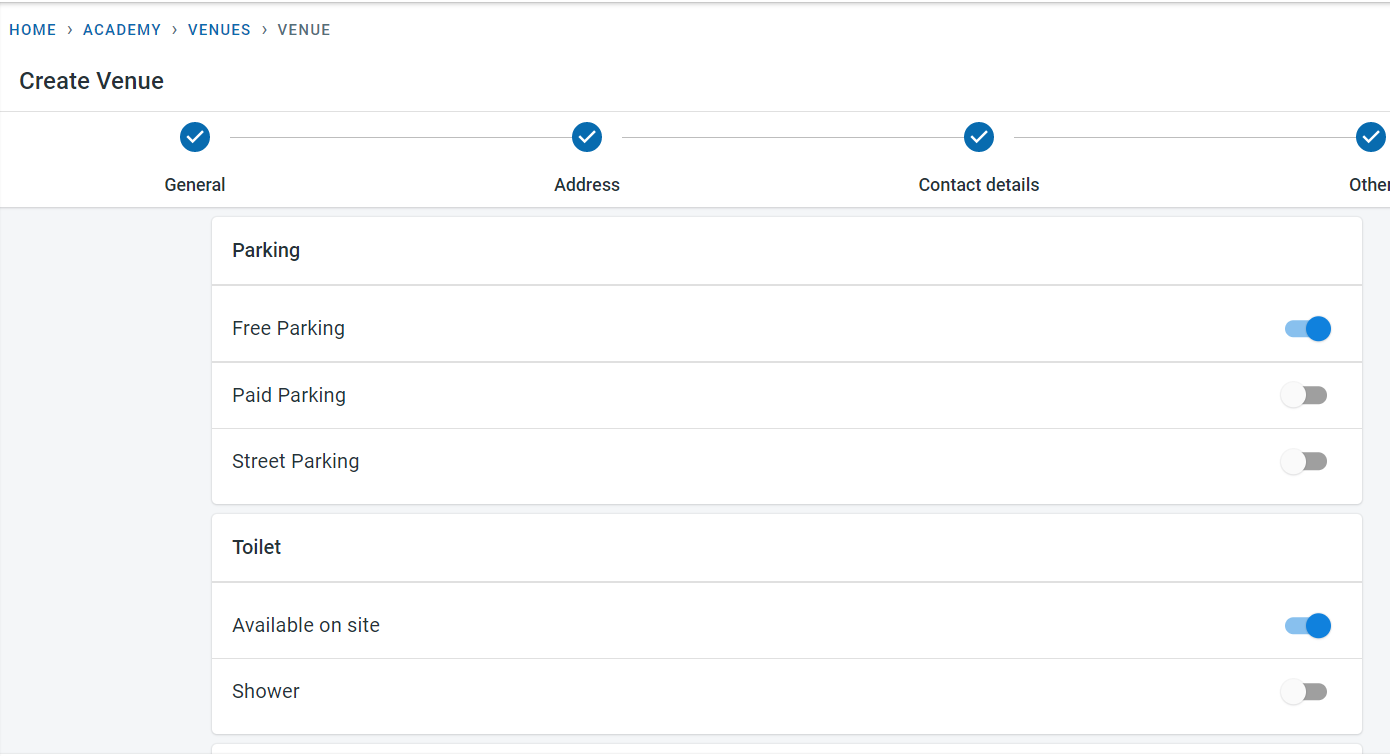
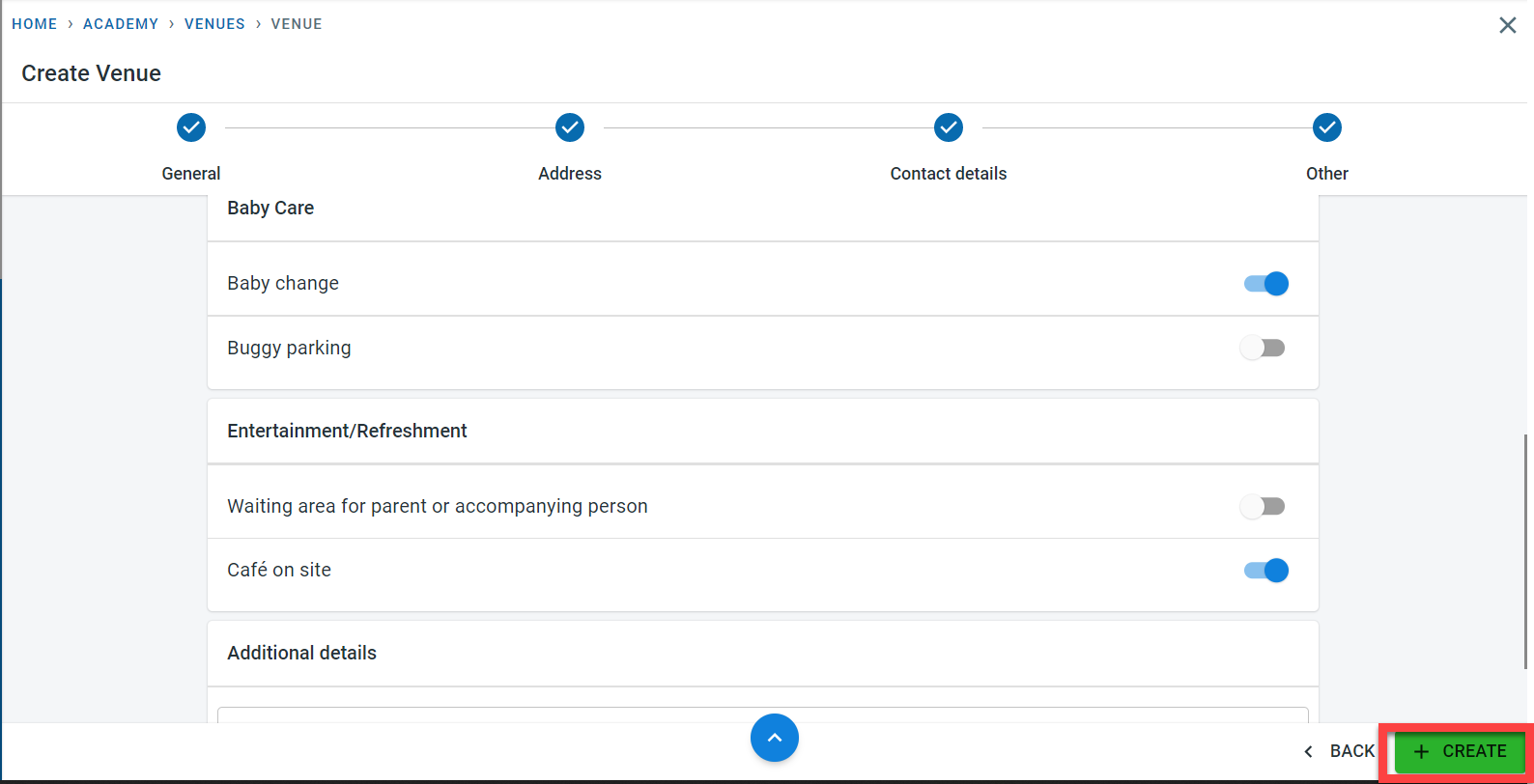
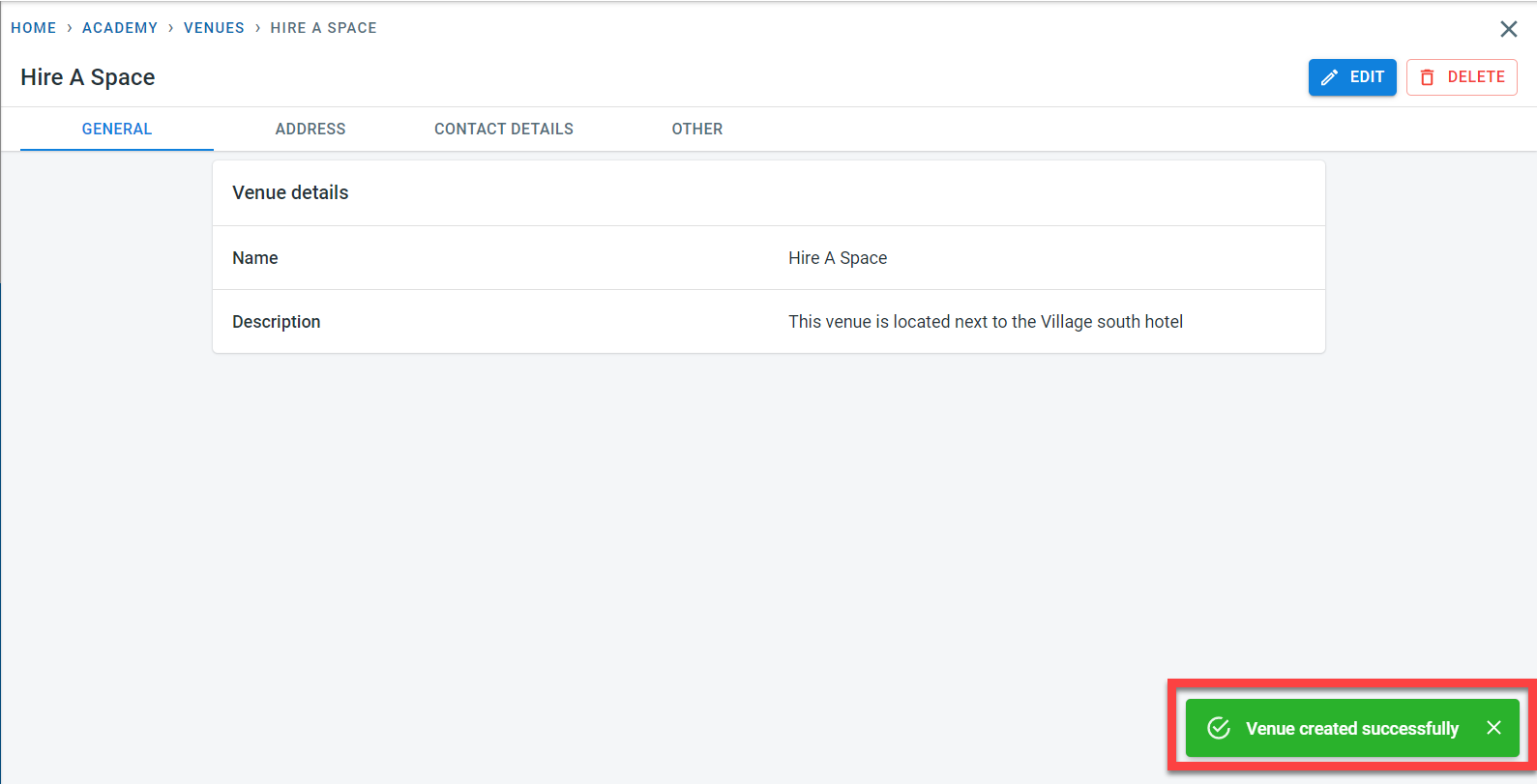
Once all the details are entered for the venue, click “Create” to save the venue details. Once the venue is saved, the system confirms the same with a success message.
.
View existing venues
Click on the “Venue” module from the side menu
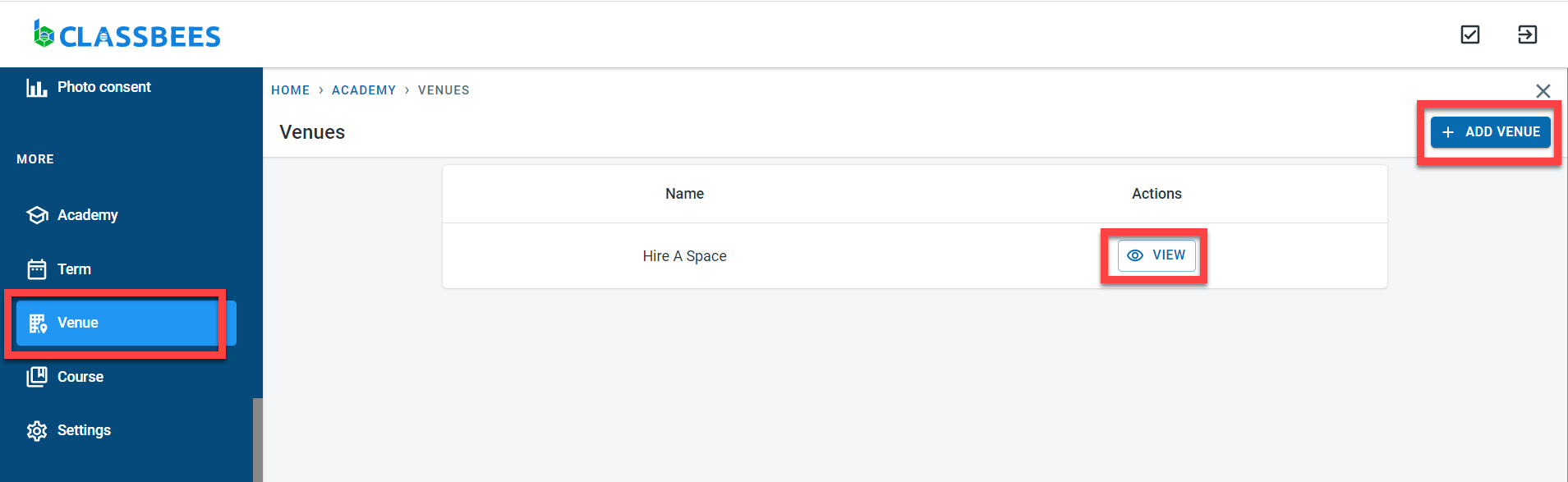
In order to add additional venues to the academy, click on the “Add Venue” button in the top right corner.
Click on the “View” button next to the venue to view general and other information about the existing Venue.
Edit existing venues
In the venue section, Click on the “Venue” module from the side menu. Click on “View” next to the venue.
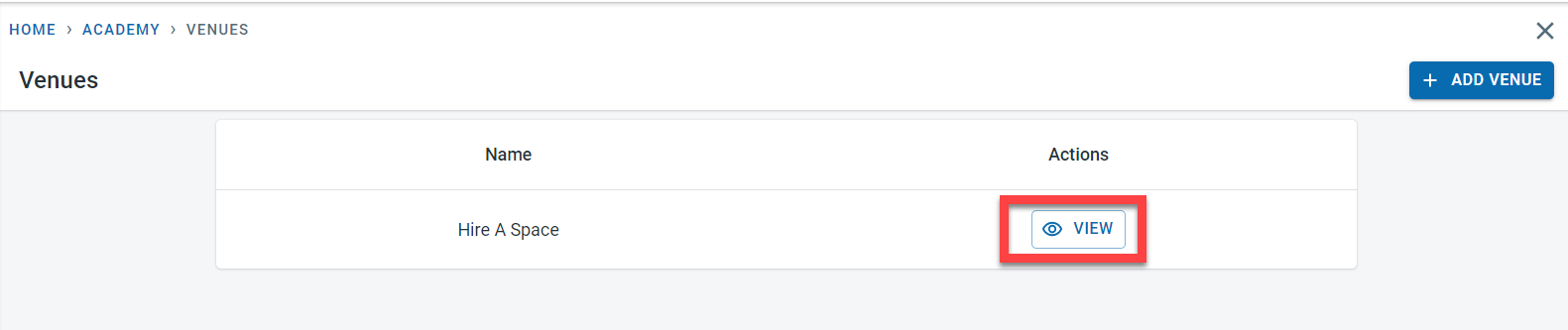
Clicking on the Edit button on the top right corner of the venue screen to edit the general venue information including address, contact, and miscellaneous information within the defined Venue.
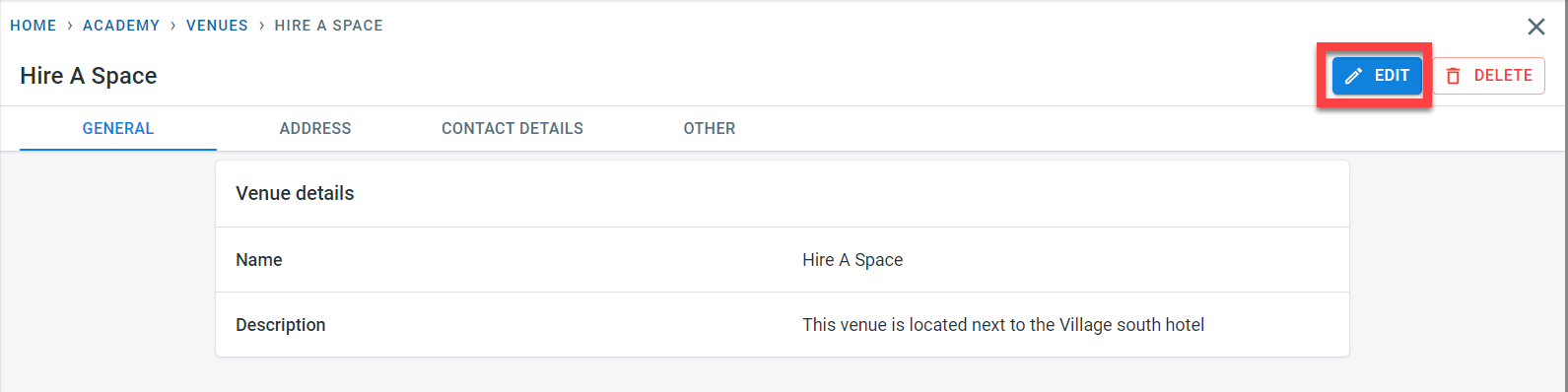
The “Save” button on the top right corner remains greyed out until any changes to general information or other tabs are made.
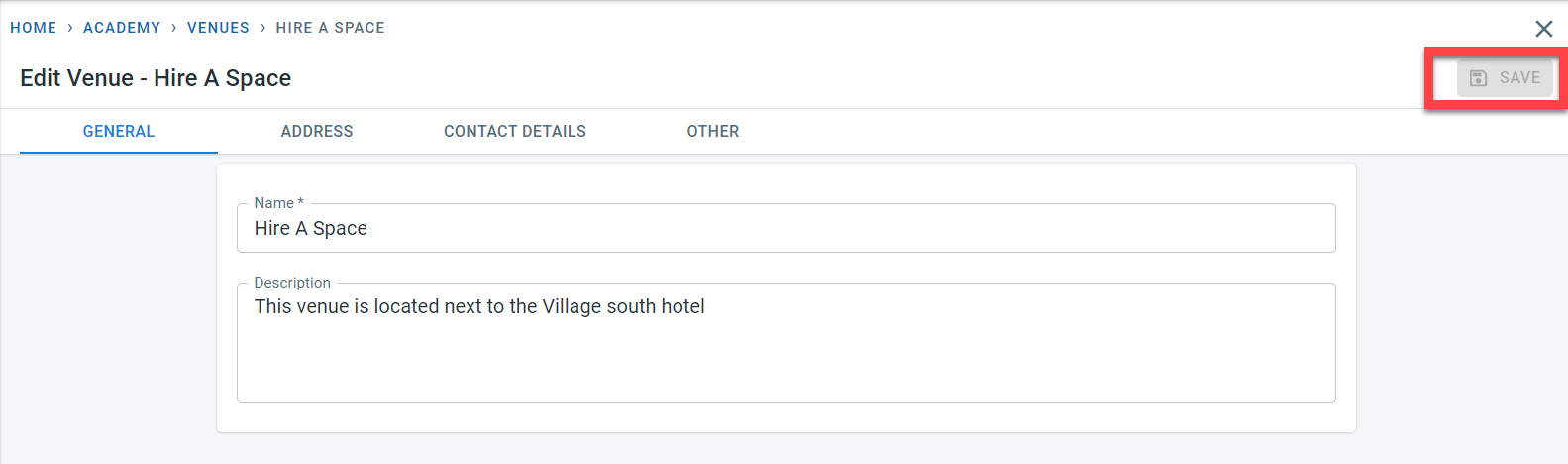
To replace the existing address, highlight the existing address and type in the new address.
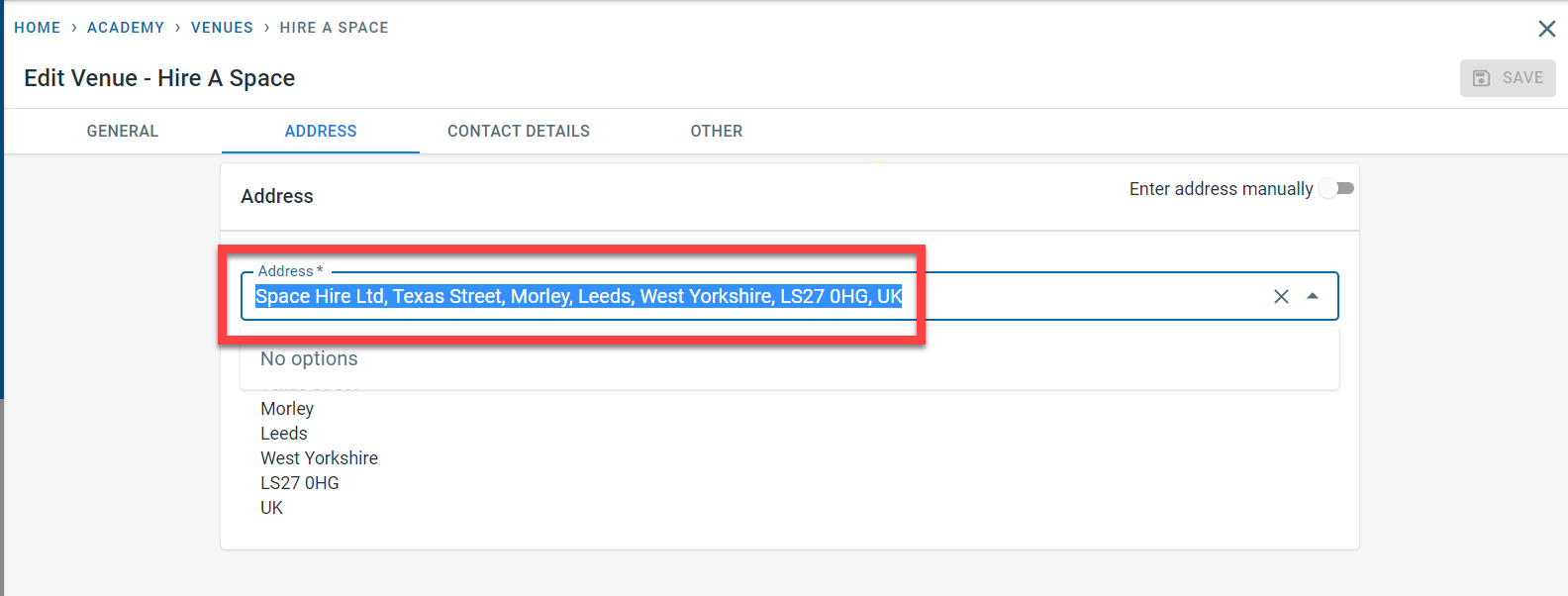
Once done, clicking on “Save” will save the amendments.
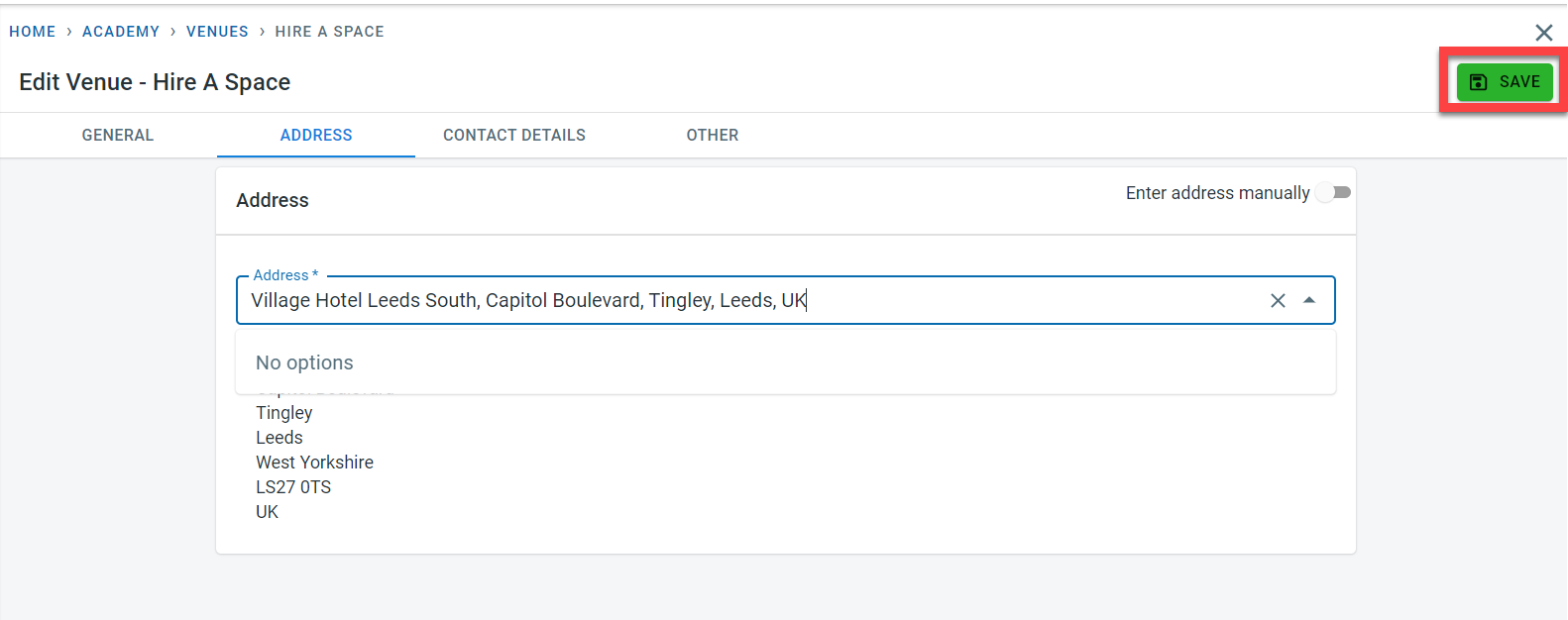
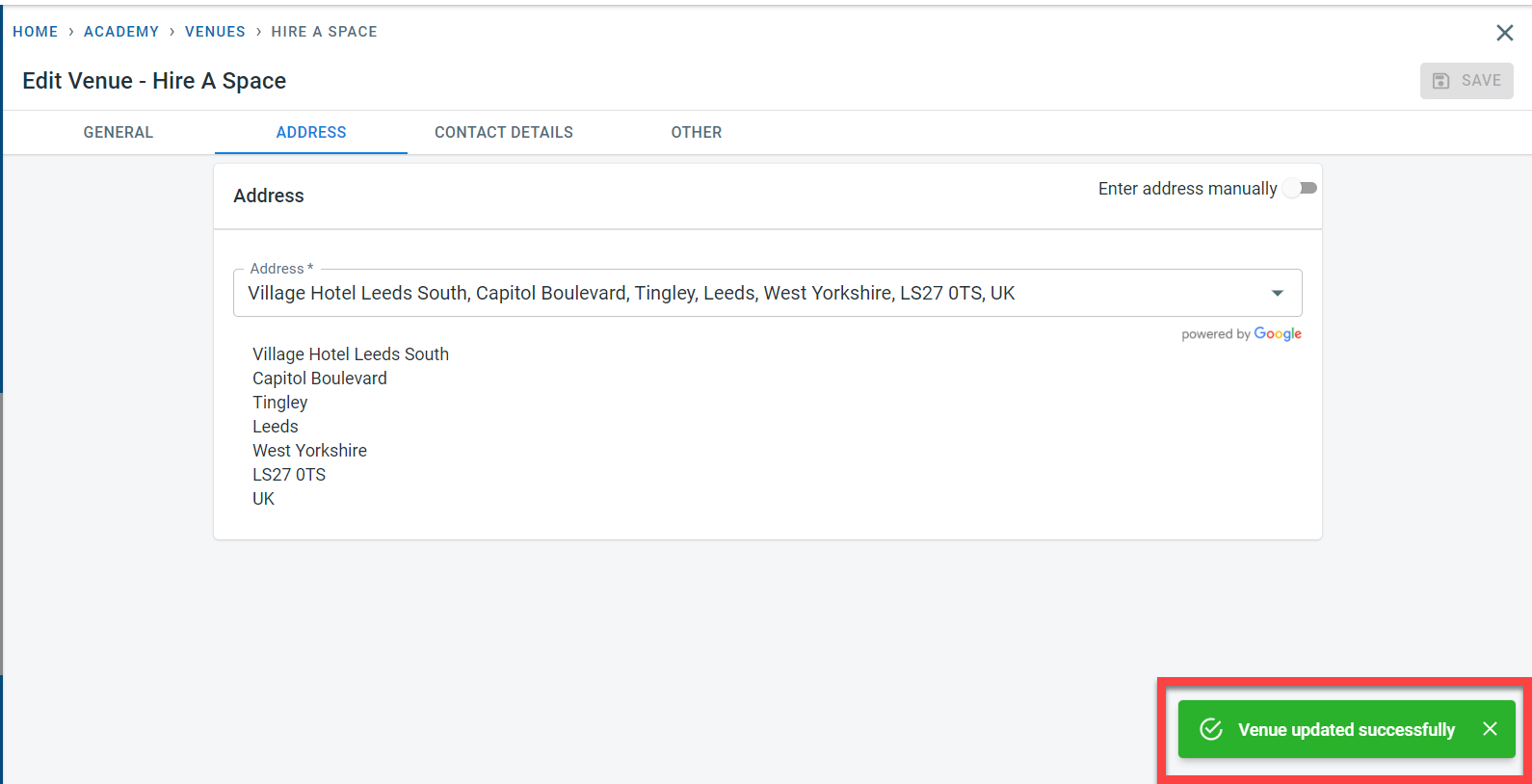
Changes are acknowledged by the “Venue Updated Successfully” message.
Deleting an existing venue
In the venue section, Click on the “Venue” module from the side menu. Click on “View” next to the venue.
Click on the “Delete” button on the top right corner of the Venue screen to delete the venue and the other defined information.
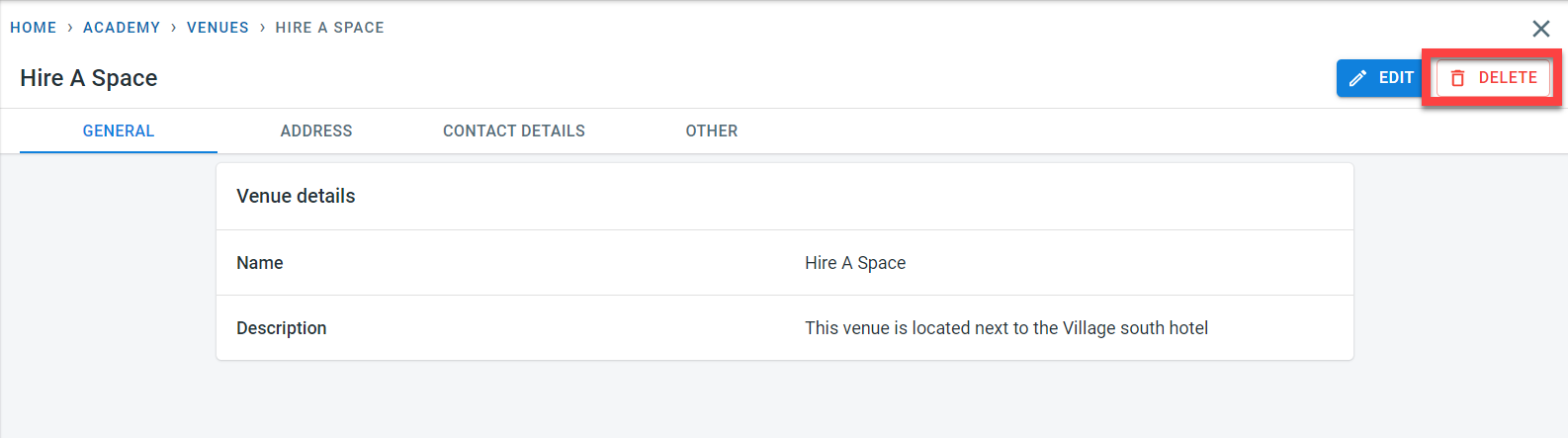
This action is irreversible and will impact the dependent data within other modules including class and enrolment.
Click on “Yes” in the popup to confirm the venue deletion. Click on “No” in the popup to cancel the deletion of the venue.
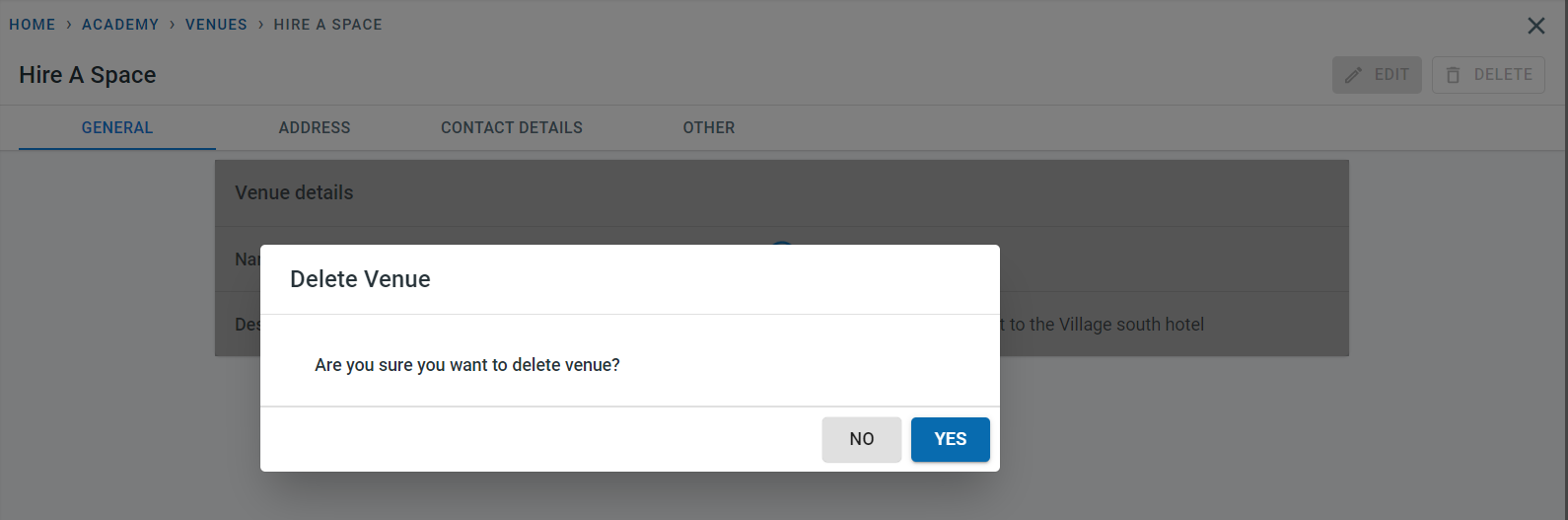
Once deleted, an acknowledgment message appears to confirm the deletion of the venue.