The data for the attendance report is fetched from the attendance module - the report is used to display the attendance and reservation data for the students for a class for a particular date range.
To access this report, Select " Attendance" under Reports from the main menu.
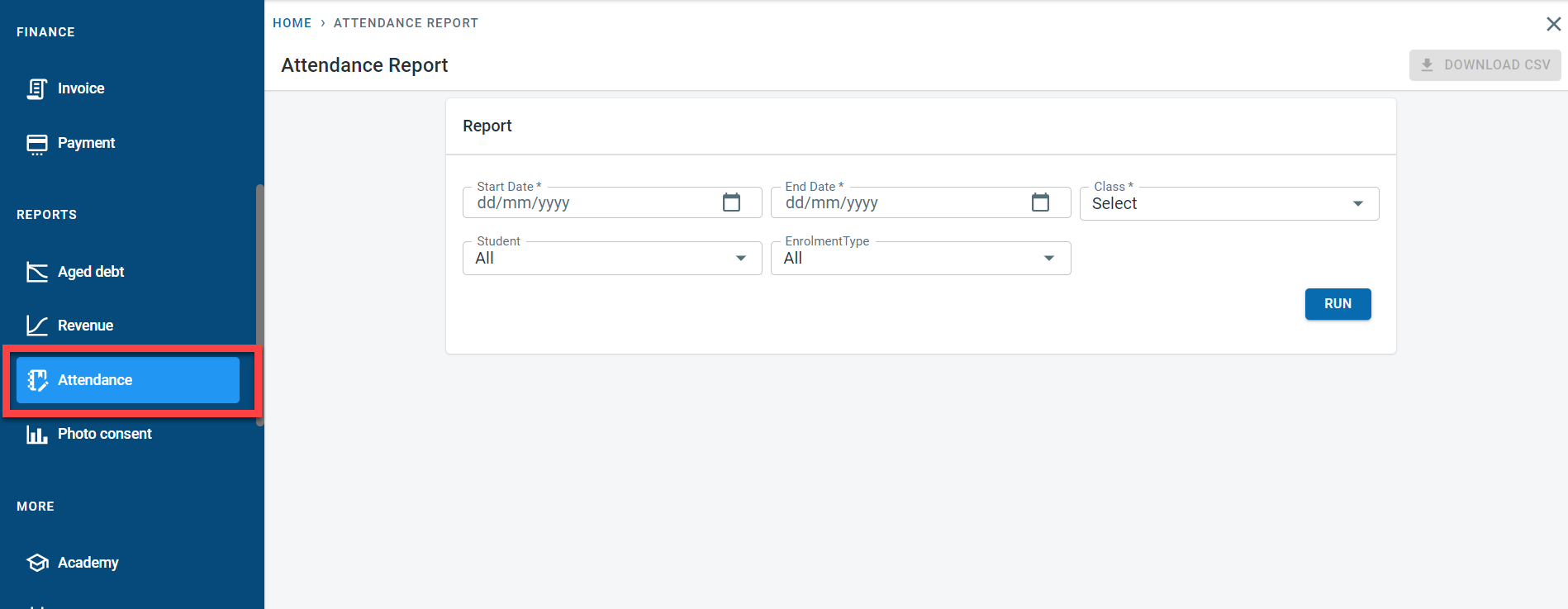
In the report, enter the date range for fetching the attendance data for the report. Enter the Class for which the report is to be executed. The above three fields are mandatory fields.
The report data can be further restricted by either selecting individual students or specific enrolment types.
If the “Record in and out time” was activated for the class , there will be a radio button for the class to show the actual in and out time for the students.
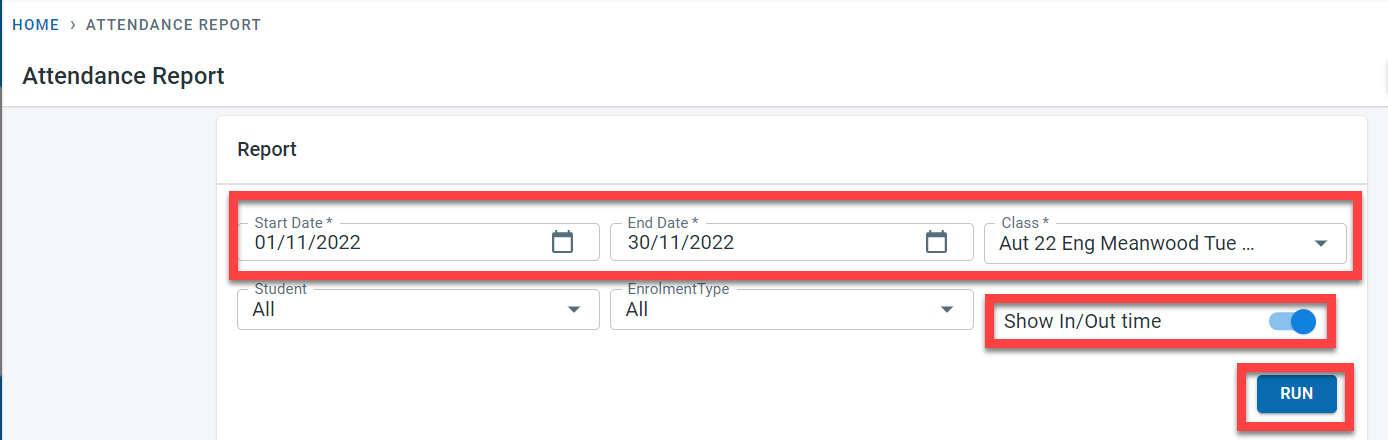
Click on “Run”
The report would display the students who have reserved and attended the class along with the enrolment type for the student.
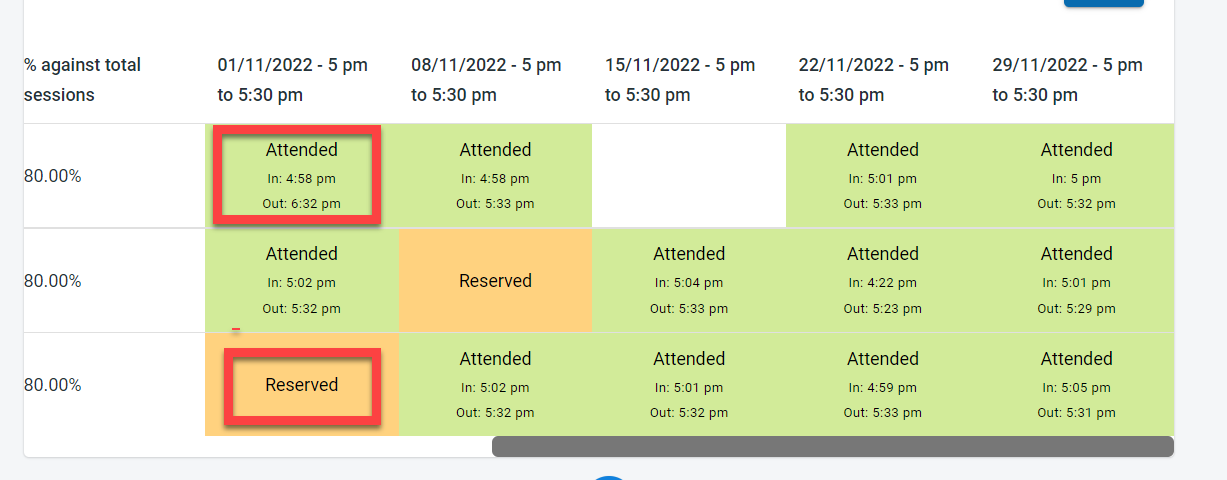
The % against total session is the percentage of classes attended by the student divided by the total number of sessions in the data range. In the image below, there were a total of 5 classes between the report execution date range and Sergio Perez attended only 4 classes so the % was 80%
The % against reserved is the percentage of classes attended by the student divided by the number of classes reserved in the report date range. In the image shown below, Sergio had reservations only for four classes and he attended all four so the value in this field is 100% for Sergio.
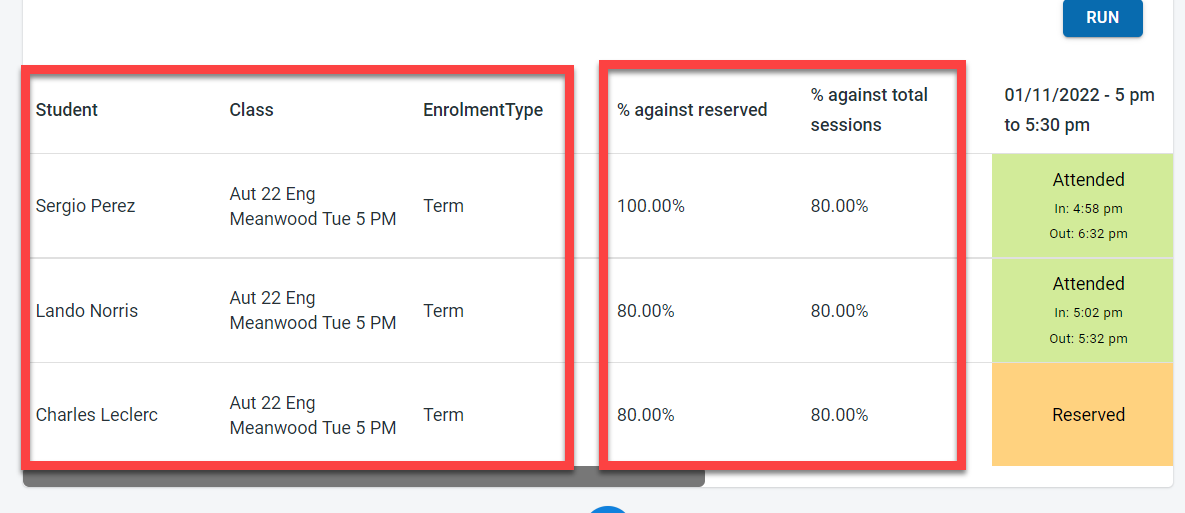
By scrolling to the right the report will display all the sessions between the date range selected.
If the session was not reserved by the student, the session for the student would be shown as blank. If the student has reserved a session but had not attended the session it will be displayed as “Reserved”. If the student attended the session, the session will be marked as “Attended” . If the “Show in/Out time” was selected for the class when executing the report, the in and out time for each student for the session will be displayed.
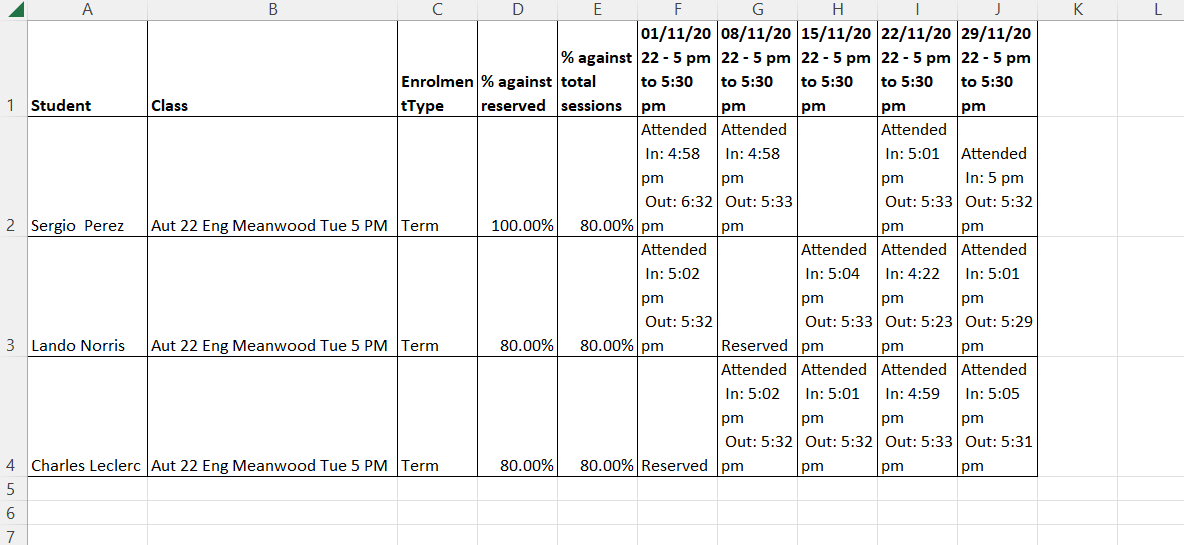
It is possible to download the report in CSV format, by clicking on the “DOWNLOAD CSV” on the screen.
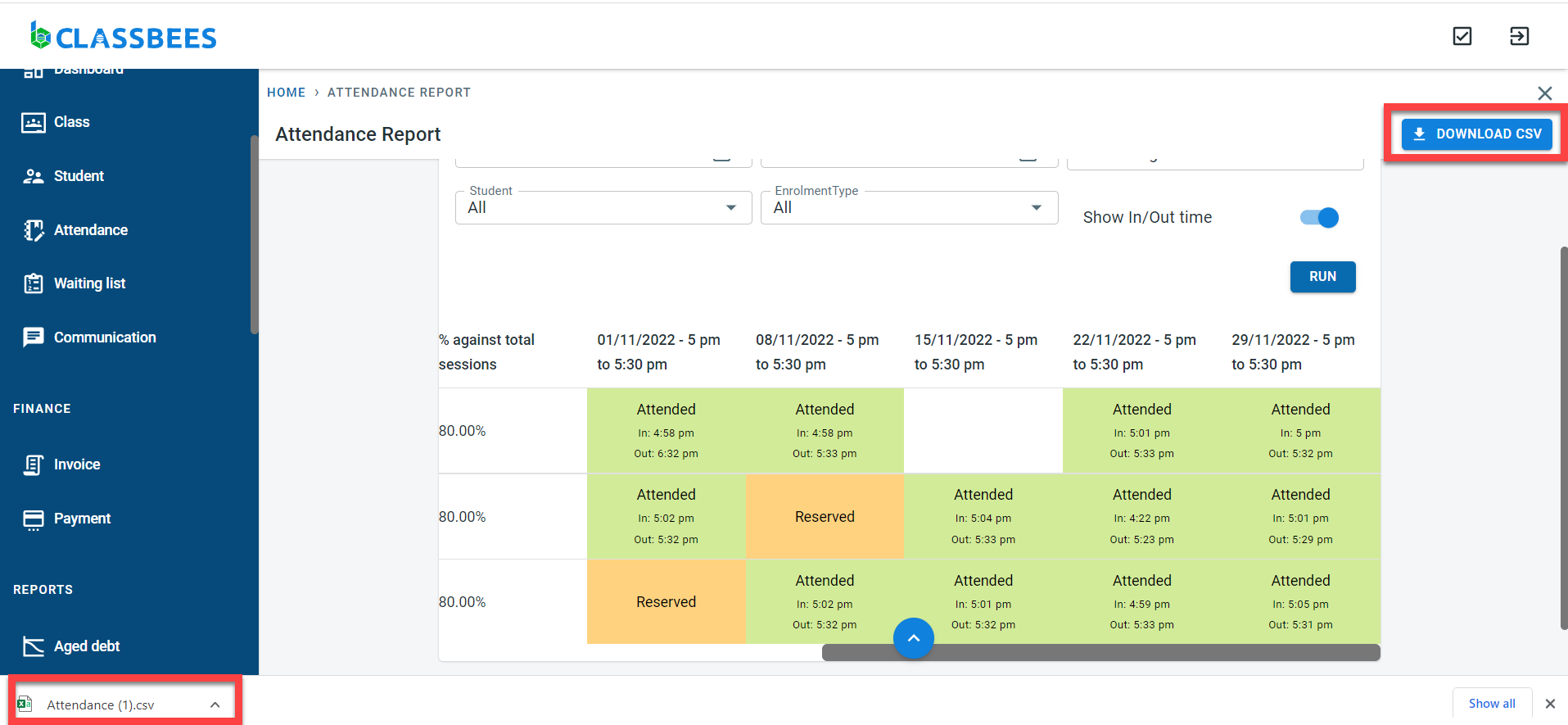
The CSV report downloaded for the above run is shown below