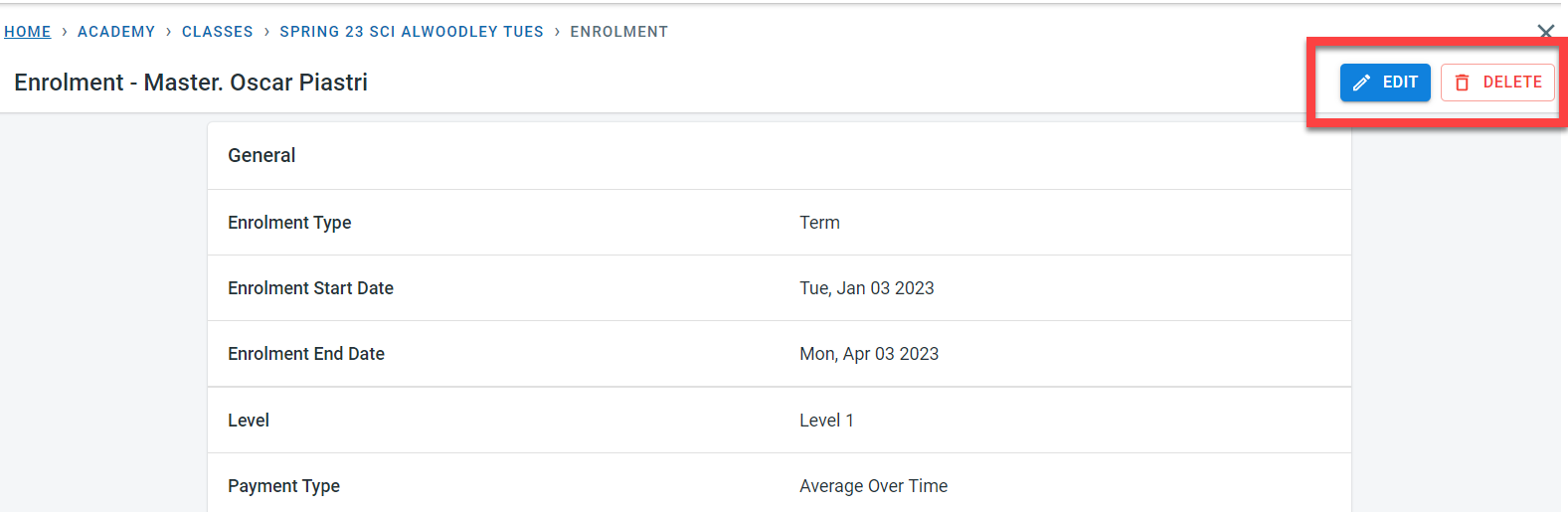
A student has to be enrolled in the class or activity that they attend. There are two ways to get to the student enrolment screen
Option 1 : Navigate from the Student who has to be enrolled into the class.
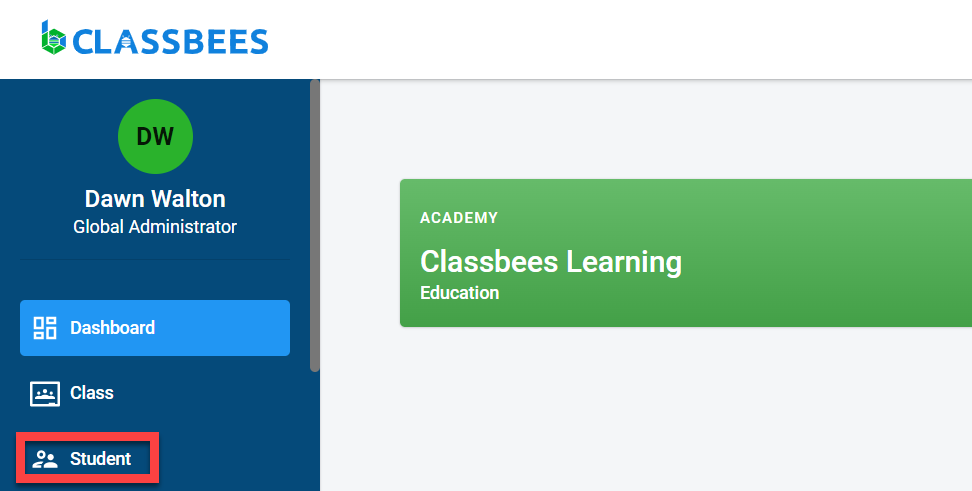
To access the student module, click on “Student” in the main menu.
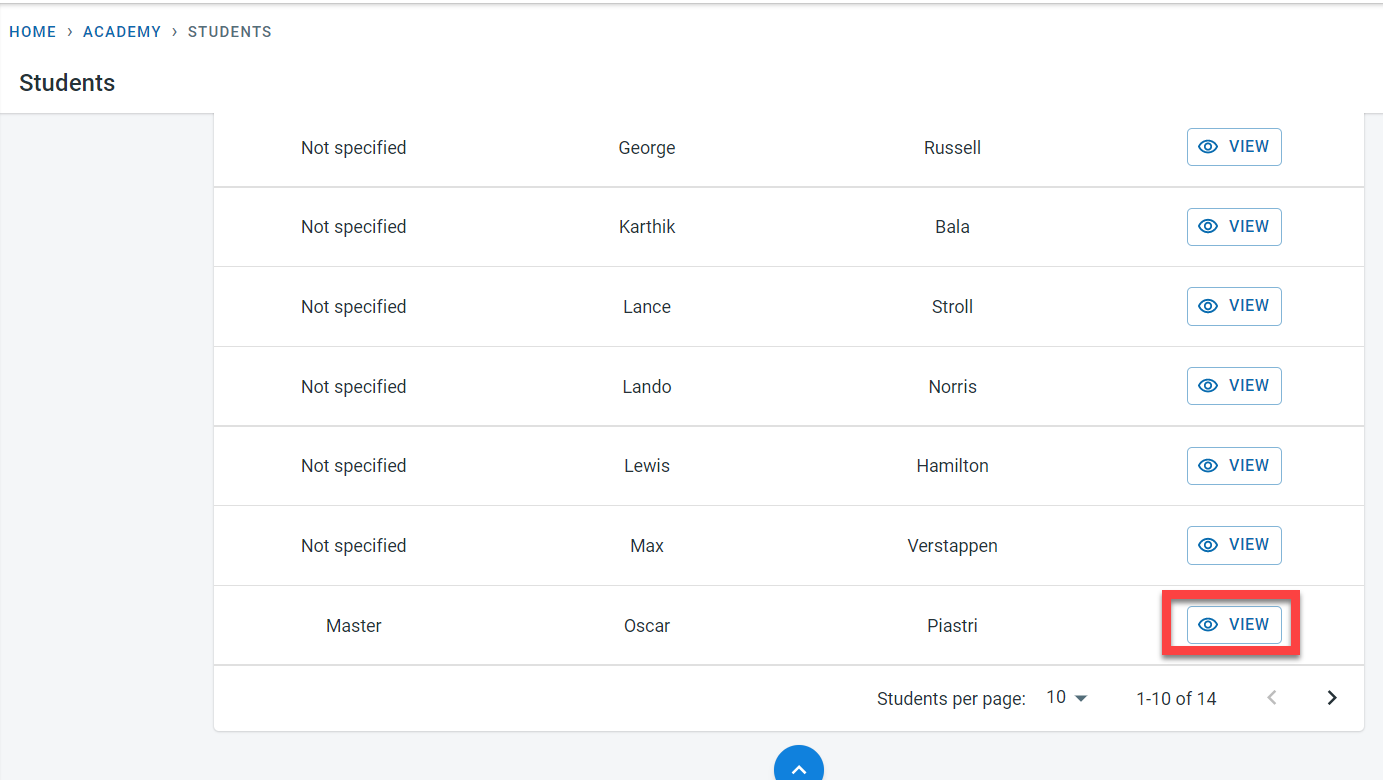
Click on “View” next to the student.
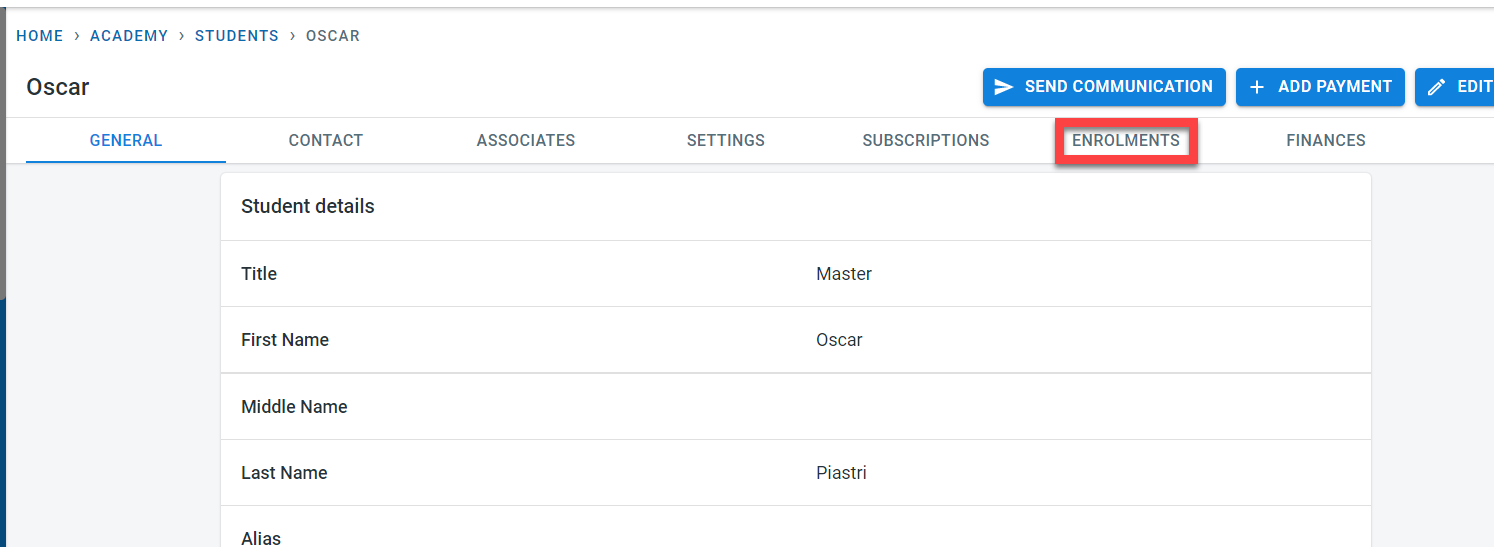
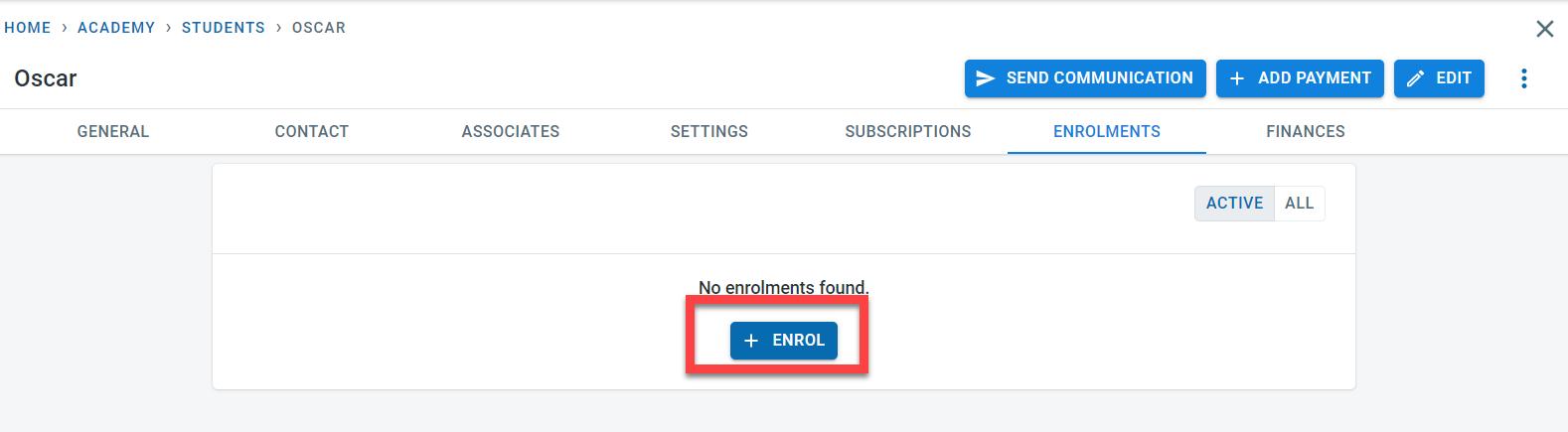
Click on “Enrolments”
Click on"Enrol"
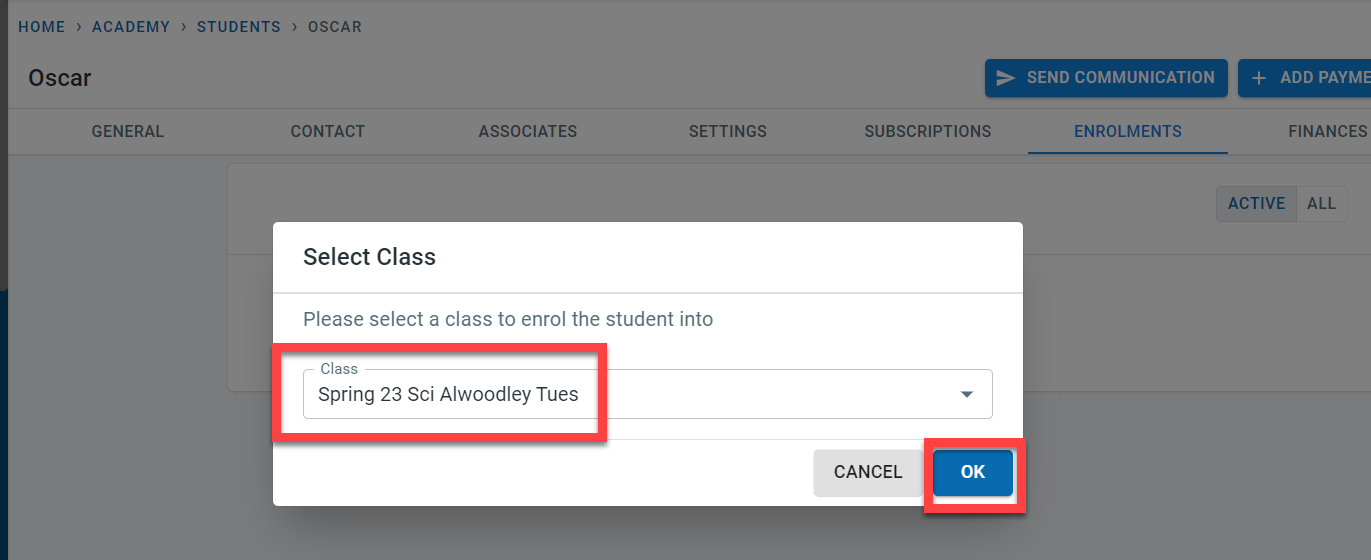
Select the class in which the student has to be enrolled to.
The enrolment screen will be displayed
Option 2: Navigate from the class to which the student has to be enrolled to.
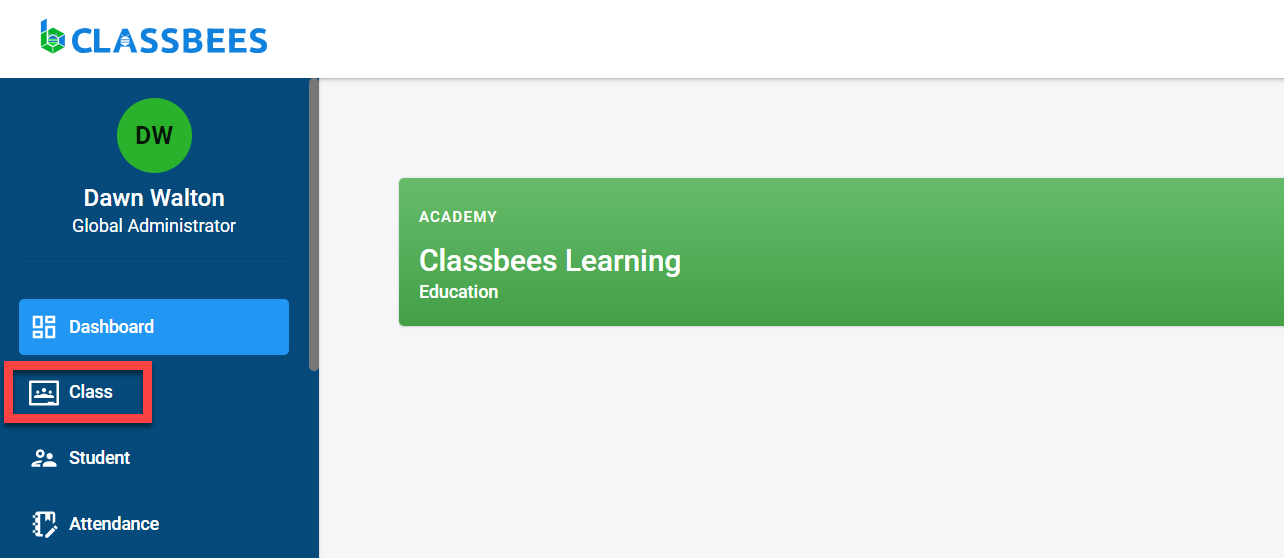
To access the class module, select “Class” from the main menu
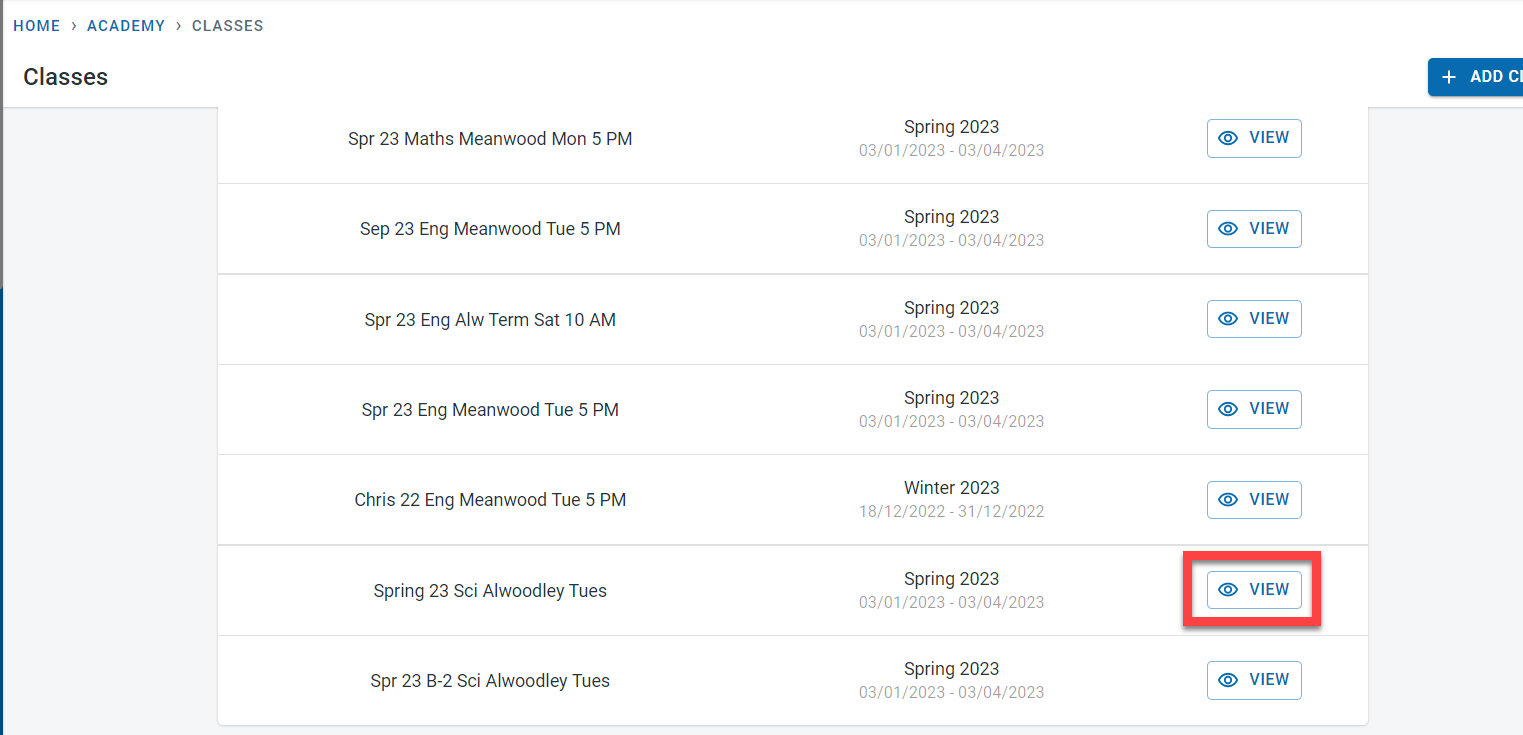
Click on “View” next to the class in which the student has to be enrolled to
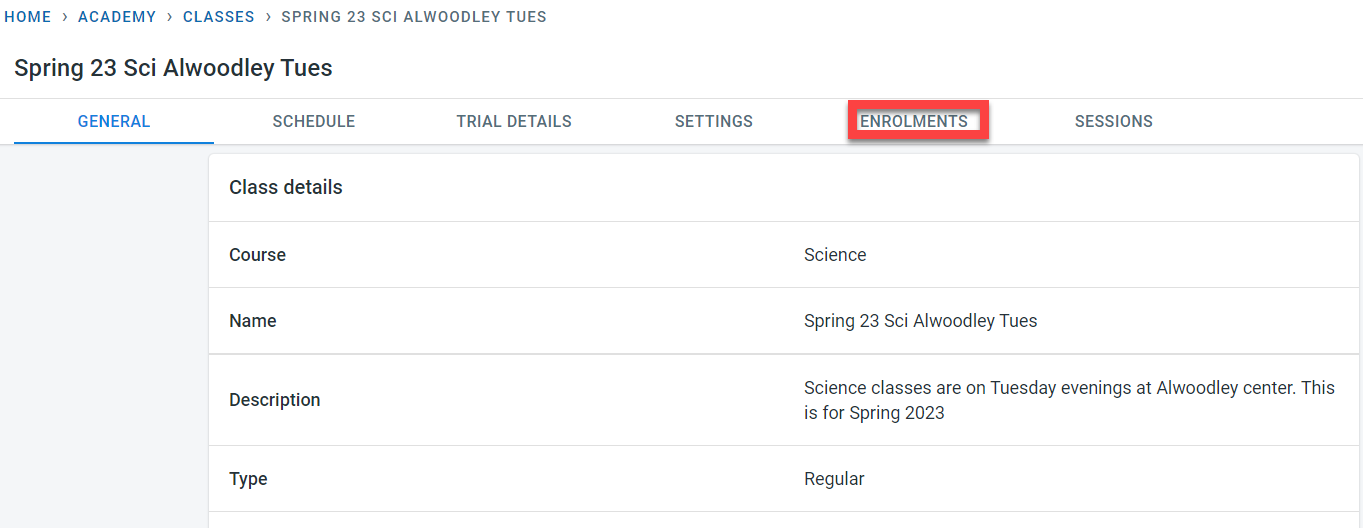
Click on “Enrolments”
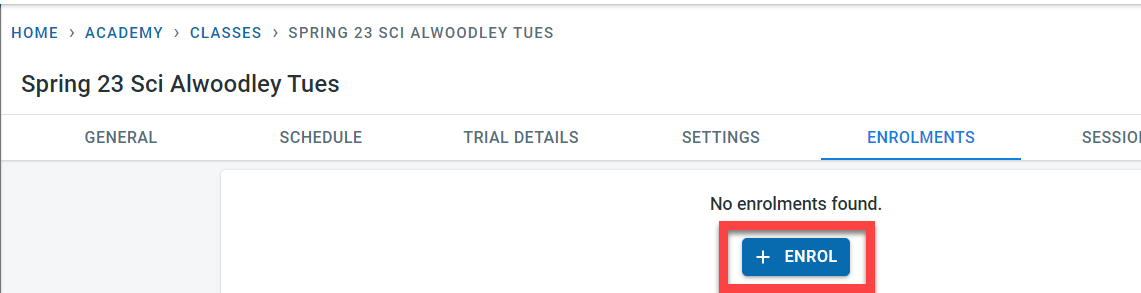
Click on “Enrol”
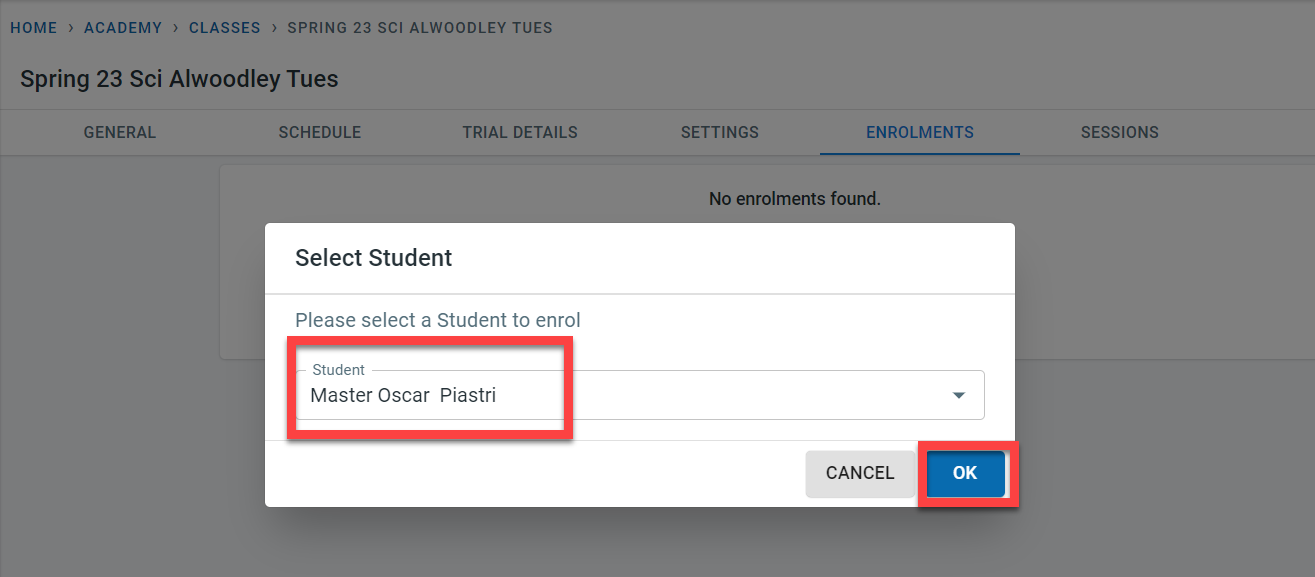
Select the student to be enrolled in the class
The enrolment screen will be displayed
Enrolment screen
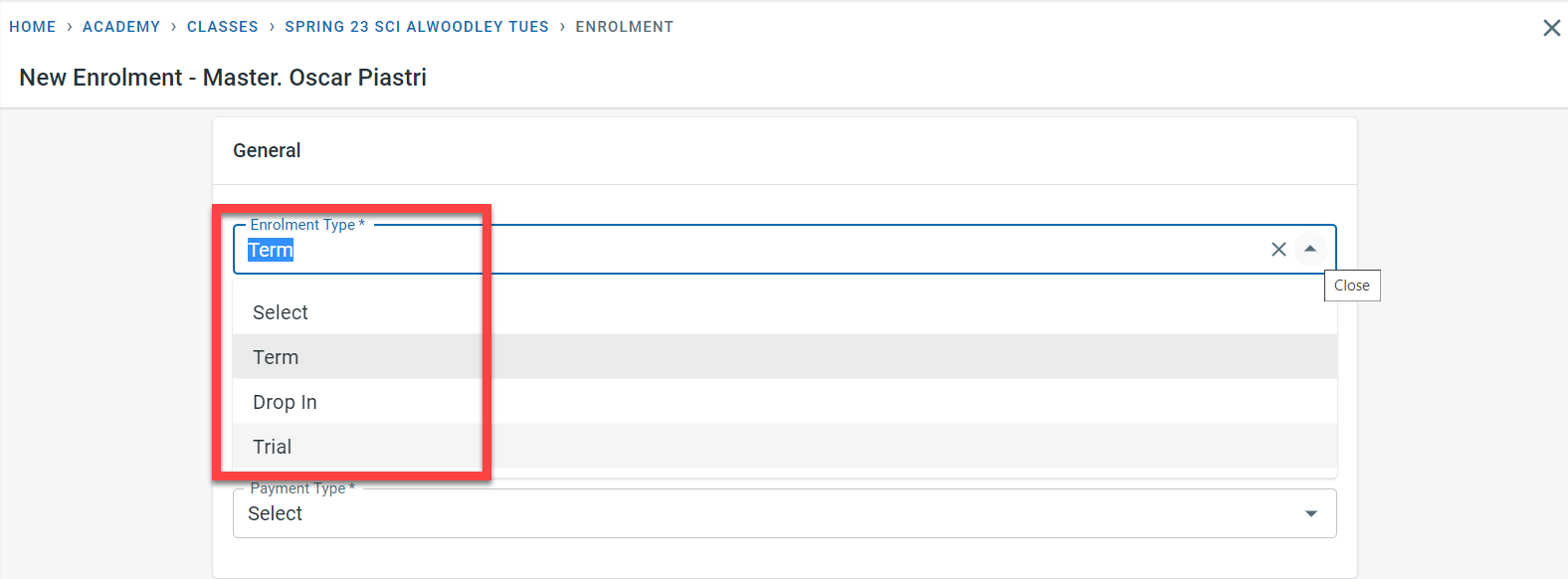
Enter the enrolment type for the student for the class. The available options here are :
- Term - student is enrolled for the term (whole or partial)
- Drop-in - Students would attend only certain classes in the term and not all the classes within the term
- Trial - Student is enrolled to attend a trial session
For term and Drop in, enter the start and end date for the student enrolment. By default, the term start and end date default to these fields but they can be amended if the student starts late in the class or finishes earlier than the term end date.
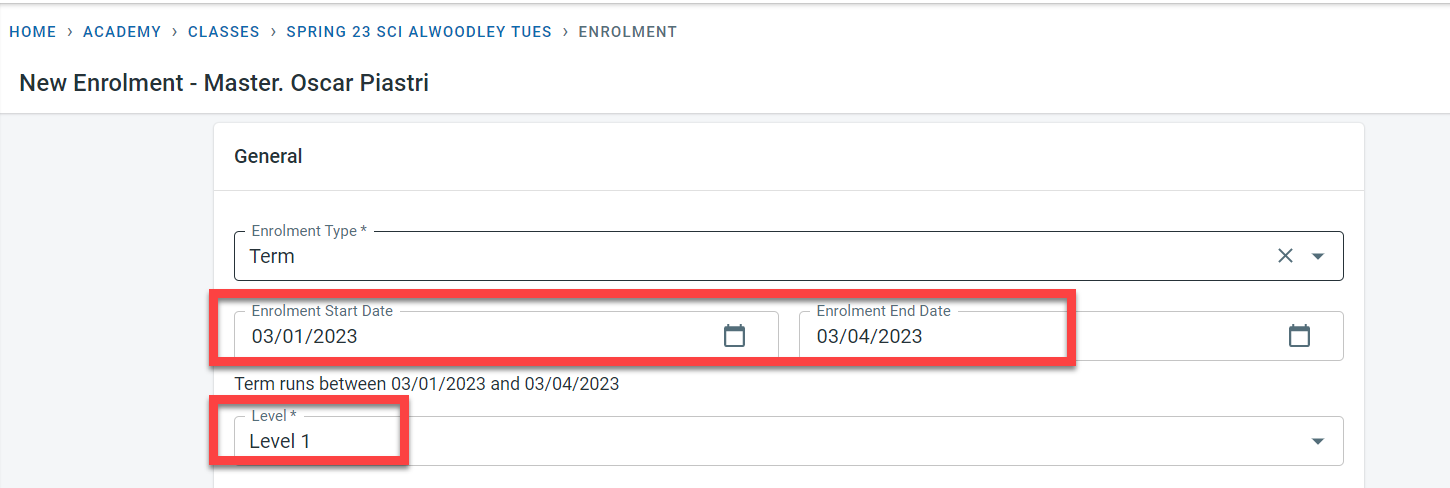
Enter the level to which the student has to be enrolled to for the class. The levels listed here are from the levels selected in the class-general tab.
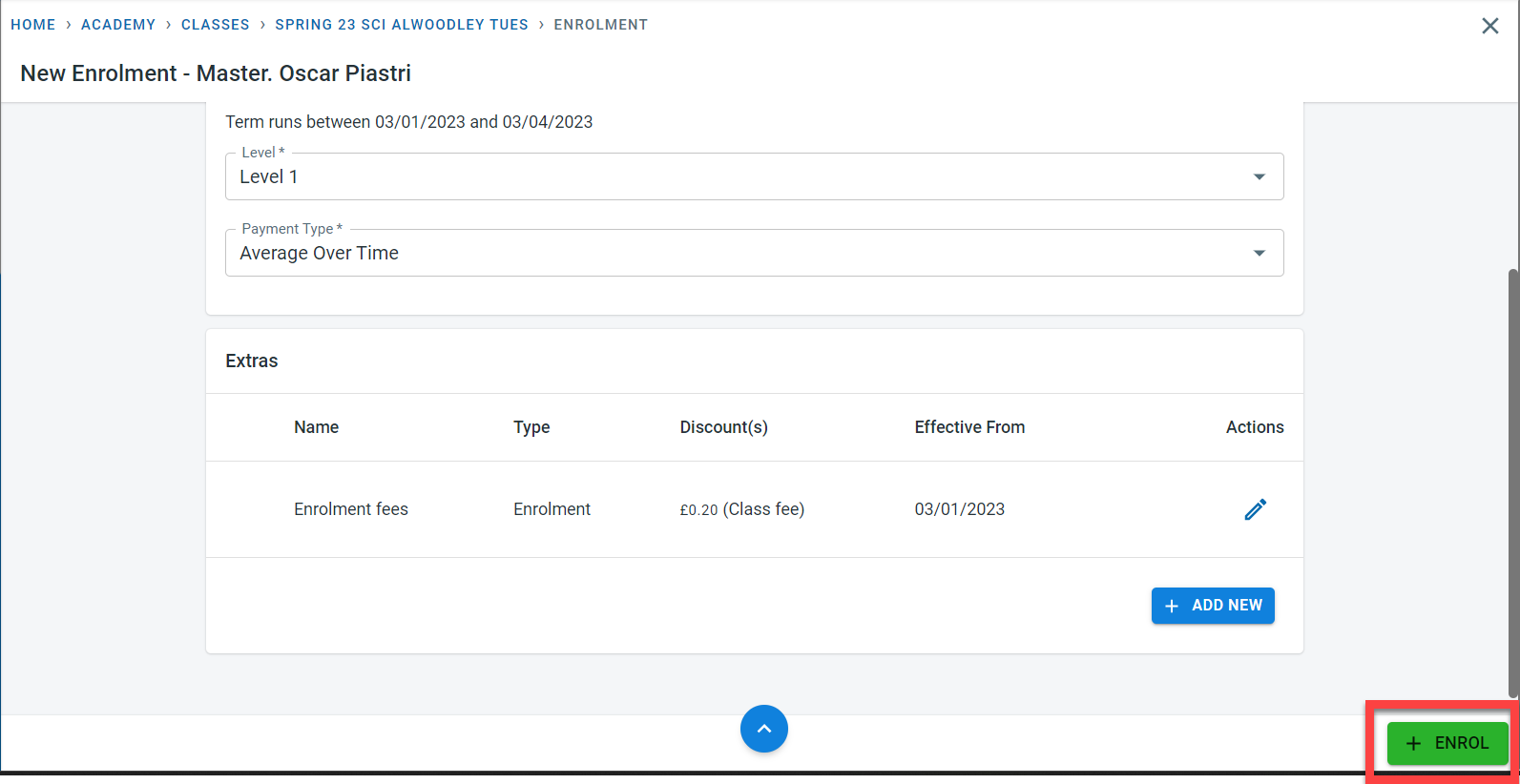
The next field in the enrolment screen is the payment type. the values that can be entered in this field are dependent on the enrolment type of the student.
For term enrolment type, there are four payment types available
- Average over time - The term fees are averaged out to equal amounts that will be invoiced in periodic intervals defined in the class invoice settings
- Actual sessions - for this payment type, the invoice is calculated for the actual sessions that happen within the invoice period. The term fees is divided by the number of sessions in the term to get the cost per session. The cost per session is multiplied by the number of sessions in the invoice period to get the total invoice amount
- One time - for this payment type the whole term fees is raised as one invoice
- Subscription - This option would be visible only if subscription fees is defined within the class
For drop-in and trial enrolment types, there is only one payment option available
- Actual sessions - For the invoice period, the invoice will pick up only the classes that the student has reserved (or attended based on the invoice setting- Use attendance for drop-in enrolment)
Extras - extras can be added during student enrolment - details as t how this can be done are available in Getting Started- Extras and Discounts.
Click on “Enrol”
A success message would be displayed once the student is enrolled in the class.
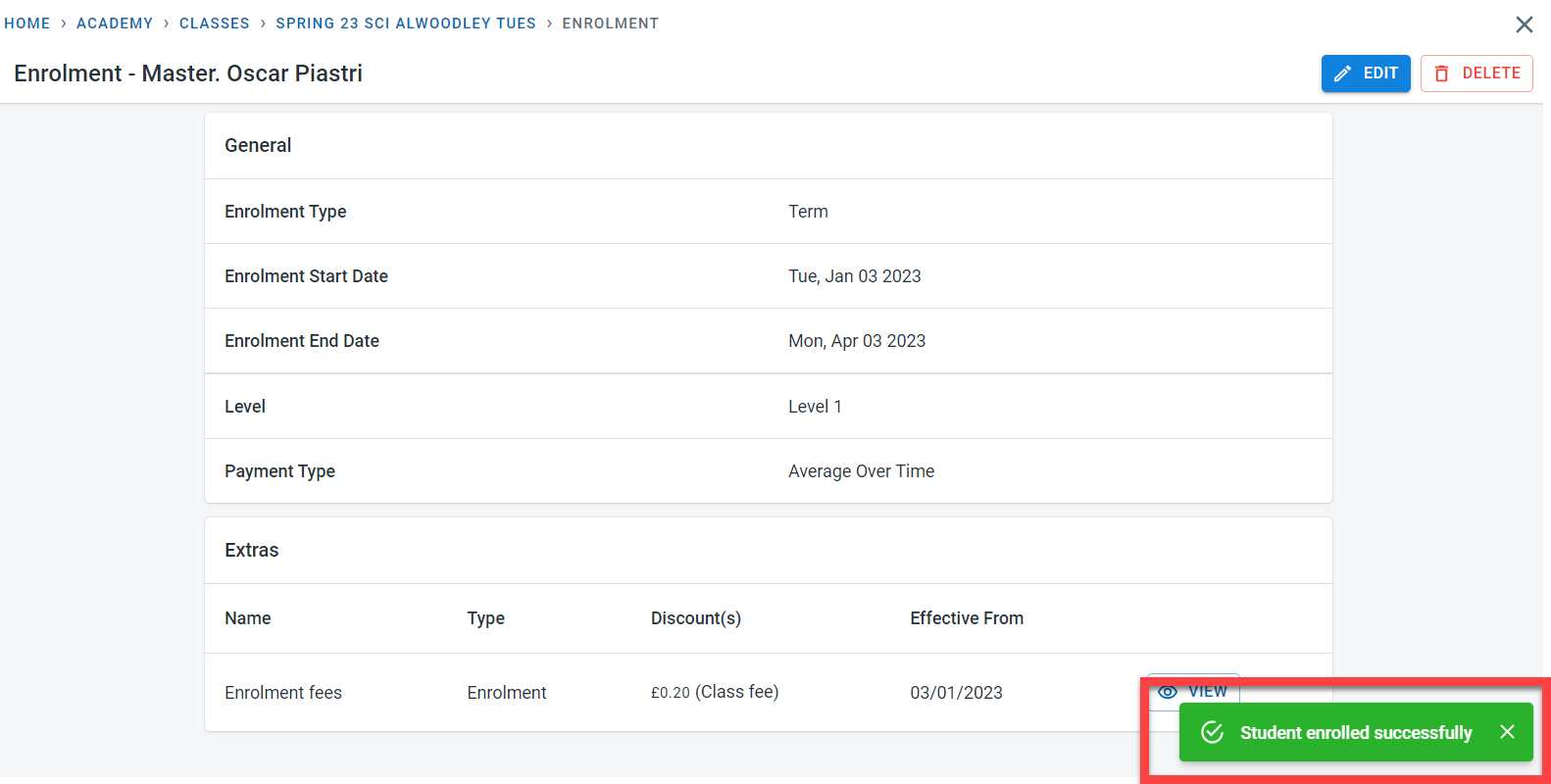
The student enrolment to the class can be amended or deleted from the enrolment screen.