Reservation is used to reserve the space for a student in a session. Reservations form the basis for attendance and also are used in invoice generation for drop-in sessions. Reservations can be managed either at
Based on the enrolment type, reservations are either automatically created or have to be manually created for the student
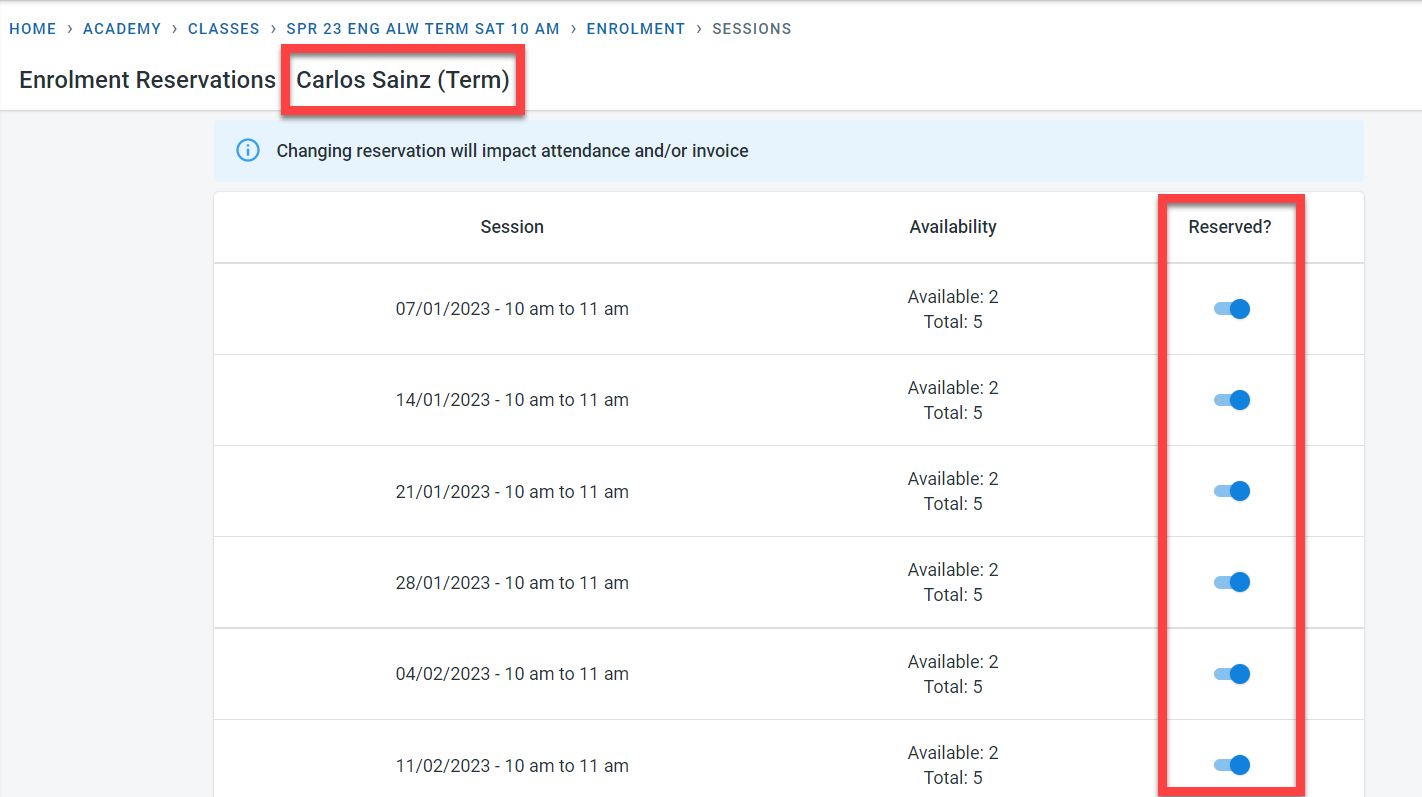
- For term enrolment of the student, a reservation is automatically created for all the sessions in the class enrolled.
- For Pay as you go, block booking, and trial enrolments, the sessions have to be reserved for the student in the class.
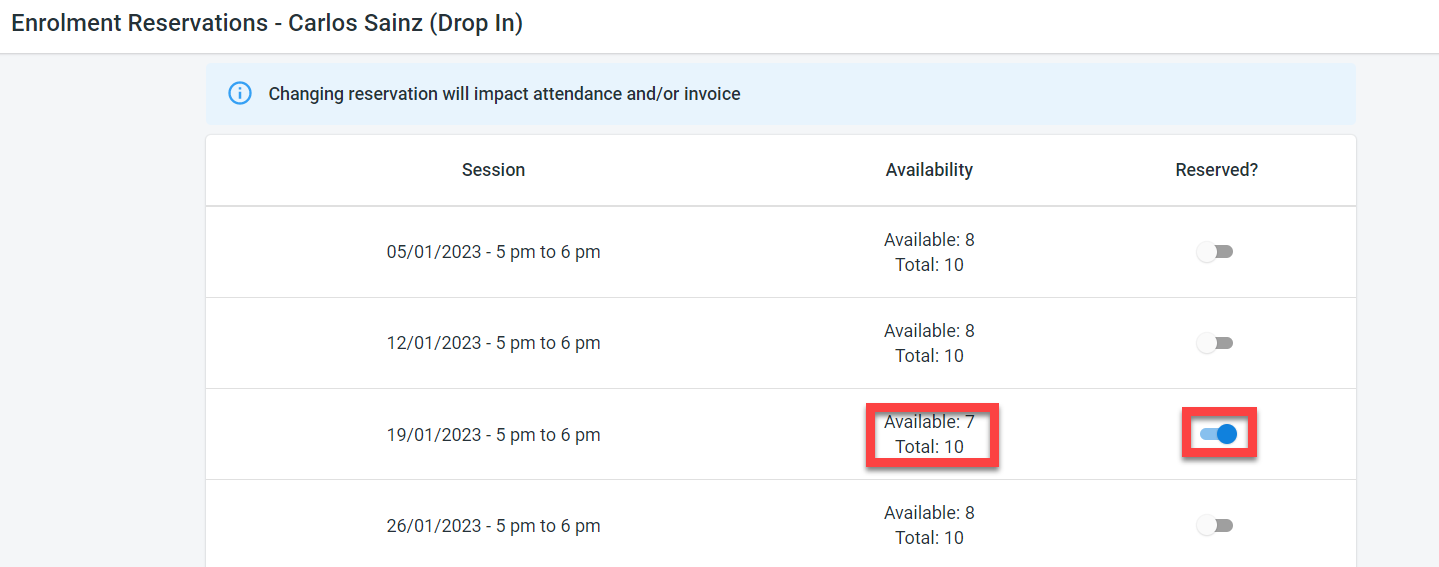
When the session is reserved for a student, the available capacity for the session or trial will be reduced by one.
Reservation for Student
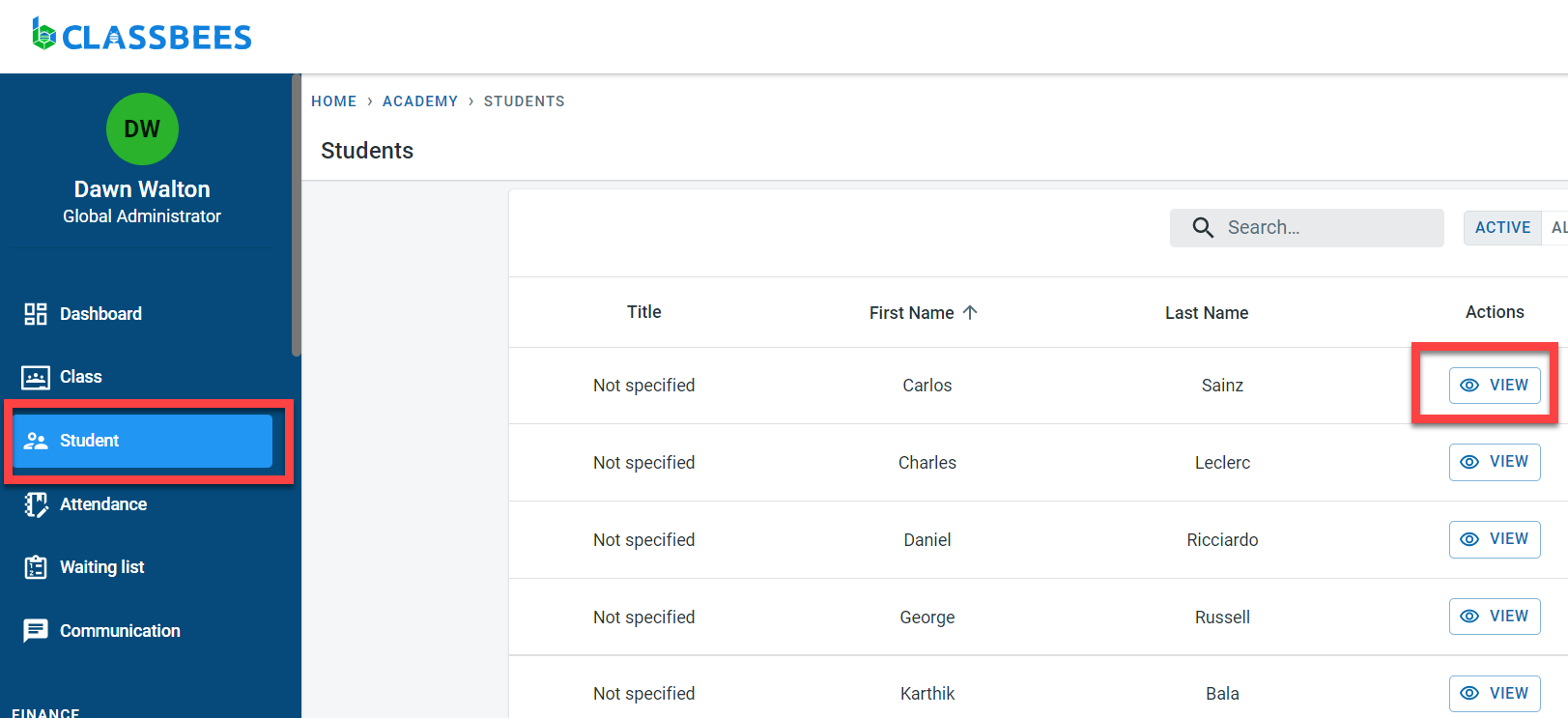
To view or enable a reservation for the student, select the student module from the dashboard. Click on “View” next to the student
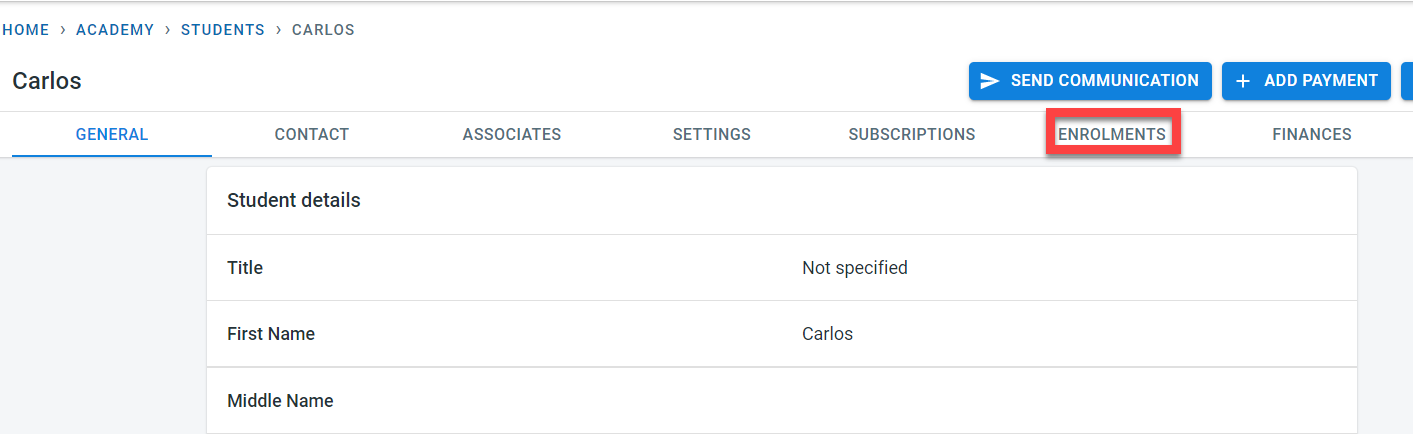
Click on the “Enrolments” tab
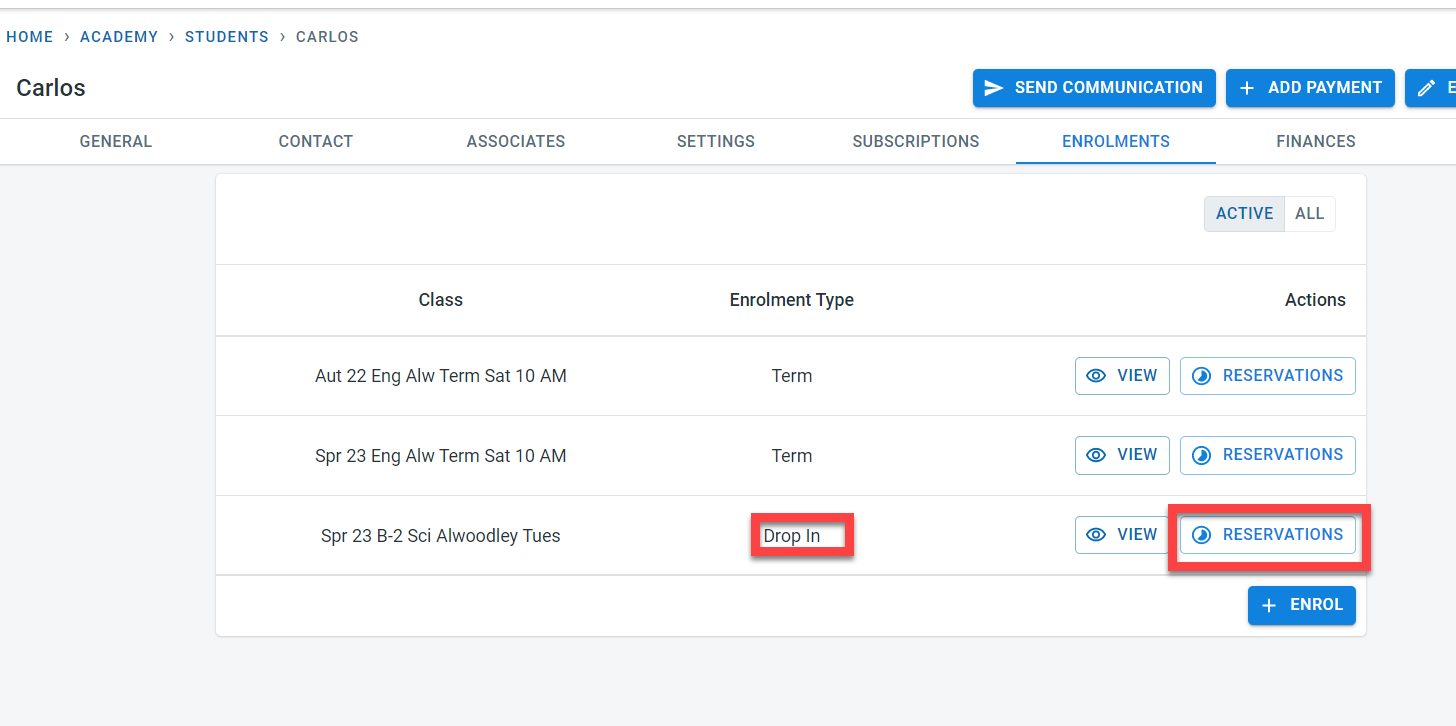
The class that the student is enrolled in and the enrolment type will be visible on this screen. Click on “Reservations” to view or amend the reservation for the student in that class.
For term enrolment type, all sessions in the class are reserved automatically for the student
For Pay as you go, block booking, and trial enrolment types, the sessions have to be manually reserved. Click on “Reservation” next to the class
No sessions will be reserved for the above-mentioned enrolment types.
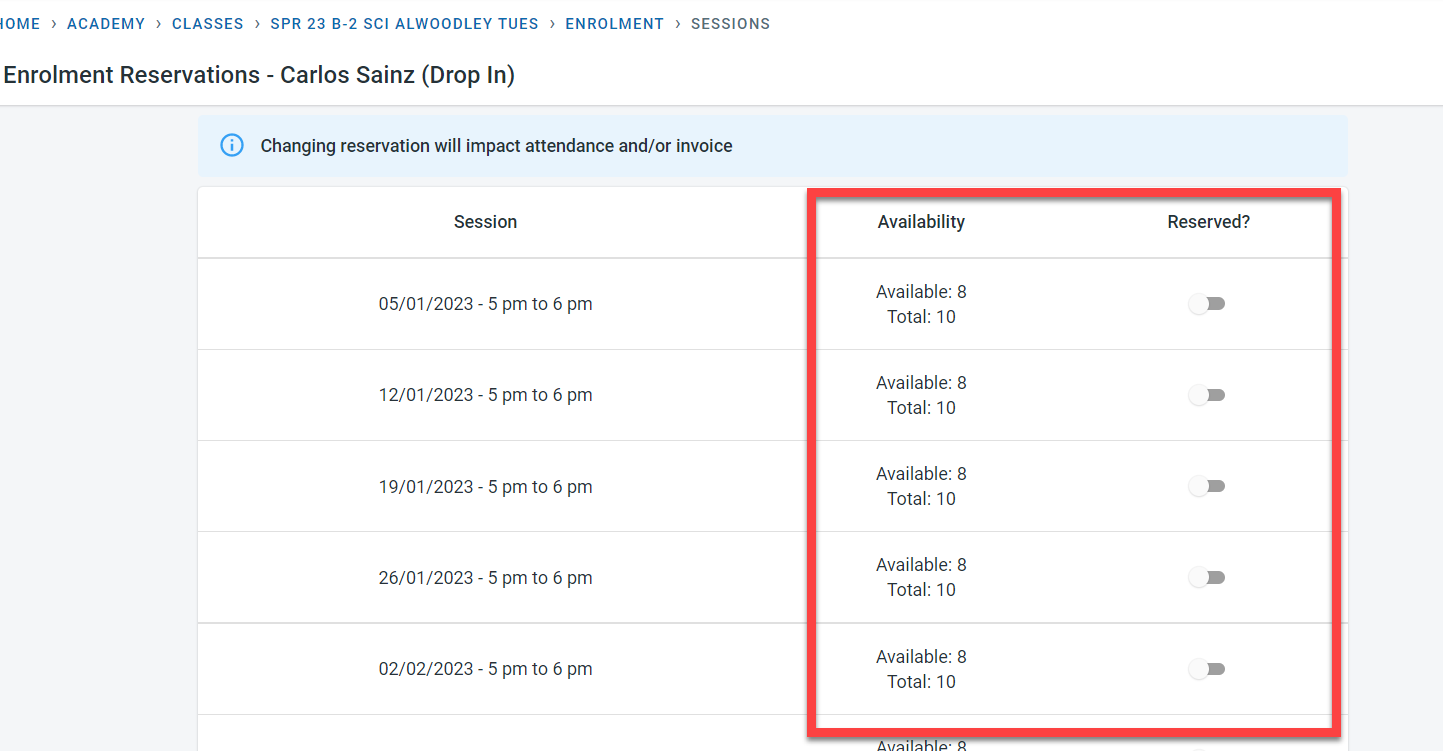
Click on the reserved toggle switch for the sessions that the student intends to attend - this would reserve the session and would reduce the available capacity of the session by one.
Reservation at individual sessions
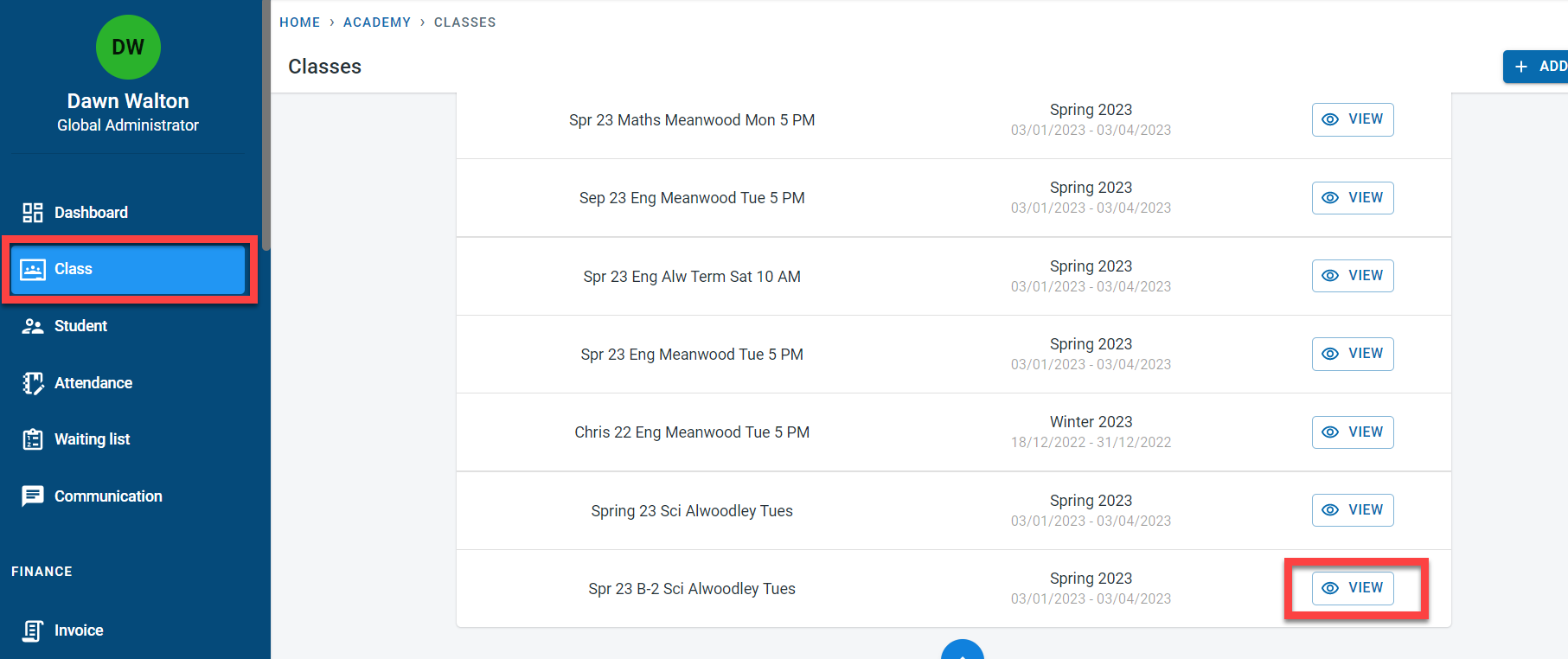
In order to view the reservation at the class level, select the class module. Click on “View” next to the class
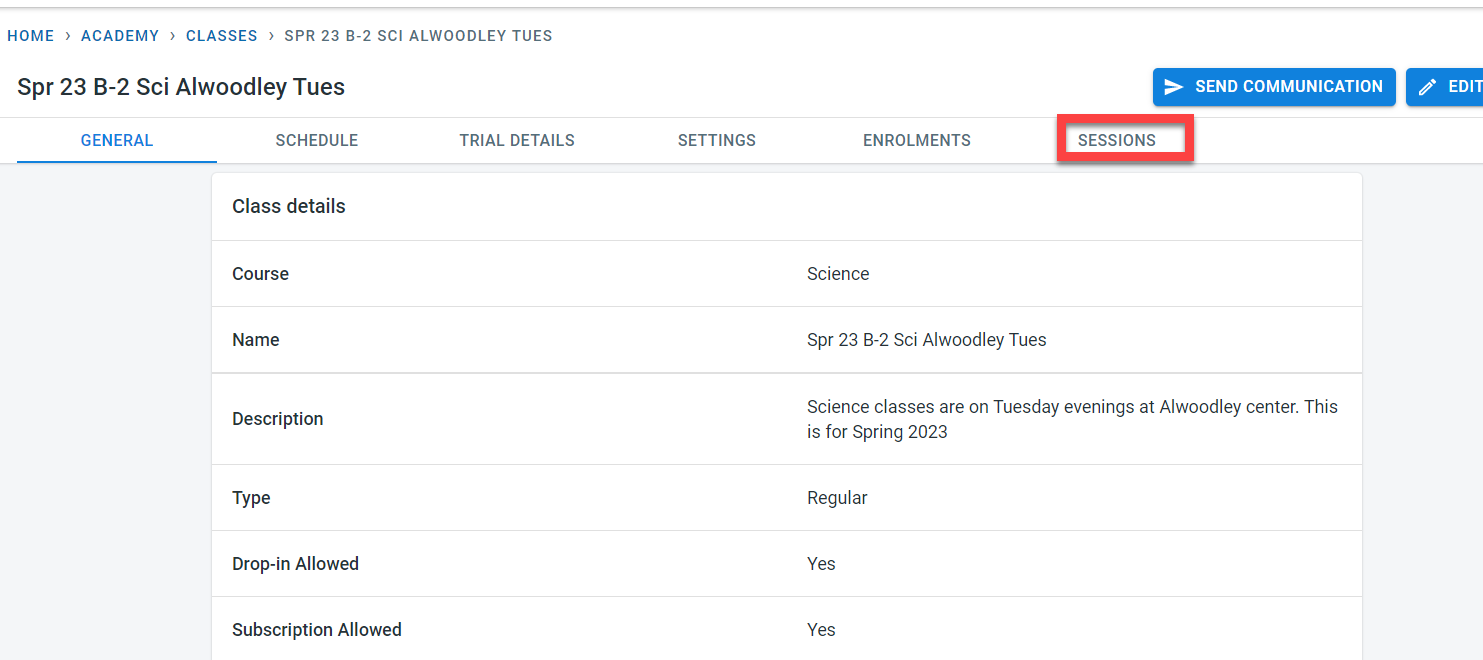
Click on “Sessions”
Click on “Reservation” next to a session
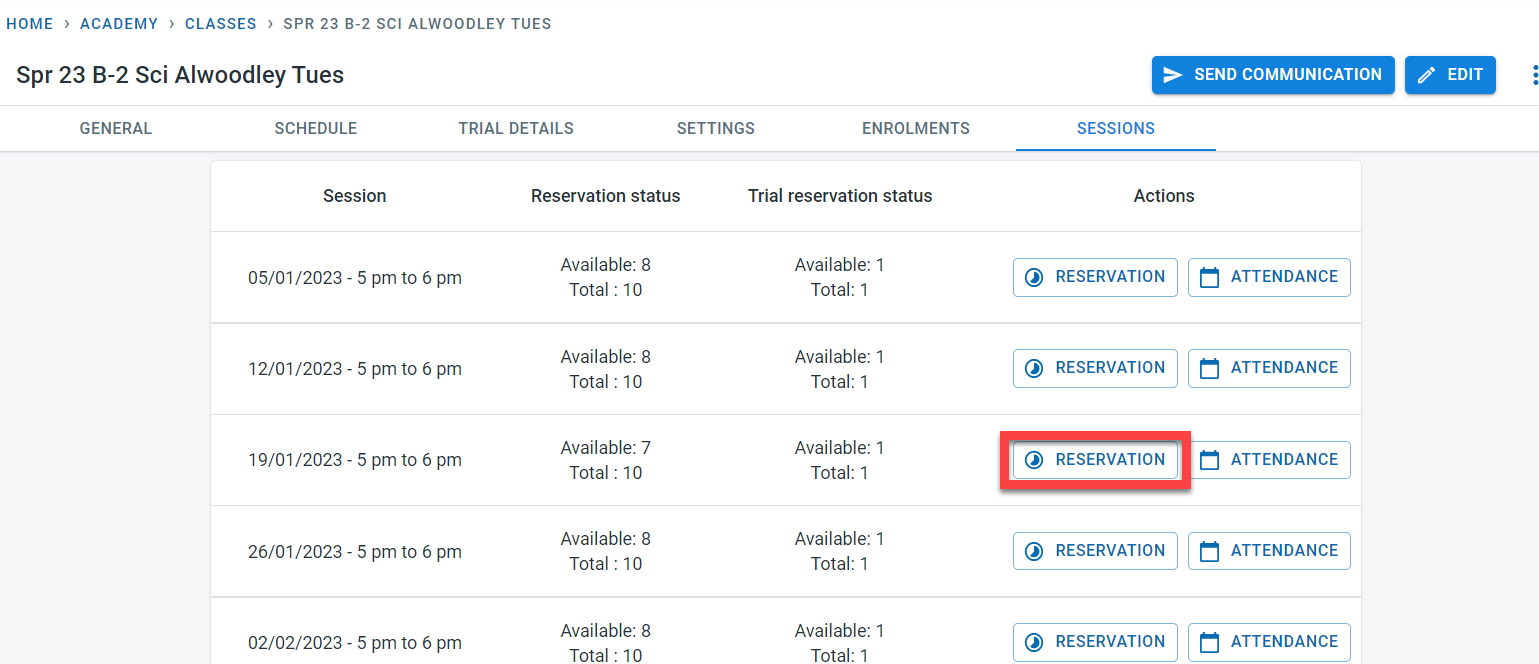
It is possible to see the students enrolled in the session along with the enrolment type. It is possible to amend the reservation of the student in the session over here.